WYSIWYGなnicEditのパネルのアイコンを大きくする
nicEditのパネルのアイコンが小さすぎてスマホでの操作が困難すぎるので大きくした。
nicEditにはパネルサイズを指定する方法もあるようだけどパネル全体の大きさ(面積)は変わってもアイコンのサイズは変わらなかった。
もっといい方法があるのかもしれないけど、nicEditにサイズを指定するオプションを追加した。
環境
サーバ側
- ubuntu 22.04 LTS
- Apache/2.4.54 (Debian)
- NicEdit 日本語版 2016年11月28日
クライアント側
- windows10 Pro
- Chrome 131.0.6778.266(Official Build) (64 ビット)
nicEditにオプションを追加
まずは、オプションの追加。オプションに赤字の buttonSizeを追加し、デフォルトは18(px)に。
var nicEditorConfig = bkClass.extend({
        buttons : {
                'bold' : {name : '強調(太字)', command : 'Bold', tags : ['B','STRONG'], css : {'font-weight' : 'bold'}, key : 'b'},
                'italic' : {name : '強調(イタリック)', command : 'Italic', tags : ['EM','I'], css : {'font-style' : 'italic'}, key : 'i'},
                'underline' : {name : '下線', command : 'Underline', tags : ['U'], css : {'text-decoration' : 'underline'}, key : 'u'},
                'left' : {name : '左寄せ', command : 'justifyleft', noActive : true},
                'center' : {name : '中央揃え', command : 'justifycenter', noActive : true},
                'right' : {name : '右寄せ', command : 'justifyright', noActive : true},
                'justify' : {name : '両端揃え', command : 'justifyfull', noActive : true},
                'ol' : {name : '番号リスト', command : 'insertorderedlist', tags : ['OL']},
                'ul' :  {name : 'リスト', command : 'insertunorderedlist', tags : ['UL']},
                'subscript' : {name : '下付き文字', command : 'subscript', tags : ['SUB']},
                'superscript' : {name : '上付き文字', command : 'superscript', tags : ['SUP']},
                'strikethrough' : {name : '取り消し線', command : 'strikeThrough', css : {'text-decoration' : 'line-through'}},
                'removeformat' : {name : '全ての装飾を削除', command : 'removeformat', noActive : true},
                'indent' : {name : 'インデント', command : 'indent', noActive : true},
                'outdent' : {name : 'インデント解除', command : 'outdent', noActive : true},
                'hr' : {name : '区切り線', command : 'insertHorizontalRule', noActive : true},
                'undo' : {name : '取り消し', command : 'undo', noActive : true},
                'redo' : {name : 'やり直し', command : 'redo', noActive : true}
        },
        iconsPath : 'auto',
        convertToText : true,
        keepBrTags : false,
        buttonList : ['save','bold','italic','underline','left','center','right','ol','ul','fontSize','fontFamily','fontFormat','indent','outdent','image','upload','link','unlink','forecolor','bgcolor','undo','redo'],
        iconList : {"xhtml":1,"bgcolor":2,"forecolor":3,"bold":4,"center":5,"hr":6,"indent":7,"italic":8,"justify":9,"left":10,"ol":11,"outdent":12,"removeformat":13,"right":14,"save":25,"strikethrough":16,"subscript":17,"superscript":18,"ul":19,"underline":20,"image":21,"link":22,"unlink":23,"clos\
e":24,"arrow":26,"undo":27,"redo":28,"upload":29},
        externalCSS : '',
        buttonSize : 18 // kirin
});
オプションの処理でアイコンサイズとアイコンのエリアのサイズを計算。
var nicEditor = bkClass.extend({
        construct : function(o) {
                if (typeof o == 'undefined') {
                        o = {fullPanel : true, xhtml : true};
                } else {
                        if (typeof o.xhtml == 'undefined') o.xhtml = true;
                        if (o.panelType != null) {
                                if (o.panelType == 'full') {
                                        o.fullPanel = true;
                                } else if (o.panelType == 'nostyle') {
                                        o.xhtml = true;
                                        o.buttonList = ['bold','italic','ol','ul','fontFormat','link','unlink','subscript','superscript','strikethrough','removeformat','hr','undo','redo'];
                                } else if (o.panelType == 'noimage') {
                                        o.buttonList = ['bold','italic','underline','left','center','right','ol','ul','fontSize','fontFamily','fontFormat','indent','outdent','link','unlink','forecolor','bgcolor','subscript','superscript','strikethrough','removeformat','hr','undo','redo'];
                                } else if (o.panelType == 'mini') {
                                        o.buttonList = ['bold','italic','left','center','right','ol','ul','link','unlink','removeformat','hr','undo','redo'];
                                } else if (o.panelType == 'nostylemini') {
                                        o.xhtml = true;
                                        o.buttonList = ['bold','italic','ol','ul','link','unlink','removeformat','hr','undo','redo'];
                                }
                        }
                        if (typeof o.buttonList == 'undefined' && !o.fullPanel) o.fullPanel = true;
                }
                this.options = new nicEditorConfig();
                bkExtend(this.options,o);
                this.nicInstances = new Array();
                this.loadedPlugins = new Array();

                var plugins = nicEditors.nicPlugins;
                for(var i=0;i<plugins.length;i++) {
                        this.loadedPlugins.push(new plugins[i].p(this,plugins[i].o));
                }
                nicEditors.editors.push(this);
                bkLib.addEvent(document.body,'mousedown', this.selectCheck.closureListener(this) );

                buttonSize = this.options.buttonSize; // kirin
                buttonContainerSize = buttonSize + 2; // kirin

        },

        panelInstance : function(e,o) {
計算したサイズを適用。
        getIcon : function(iconName,options) {
                var icon = this.options.iconList[iconName];
                var file = (options.iconFiles) ? options.iconFiles[iconName] : '';
                if (this.options.iconsPath != null && this.options.iconsPath == 'auto') {
                        this.options.iconsPath = 'nicEditorIcons.gif';
                        var scripts = document.getElementsByTagName('script');
                        for (var i=0; i<scripts.length; i++) {
                                if (scripts[i].src != null && scripts[i].src.search(/nicEdit\.js$/) != -1) {
                                        this.options.iconsPath = scripts[i].src.replace('nicEdit.js','nicEditorIcons.gif');
                                        break;
                                }
                        }
                }
                // kirin // return {backgroundImage : "url('"+((icon) ? this.options.iconsPath : file)+"')", backgroundPosition : ((icon) ? ((icon-1)*-18) : 0)+'px 0px'};
                return {backgroundImage : "url('"+((icon) ? this.options.iconsPath : file)+"')", backgroundPosition : ((icon) ? ((icon-1)*-buttonSize) : 0)+'px 0px'};
ここも計算したサイズを適用。
var nicEditorButton = bkClass.extend({

        construct : function(e,buttonName,options,nicEditor) {
                this.options = options.buttons[buttonName];
                this.name = buttonName;
                this.ne = nicEditor;
                this.elm = e;

                this.margin = new bkElement('DIV').setStyle({'float' : 'left', marginTop : '2px'}).appendTo(e);
                // kirin // this.contain = new bkElement('DIV').setStyle({width : '20px', height : '20px'}).addClass('buttonContain').appendTo(this.margin);
                this.contain = new bkElement('DIV').setStyle({width : buttonContainerSize+'px', height : buttonContainerSize+'px'}).addClass('buttonContain').appendTo(this.margin);
                this.border = new bkElement('DIV').setStyle({backgroundColor : '#efefef', border : '1px solid #efefef'}).appendTo(this.contain);
                // kirin // this.button = new bkElement('DIV').setStyle({width : '18px', height : '18px', overflow : 'hidden', zoom : 1, cursor : 'pointer'}).addClass('button').setStyle(this.ne.getIcon(buttonName,options)).appendTo(this.border);
                this.button = new bkElement('DIV').setStyle({width : buttonSize+'px', height : buttonSize+'px', overflow : 'hidden', zoom : 1, cursor : 'pointer'}).addClass('button').setStyle(this.ne.getIcon(buttonName,options)).appendTo(this.border);
                this.button.addEvent('mouseover', this.hoverOn.closure(this)).addEvent('mouseout',this.hoverOff.closure(this)).addEvent('mousedown',this.mouseClick.closure(this)).noSelect();

                if(!window.opera) {
使ってみる
主なファイルの構成は下記の通り。
├── memo-edit.html
├── memo-edit.css
├── memo-edit.js
├── nicEdit_ja/
│ ├── nicEdit.js
│ ├── nicEditorIcon+upload-x1.gif
│ ├── nicEditorIcon+upload-x2.gif
│ ├── nicEditorIcon+upload-x3.gif
│ ├── nicEditorIcon+upload-x4.gif
│ ├── nicEditorIcon+upload.gif
│ ├── upload.php
htmlファイル(memo-edit.html)。nicEditのパネルを置くDIV要素(id="nicPanel")とテキストを書くtextarea要素(id="nicText")を配置。フローティングの為にパネルの親のDIV要素(id="header")も配置。
<html>
  <head>
    <meta http-equiv="Content-Type" content="text/html;charset=UTF-8" />
    <script src="nicEdit_ja/nicEdit.js" type="text/javascript"></script>
    <script src="memo-edit.js" type="text/javascript"></script>
    <link rel="stylesheet" href="memo-edit.css">
    <title>メモ編集</title>
  </head>
  <body>

    <header class="header" id="header">
      <div id="nicPanel">
        <!-- NicEditツールバーがここに表示されます -->
      </div>
    </header>

    <div id ="container">
      <!-- 編集対象のテキストエリア -->
      <textarea id="nicText">
        初期テキストをここに入力してください。
      </textarea>
    </div>

  </body>
</html>
cssファイル(memo-edit.css)。PCとスマホの切り替えを簡易的にメディアクエリ(@media)の幅でやってる。PCの場合は--device-typeは"PC"、スマホの場合は"Phone"にしてる。PCのブラウザでもウィンドウの幅を800px以下に狭くすればスマホ用の表示になる。
フローティングのテストも入れちゃってるので長いんだけど。。。
:root {
    --header-height: 100px;
}

body {
    --device-type: PC;
}

#nicPanel {
    width: 100%;
    font-size: 18px;
}

#container{
    position: fixed; /* 上部に固定 */
    top: var(--header-height);
    width: 100%;
    height: calc(100% - var(--header-height));
    background-color: green;
    border-radius: 15px;
    overflow-x: hidden;
    overflow-y: scroll;
}
#nicText{
    width: 100%;
    height: 100%;
}

/* nicEdit */


/* ヘッダーのスタイル */
.header {
    position: fixed; /* 上部に固定 */
    font-size: 18px;
    background-color: #9FC7D8;
    padding: 5px 5px;
    position: fixed; /* ヘッダーを固定 */
    top: 0;
    width: 100%;
    z-index: 1000; /* サイドバーより前面に表示 */
}

.textmemo {
    height: 100%;
    width: 100%;
    top: 200px;
    left: 0;
    padding-top: 100px; /* ヘッダー分の余白を確保 */
}


/* 小画面用のスタイル:サイドバー非表示 */
@media screen and (max-width: 800px) {
    body {
        --device-type: Phone;
    }
}
javascriptファイル(memo-edit.js)。青字の部分でスマホだったら4倍のアイコン、PCだったら2倍のアイコンに切り替えて、赤字の部分で追加したオプションにアイコンのサイズとアイコンファイルを渡してる。スマホ対応という意味ではviewportを使えば青字の処理は不要なんだけど、追加したAPIのテストということで。
File Edit Options Buffers Tools JavaScript Help
var myNicEditor;
// DOM読み込み後にNicEditを初期化
bkLib.onDomLoaded(function() {
    var nicEditButtonSize = 72;
    var nicEditIconPath = "nicEdit_ja/nicEditorIcon+upload-x4.gif";

    const main = document.getElementById("header");
    const mainComputedStyle = getComputedStyle(main);
    const deviceType = mainComputedStyle.getPropertyValue('--device-type');

    if(deviceType == "PC"){
        nicEditButtonSize = 36;
        nicEditIconPath = "nicEdit_ja/nicEditorIcon+upload-x2.gif";
    }


    // NicEditエディタインスタンスを作成
    myNicEditor = new nicEditor({
        fullPanel: true, // フルツールバーを有効化
        buttonSize: nicEditButtonSize,
        iconsPath: nicEditIconPath
    });

    // ツールバーを特定のパネルに設定
    myNicEditor.setPanel('nicPanel');

    // テキストエリアにエディタ機能を追加
    myNicEditor.addInstance('nicText');
});
これを動かすとこんな感じ。
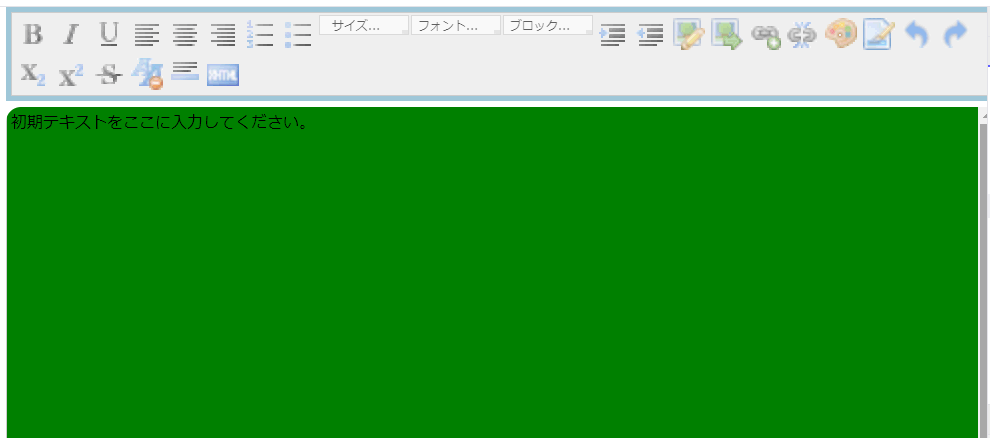
変更前のアイコンサイズが18pxがこれなので大きくなってる。
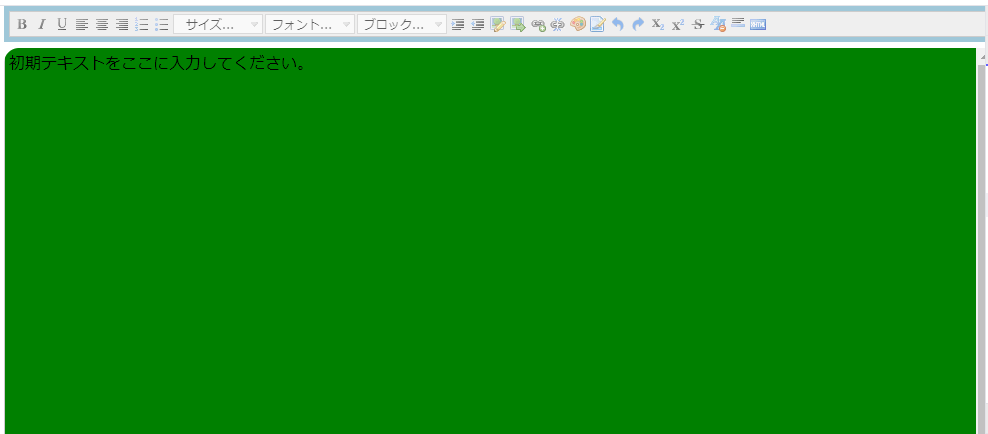
ドロップダウンも大きくしたいんだけどまだうまくいってない。。。
拡大したアイコン画像
アイコン画像(nicEditorIcon.gif)は、gimpで200%、300%等と拡大して作っただけなので粗いけど、ちょっとコードを試すには使えるかと。nicEditorIcon+uploadはnicEdit日本語版に画像アップロードのアイコンを追加しただけのもので、x1.5、x2、x3、x4はそれを拡大したもの。個人的にはx1.5が好みかも。。。
nicEditorIcon+upload.gif :
nicEditorIcon+upload-x1.5.gif:
nicEditorIcon+upload-x2.gif :
nicEditorIcon+upload-x3.gif :
nicEditorIcon+upload-x4.gif :
みんなこのちっこいアイコンをどうしてるんだろ?簡単な方法があるのかなぁ。。
気が向いたら感想をお願いします。(ログイン不要、ボタンを押すだけです)
WYSIWYGなnicEditのパネルをフローティングにする
nicEditに付属するデモコンテンツはパネルがテキストエリアの先頭に張り付いているが、これをフローティングにした。
nicEditを使ったWebアプリを作ろうとしたんだけど、長いテキストを編集する場合はパネルがテキストエリアの先頭に張り付いていては使いにくい、というか実用的ではないので必要に迫られてやった。
環境
サーバ側
- ubuntu 22.04 LTS
- Apache/2.4.54 (Debian)
- NicEdit 日本語版 2016年11月28日
クライアント側
- windows10 Pro
- Chrome 131.0.6778.266(Official Build) (64 ビット)
NicEdit 日本語版はCOMONOSさん提供をありがたく使わせてもらってます。
まずはパネルをテキストエリアと別のオブジェクトに入れる
何年かぶりのWebアプリだったので、今回はPerplexityにコードを書かせて進めた。
で、「nicEditのパネルをフローティングにする完全なコードを提示して」と尋ねたが全く動かず。。。
動かないコードで使われていたfloatingPanel()関数は、nicEditの公式マニュアルに載ってたのでいろいろ試したけどうまくいかず。
で、フローティングは後回しにして、まずはパネルを分離することにして「niceditorでsetPanelを使う方法」と聞いたら動くコードが提示された。質問にsetPanelが出てくるのは動かないフローティングのコードの中でそれっぽく使われてたから。
動いたコードはこれ。nicEdit.jsのパスを修正するだけで動いた。
<!DOCTYPE html>
<html lang="ja">
  <head>
    <meta charset="UTF-8">
    <meta name="viewport" content="width=device-width, initial-scale=1.0">
    <title>NicEdit setPanel 使用例</title>
    <!-- NicEditライブラリ -->
    <script src="nicEdit_ja/nicEdit.js" type="text/javascript"></script>
  </head>
  <body>
    <!-- ツールバーを表示するパネル -->
    <div id="myNicPanel"  style="height:100px; border: 1px solid #ccc; padding: 5px; margin-bottom: 10px;">
      <!-- NicEditツールバーがここに表示されます -->
    </div>

    <!-- 編集対象のテキストエリア -->
    <textarea id="myTextArea" style="width: 100%; height: 200px;">
      初期テキストをここに入力してください。
    </textarea>

    <script type="text/javascript">
          // DOM読み込み後にNicEditを初期化
          bkLib.onDomLoaded(function() {
              // NicEditエディタインスタンスを作成
              var myNicEditor = new nicEditor({
                  fullPanel: true // フルツールバーを有効化
              });

              // ツールバーを特定のパネルに設定
              myNicEditor.setPanel('myNicPanel');

              // テキストエリアにエディタ機能を追加
              myNicEditor.addInstance('myTextArea');
          });
    </script>
  </body>
</html>
なるほど。こういう使い方をするんだ。。。
表示はこんな感じで、DIV要素にセットされた。アイコン小さっ!
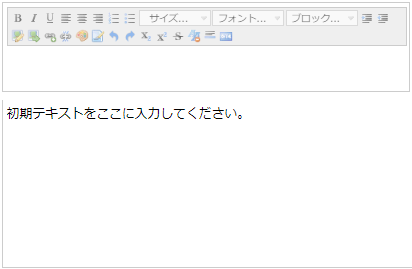
パネルをフローティングにする
パネルとテキストエリアが別のオブジェクトになったので、パネルのオブジェクトをフローティングにすれば目的が達成できる。
これはfloatingPanel()関数は使わず、普通にCSSで対処した。
<!DOCTYPE html>
<html lang="ja">
  <head>
    <meta charset="UTF-8">
    <meta name="viewport" content="width=device-width, initial-scale=1.0">
    <title>NicEdit setPanel 使用例</title>
    <!-- NicEditライブラリ -->
    <script src="nicEdit_ja/nicEdit.js" type="text/javascript"></script>

    <style>
      :root {
          --header-height: 100px;
      }

      #myNicPanel {
          position: fixed; /* 上部に固定 */
          top: 0;
          width: 100%;
          height: var(--header-height);
          font-size: 18px;
          background-color: blue;
          border-radius: 15px;
      }

      #container{
          position: fixed; /* 上部に固定 */
          top: var(--header-height); /* ヘッダ分をオフセット */
          width: 100%;
          height: calc(100% - var(--header-height));
          background-color: green;
          border-radius: 15px;
          overflow-x: hidden;
          overflow-y: scroll;
      }
      #myTextArea{
          width: 100%;
          height: 100%;
      }
    </style>

    <script>
      window.addEventListener('load',function(){
          var t = "";
          // ループで文字列を10回追加
          for (let i = 1; i <= 100; i++) {
               t += i+"行目です。<br>"; // 改行を含めて追加
          }

          // nicEditのテキストを書き換え
          myNicEditor.instanceById('myTextArea').setContent(t);
      });
    </script>

  </head>
  <body>
    <!-- ツールバーを表示するパネル -->
    <!-- <div id="myNicPanel"  style="height:100px; border: 1px solid #ccc; padding: 5px; margin-bottom: 10px;"> -->
    <div id="myNicPanel">
      <!-- NicEditツールバーがここに表示されます -->
    </div>

    <div id ="container">
      <!-- 編集対象のテキストエリア -->
      <!-- <textarea id="myTextArea" style="width: 100%; height: 200px;"> -->
      <textarea id="myTextArea">
        初期テキストをここに入力してください。
      </textarea>
    </div>

    <script type="text/javascript">
      var myNicEditor;
      // DOM読み込み後にNicEditを初期化
      bkLib.onDomLoaded(function() {
          // NicEditエディタインスタンスを作成
          // var myNicEditor = new nicEditor({
          myNicEditor = new nicEditor({
              fullPanel: true // フルツールバーを有効化
          });

          // ツールバーを特定のパネルに設定
          myNicEditor.setPanel('myNicPanel');

          // テキストエリアにエディタ機能を追加
          myNicEditor.addInstance('myTextArea');
      });
    </script>
  </body>
</html>
赤字がフローティングにするために追加、変更した箇所。元のコードでHTMLに設定されていたCSSは削除して、styleタグ内に統一してある。
青字は、nicEditをDIVでラップすることで、nicEdit固有の使い方を回避してDIVに対して設定することでフローティングにするための箱。(固有の使い方があるか分からないけどはまりたくなかったので)
緑は、nicEditのインスタンスを使いまわすためにグローバル変数にしただけ。
茶色は、フローティングになっていることを確認する為にテイストエリアを垂直スクロールできるまで大きくする為のダミーのテキストを大量に書き込んでるだけなので、フローティングを実現するためのものではない。ここではまった。。。textareaのvalueを書き換えてもテキストが変わらなくて、attributeを使ったり色々やった挙句、nicEditに渡さないとダメだと気付くまで1時間以上かかってしまった。
試してないけど、ドキュメントによると1つのパネルで複数のテキストエリアを編集できるらしい。だからテキストエリアが1個でもテキストエリアをクリックしてアクティブにしないとコントロールパネルが操作できないのね。1個しか扱わない場合は、これが使いにくいことがある。
気が向いたら感想をお願いします。(ログイン不要、ボタンを押すだけです)
stable diffusionのdockerのビルドエラー
久々にstable diffusionをローカルで動かそうとしたらdockerコンテナのビルドで下記のエラーが発生。
: webui-docker-auto-1 | Mounted extensions webui-docker-auto-1 | Installing extension dependencies (if any) webui-docker-auto-1 | Traceback (most recent call last): webui-docker-auto-1 | File "/stable-diffusion-webui/webui.py", line 13, inwebui-docker-auto-1 | initialize.imports() webui-docker-auto-1 | File "/stable-diffusion-webui/modules/initialize.py", line 23, in imports webui-docker-auto-1 | import gradio # noqa: F401 webui-docker-auto-1 | File "/opt/conda/lib/python3.10/site-packages/gradio/__init__.py", line 3, in webui-docker-auto-1 | import gradio.components as components webui-docker-auto-1 | File "/opt/conda/lib/python3.10/site-packages/gradio/components/__init__.py", line 3, in webui-docker-auto-1 | from gradio.components.bar_plot import BarPlot webui-docker-auto-1 | File "/opt/conda/lib/python3.10/site-packages/gradio/components/bar_plot.py", line 7, in webui-docker-auto-1 | import altair as alt webui-docker-auto-1 | File "/opt/conda/lib/python3.10/site-packages/altair/__init__.py", line 650, in webui-docker-auto-1 | from altair.vegalite import * webui-docker-auto-1 | File "/opt/conda/lib/python3.10/site-packages/altair/vegalite/__init__.py", line 2, in webui-docker-auto-1 | from .v5 import * webui-docker-auto-1 | File "/opt/conda/lib/python3.10/site-packages/altair/vegalite/v5/__init__.py", line 2, in webui-docker-auto-1 | from altair.expr.core import datum webui-docker-auto-1 | File "/opt/conda/lib/python3.10/site-packages/altair/expr/__init__.py", line 7, in webui-docker-auto-1 | from altair.expr.core import ConstExpression, FunctionExpression webui-docker-auto-1 | File "/opt/conda/lib/python3.10/site-packages/altair/expr/core.py", line 6, in webui-docker-auto-1 | from altair.utils import SchemaBase webui-docker-auto-1 | File "/opt/conda/lib/python3.10/site-packages/altair/utils/__init__.py", line 14, in webui-docker-auto-1 | from .plugin_registry import PluginRegistry webui-docker-auto-1 | File "/opt/conda/lib/python3.10/site-packages/altair/utils/plugin_registry.py", line 6, in webui-docker-auto-1 | from typing_extensions import TypeAliasType, TypeIs, TypeVar webui-docker-auto-1 | ImportError: cannot import name 'TypeIs' from 'typing_extensions' (/opt/conda/lib/python3.10/site-packages/typing_extensions.py) webui-docker-auto-1 exited with code 1
対処方法
「webui-docker-auto-1 | ImportError: cannot import name 'TypeIs' from 'typing_extensions' (/opt/conda/lib/python3.10/site-packages/typing_extensions.py)」をググってみると下記に外人さんのやり取りを発見。
最後のほうに対処法が書かれてれてたので
./services/AUTOMATIC1111/Dockerfile
を下記のようにオレンジの行を追加。
WORKDIR /
RUN --mount=type=cache,target=/root/.cache/pip \
  git clone https://github.com/AUTOMATIC1111/stable-diffusion-webui.git && \
  cd stable-diffusion-webui && \
  git reset --hard v1.9.4 && \
  pip install -U typing_extensions && \
  pip install -r requirements_versions.txt
これで再度ビルドを実行したら無事成功してWeb UIにアクセスできた。
calfeche13さんのコメントしか読んでなかったから上記のような変更を加えたが、よく見てみるとDockerfileの変更内容も書かれてた。。。試してないけど、どっちでも成功するんじゃないかと思う。
備忘録
stable diffusionのコンテナビルドは下記を参考にさせてもらった。
書かれてる通りだけど、実際に実行したコマンドは以下の通り。
環境
OS:ubuntu 22.04
CPU:i9-9900K
GPU:RTX-3060 12GB
RAM:32GB
コンテナのビルドと起動
mkdir /work/stableDiffusion
cd /work/stableDiffusion
git clone https://github.com/AbdBarho/stable-diffusion-webui-docker
cd /work/stableDiffusion/stable-diffusion-webui-docker
docker compose --profile download up --build
ビルド完了後の起動
cd /work/stableDiffusion/stable-diffusion-webui-docker
docker compose --profile auto up --build
コンテナのstable diffusionにアクセス
http://<ホストPCのIPアドレス>:7860
とりあえず、適当に絵を描かせて動作確認。

めでたし、めでたし。
気が向いたら感想をお願いします。(ログイン不要、ボタンを押すだけです)
sshトンネル、sshポートフォワーディング コマンドの基本形と使用例
sshトンネルが必要になるたびに使い方を忘れてて、引数はどうだったっけ?ってなるので基本形をメモ。覚えてれば簡単なんだけど、あやふやだと踏み台サーバのIPアドレスやポート、ファイアウォールのポートなどがごっちゃになったりして毎回面倒なので簡単に思い出せるようにメモしとく。
- sshトンネル、sshポートフォワーディングとは
- 使用するターミナル
- sshトンネルを掘る時の基本形
- 踏み台サーバを経由してターゲットにsshでログインする
- 踏み台サーバを経由してターゲットのMySQLにアクセスする
- sshポートしか解放されていないネットワーク内の様々なサービスにアクセスする
- 外部にアクセスできるポートが制限されている場合の応用
- 今時のsshの定義方法
sshトンネル、sshポートフォワーディングとは
今更だけど、sshトンネルは遠隔地にあるマシンのポートをローカルマシンのポートに割り当ててセキュアな通信経路をつくること。ローカルからは直接アクセスできないマシンにアクセスができるようにする目的で用いる(事が多い)。
sshポートフォワーディングは手段の呼び名で、sshトンネルはその手段を使ってセキュアな通信経路を作ること。なので「セキュアなトンネルを作ろう!」「実現のためにsshポートフォワーディングを使おう!」ということ(だと思ってる)。多分、下記のSMOOZさんの解説が正しいと思う。
以下、sshトンネルでポートに割り当てて通信経路を確立することを「トンネルを掘る」と表現する。
手順は以下の2ステップになる。
- トンネルを掘る
- 使いたいサービスにアクセスする
使用するターミナル
windowsでトンネルを掘る場合、teraterm等いろいろなツールが使えるけど、最近はmobaXtermを使うことが多い。mobaXtermだとlinuxと同じコマンドで実行できる。あまり使うことは無いけどWindows10以降のコマンドプロンプトでも同じコマンドで実行できた。
sshトンネルを掘る時の基本形
引数は以下の2つのパートに分かれてることを認識しておくと扱いやすい気がする。
- アクセスしたいターゲットマシンのポートをローカルマシンのポートに割り当てる
- 踏み台サーバにアクセス(ログイン)する
ssh -L [ローカルのポート]:[ターゲットのIP]:[ターゲットのポート] \
    -l [踏み台のユーザID] [リモートのドメインorグローバルIP] -p [踏み台のsshポート]
緑の部分がターゲットのポートをローカルマシンのポートに割り当てるための部分。
青の部分が踏み台サーバへのアクセス(ログイン)するための部分。
sshはパスワード、または暗号鍵を使った方法で接続できる。上記はパスワードを使って接続する方法で、ターゲット、及び踏み台に暗号鍵を使う場合は以下の様になる。
ssh -i [ターゲットの秘密鍵ファイル] \
    -L [ローカルのポート]:[ターゲットのIP]:[ターゲットのポート] \
    -l [踏み台のユーザID] [リモートのドメインorグローバルIP] -p [踏み台のsshポート] \
    -i [踏み台の公開鍵ファイル]
1行目の薄緑の部分でターゲットにアクセスするために使う秘密鍵、4行目の薄水色の部分で踏み台にアクセスするために使う公開鍵を指定する。
会社のネットワークだったりレンタルサーバのサービスだったりすると、踏み台サーバに秘密鍵をセットして、その鍵とペアになる公開鍵を(多数の)ユーザに配布してアクセスできるようにしてあることが多い。ターゲットマシンは誰が責任者になるかによるけど、レンタルサーバだったりすると、借りてるユーザが責任者になるので秘密鍵を持ってる人以外はアクセスできなくしてセキュリティを担保することが多くて、ターゲットには公開鍵、アクセスするときにはそのペアになる(限定された人だけが持つ)秘密鍵を使って接続する。とは言え、どっちに秘密鍵を置くかはシステムのポリシーによって異なることがある。本記事では暗号キーの実例は割愛する。
この2つの書き方を覚えておくと、リモート先にあるサーバの様々なサービス(apacheやMySQL等)をあたかもローカルに存在するかのように扱えるようになる。
踏み台サーバを経由してターゲットにsshでログインする
ネットワーク構成
よくある踏み台を経由して、ネットワークの内部(踏み台サーバの奥に)にあるサーバにsshでログインするパターン。
以下のようなネットワーク構成になっていると想定した例を示す。
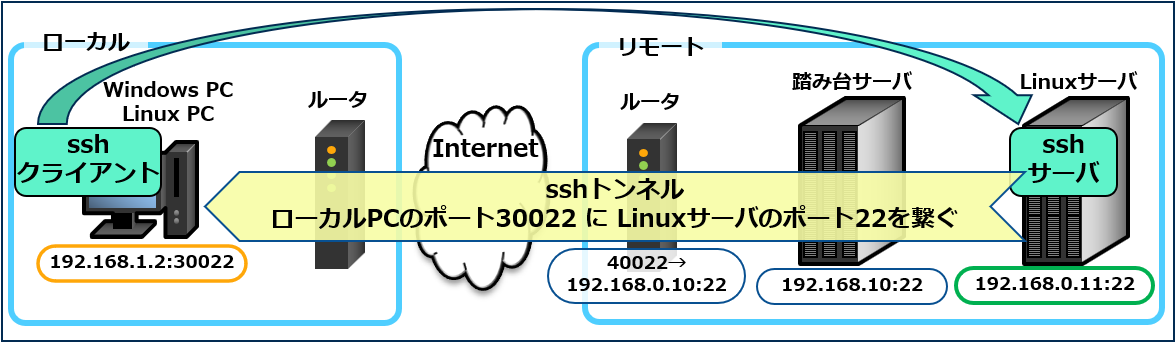
図のリモート側の構成のポイントは以下の通り。
- ファイアウォール(ルータ等)で外部からのポート40022へのアクセスを踏み台サーバのポート22に転送(いわゆるポート開放されてる状態)
- 踏み台サーバの向こう側にログインしたいLinuxサーバがある
トンネルを掘る
図の黄色い矢印のイメージで、リモート側のLinuxサーバ(ターゲット)のポート22をローカルマシンのポート30022に接続する(割り当てる)。
図の例だとトンネルを掘る引数は以下のようになる。
ssh -L 30022:192.168.20.11:22 -l user_jump hogehoge.com -p 40022
- user_jump:踏み台サーバのユーザID
- hogehoge.com:リモートのドメイン名(グローバルIPでも可)
これで、ローカルのポート30022にアクセスすると、図の緑の矢印のようにあたかもリモート先のLinuxサーバのsshにアクセスしているかのように使えるようになる。
アクセスする
上記のトンネルを掘ったターミナルは踏み台にログインした状態になるのでそのままにしておき、別のターミナルを使って下記の引数でsshを実行するとLinuxサーバにログインできる。
ssh user_server@localhost -p 30022
- user_server:LinuxマシンのユーザID
踏み台サーバを経由してターゲットのMySQLにアクセスする
ネットワーク構成
ターゲットマシンの様々なサービスにアクセスできる例として、リモートのMySQLにローカルのWindowsマシンのDBeavewrからアクセスする例を示す。
Linuxサーバのポートが変わるだけでその他はsshでログインするケースと変わりない。変わるのは赤字の部分のみ。

MySQLはLinuxサーバのポート3306で動いている。黄色い矢印のイメージで、ポート3306をローカルのポート33306に接続する。ルータや踏み台は変わりなく、ルータは踏み台用のポート22を外部ポート40022で解放している状態。このポートが解放されていればLinuxマシンのどんなポートでもトンネルを掘れるとこがミソ。
トンネルを掘る
図の例だとトンネルを掘る引数は以下のようになり、sshでログインする場合と赤字の部分が変わるだけ。
ssh -L 33306:192.168.20.11:3306 -l user_jump hogehoge.com -p 40022
アクセスする
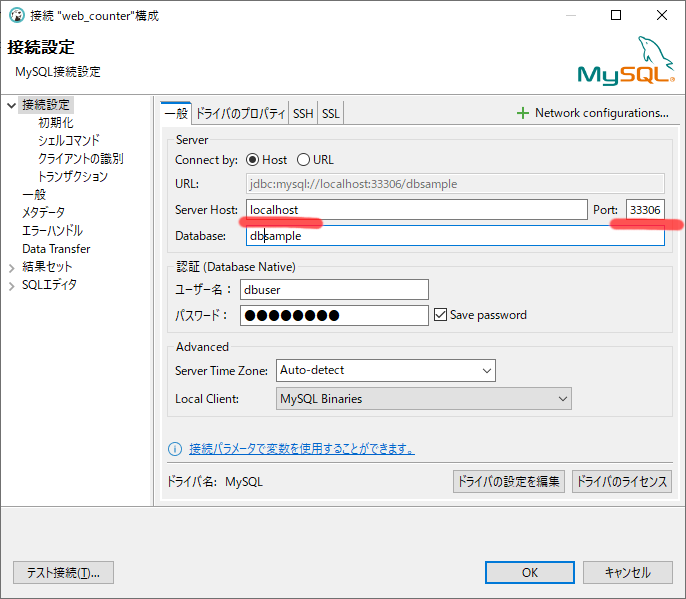
トンネルが掘れたら、DBeaverの接続設定でServer hostをlocalhost、Portを33306にすると接続できる。
sshポートしか解放されていないネットワーク内の様々なサービスにアクセスする
ネットワーク構成
踏み台は存在しないけど、リモートのポートがsshしか解放されていない場合にsshのポートを利用してトンネルを掘ることで踏み台がある時と同じ考え方でssh以外のサービスにアクセスできる。
まずは、MySQLにアクセスする例。
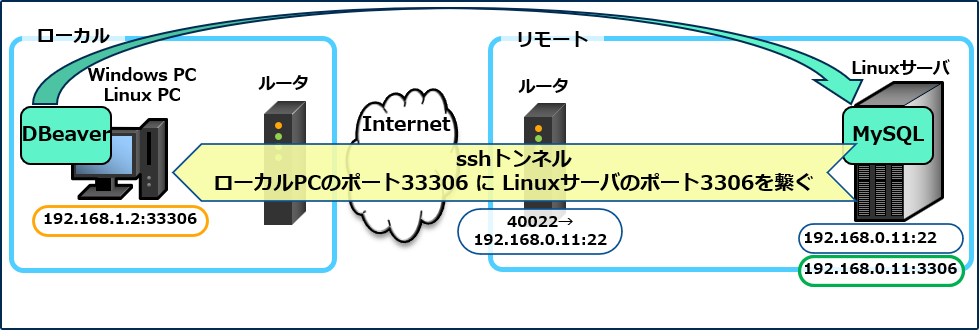
リモートのルータは外部からのsshのアクセス(ポート40022)をLinuxサーバのssh(ポート22)に転送するようになってる。
トンネルを掘る
トンネルのやり方はMySQLにアクセスする方法と同じで赤字の部分が変わるだけ。
ssh -L 33306:192.168.20.11:3306 -l user_target hogehoge.com -p 40022
なぜこうなるかと言うと、踏み台のsshサーバを使っていたのをLinuxマシンにのsshサーバに変えるだけなので、結果的にユーザIDをLinuxマシンのユーザIDに変えるだけになる。
アクセスする
これでDBeaber等のクライアントで、ローカルのポート33306からMySQLにアクセスできる。
その他の例
次の例は、Linuxマシンのポート80でapacheが動いていたらポート番号を変えて
ssh -L 30080:192.168.20.11:80 -l user_target hogehoge.com -p 40022
とすると、下記のURLでブラウザからアクセスできるようになる。
このように、踏み台があっても無くてもsshのポートが解放されてればあらゆるサービスのトンネルを掘ることができる。
外部にアクセスできるポートが制限されている場合の応用
これまではリモート先の入り口の制限がきつい場合の話しで、ここからは逆にローカロの出口が制限されてる場合の話し。
職場等で外部にアクセスできる(外部に出ることができる)ポートが制限されていて、HTTPのポート80、HTTPSの442くらいしか外部にアクセスできないケースも多い。そんな時も外部に出られるポートが1つでもあればなんとかできることがある。
例えば、HTTPSのポート442を使って自宅のMySQLにアクセスする場合、自宅のルータの設定でポート442へのアクセスをLinuxサーバのポート22に転送できればなんとかなることもある。
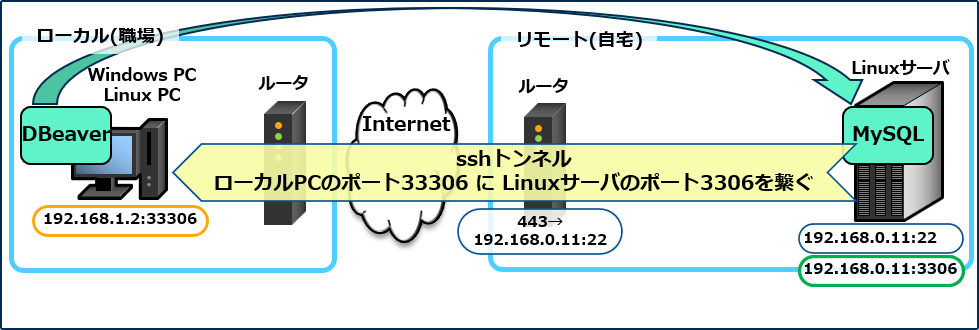
但し、HTTP、HTTPSのポートを使う場合は以下の問題がある。
- 多くの場合、ファイアウォールのWebアクセスの制限にかかって遮断される
- 自宅のHTTP、HTTPSの公開ポートを変えなければならなくなる
- 管理者から変なことに使うなと怒られる
等により、HTTP、HTTPSのポートを使うことは現実的ではないので、他に使えるポートを探す必要がある。例えば外部のクラウドサービスにアクセスするためのポート等。但し、他の用途に利用する場合は職場のセキュリティポリシーに反しないことを確認の上で。
今時のsshの定義方法
今時はワンライナーで書くより、~/.ssh/configに定義して使う方がトレンドみたい。使ったことなかったんだけど試してみたら踏み台の奥にあるMySQLにトンネルが掘れた。
Host JUMP_HOST # 踏み台サーバ
   HostName hogehoge.com
   Port 30022
   User user_jump
   LocalForward 33306 localhost:33306

Host TARGET_HOST # Linuxサーバ
   HostName 192.168.20.11
   User user_target
   LocalForward 33306 localhost:3306
   ProxyCommand ssh -CW %h:%p STEP_HOST
上記の定義をしておくと、下記のコマンドでターゲットのsshにログインできる。
ssh TARGET_HOST
接続の実行時の様子はこんな感じ。コマンド実行後、踏み台のパスワード、Linuxサーバのパスワードを聞いてくる。
$ ssh TARGET_HOST
stty: standard input: Inappropriate ioctl for device
user_jump@hogehoge.com's password:
user_server@192.168.20.11's password:
Welcome to Ubuntu 22.04.1 LTS (GNU/Linux 6.5.0-14-generic x86_64)

Last login: Wed Jun 19 13:58:18 2024 from 192.168.20.11
kirin@cf-n10:~$
この方法は、一回定義しとけば実行が簡単で、ターミナルも1つでできるのでとても良いと思う。でも、この書き方はあまり良く分かってないので今後調べていこう。
気が向いたら感想をお願いします。(ログイン不要、ボタンを押すだけです)
小学一年生 ドラえもん おしゃべりウォッチの修理:その2
時計部の修理:また断念
導電ゴムの交換
部品で1、2個手に入れるとなると送料とかMOQとかで高くつきそうだったのでダイソーで部品取りになりそうなキッチンタイマーを買ってきた。

左のピンクの導電ゴムがキッチンタイマー スクエア、真ん中のゼブラカラーの2本はおしゃべりウォッチについてた奴、右の大きいピンクは4WAYキッチンタイマー。

キッチンタイマー スクエアは長さだけ合わせてカットすれば、そのまま使えるんじゃないかと目論んで買ったけど、おしゃべりウォッチより厚みがあって入らなかった。4WAYキッチンタイマーはうまくすれば1台で2本取れるかもと目論んで買ったもの。
4WAYキッチンタイマーの導電ゴムをデザインナイフでスライスしてピンクの部分を除去して長さを揃えたものを作った。

結果、これでも画面には何も映らなかった。
ちなみに、液漏れで酷いことになってたおしゃべりウォッチの導電ゴムの抵抗値は数KΩ、4WAYキッチンタイマーの抵抗値は数百Ωで1桁違ってた。
もう1台の時計部を修理:また断念
娘が使ってる個体をちょっと借りて、これの修理を試みる。
で、ばらしてみると材質や作りに違いがあった。

前回扱ってた個体はケースが白、娘の個体は青。
基板のパターン、コンデンサの数も違う。

それはさておき、細かい状態が見えないので実態顕微鏡を投入。
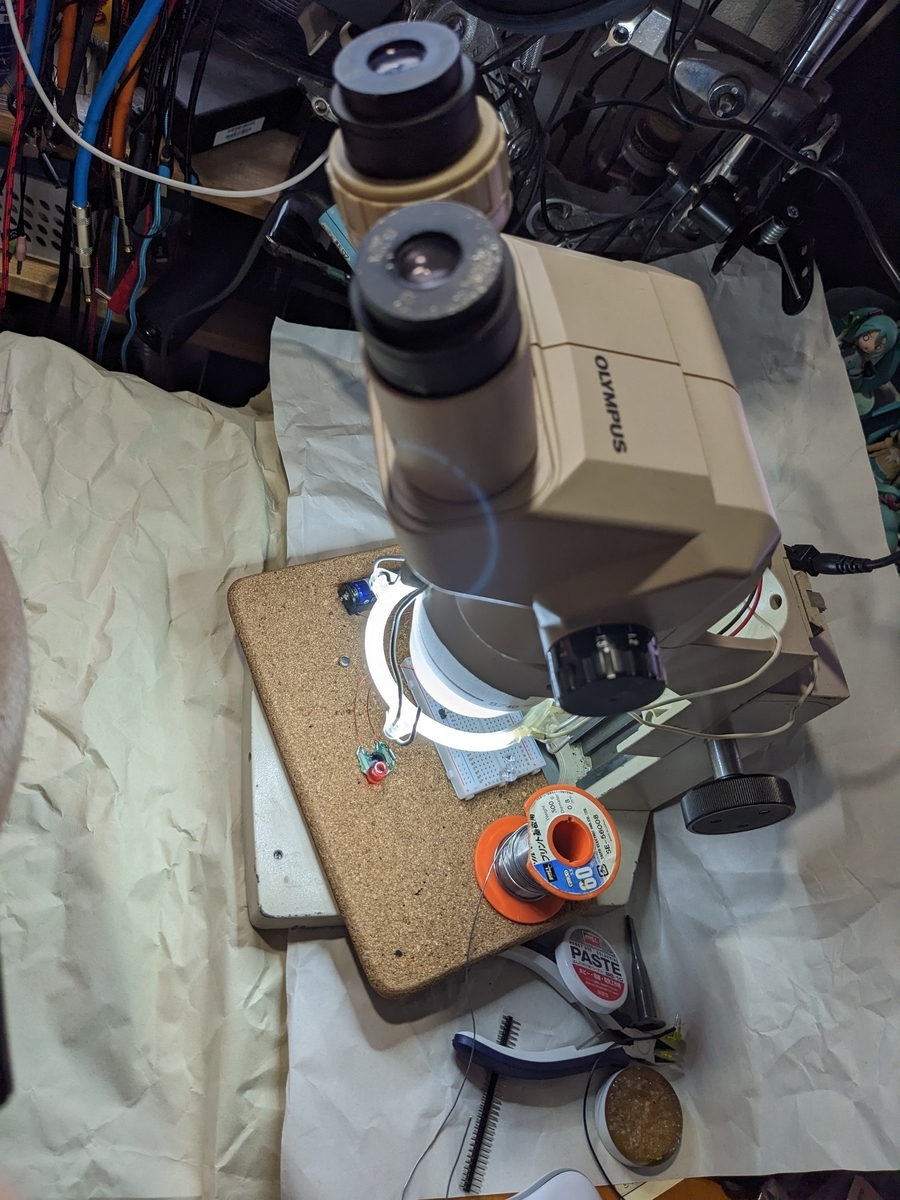
発信子を見てみるとこれもクラックが入ってる。
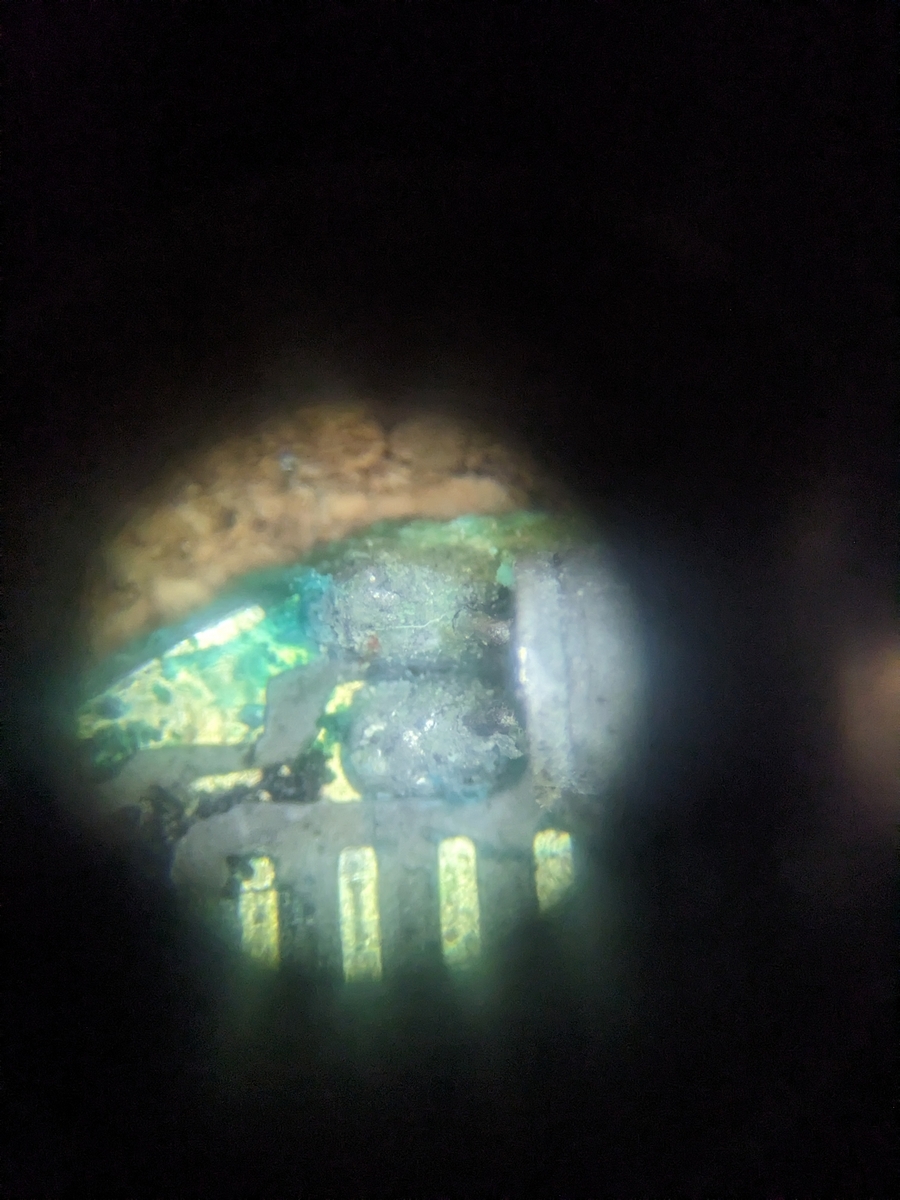
半田を盛りなおしても変化がないので、水晶発振子を交換してみる。発信子はアマゾンで32.768kHzを買った。
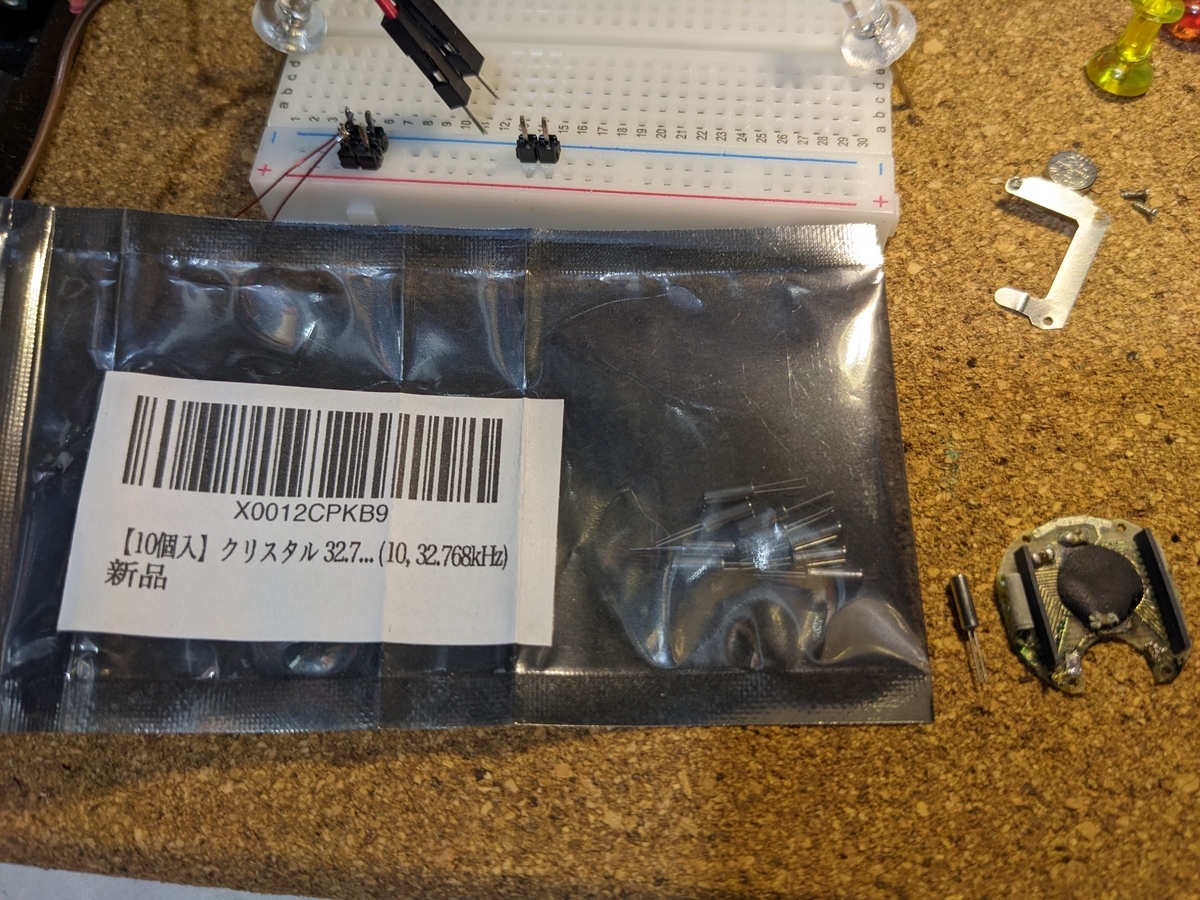
時計なので多分、32,768kHzだろうと推測して買っておいたんだけど、前回の発信子の波形が約32kHzだったので安心して交換できる。
で、交換しても発振しない。発信子周辺の基板の汚れを落としてがっかり。

発振子からの2本のパターンは左に回ってモールドされたICに繋がるんだけど、2本ともパターンが無くなってる。熱かけたからかなぁ。発信子の下の端子が繋がる方はモールド側には3mm位しかパターンが残ってない。多分半田で熱かけるとまた剥がれる気がする。
導電ゴムを置くと、ICと発信子の間が阻まれて配線を通す余裕もあまりない。そもそもケースで発信子は別室にされてしまうのでケースの加工も必要になる。
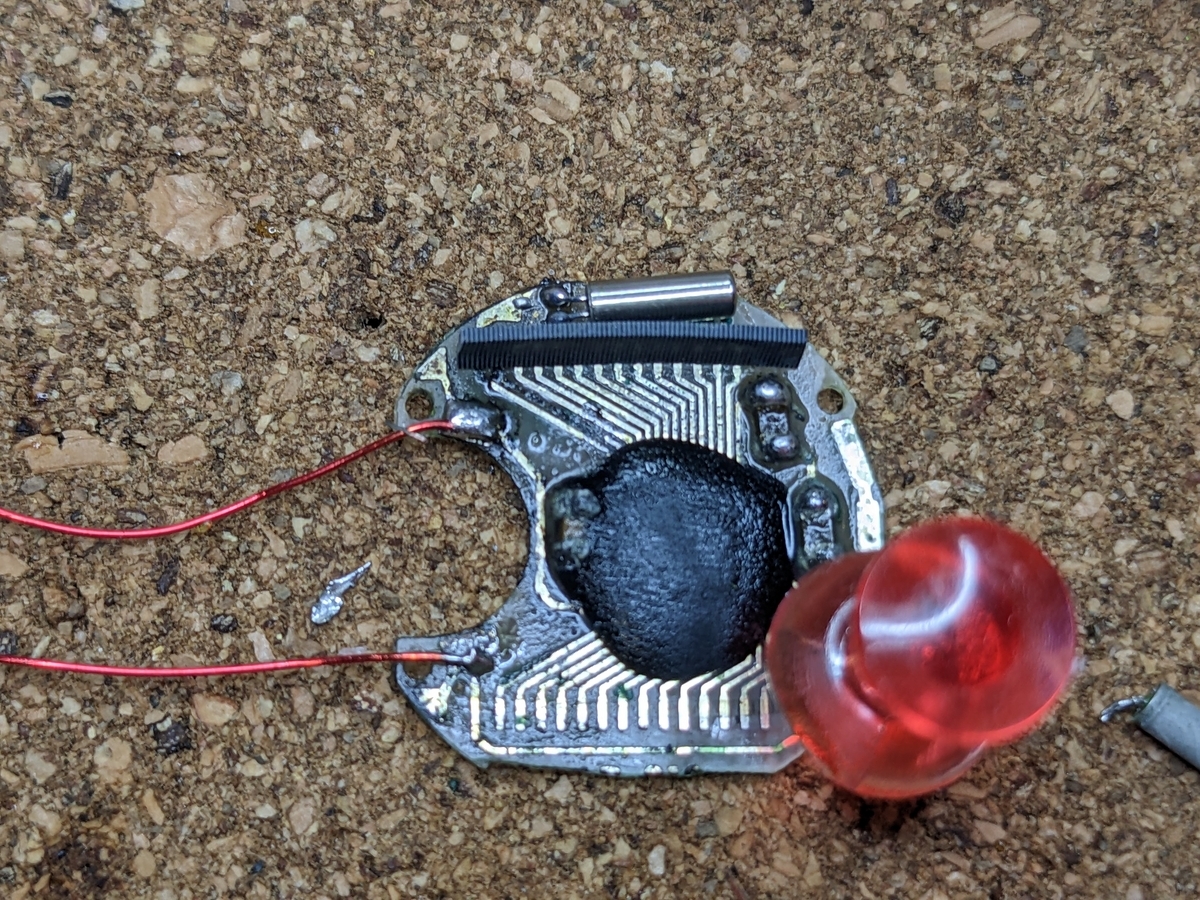
よく作戦を考えてやらないと終わってしまいそう。一旦全部くみ上げて娘に返そう。この先、どうしようかな。
おしゃべり部が動くと
2台目に買った方はおしゃべりは動いた。
これぞ自分にとってのドラえもんの声。大山信代さん、多分。娘にこの基板を入れて返したら大喜びしてた。
気が向いたら感想をお願いします。(ログイン不要、ボタンを押すだけです)
ショルダーバッグのベルトが取れたので修理した
アマゾンで買ったマザーズバッグを通勤バッグに使ってたんだけど、歩行中に肩紐がちぎれて、バッグがドスンと地面に落ちて、中身が飛び散る惨劇が。。。
で、前々からバッグは自作しようと思ってたけどすぐにはできないので修理することにした。

このバッグ、軽量で容量が大きく、内ポケット、外ポケットが沢山あってとても便利。PCやノート、その他もろもろ入れて取り出しもしやすくて重宝してる。PCとかいつも入れてるものを入れた状態で約5kgだったのでマザーズバッグとしては過積載気味で使ってたからちぎれても仕方ないかなぁと思う。
用意するもの
- シュリンクレザー少々(1.4mm厚)
- クラフト製 4本菱目打ち(2mm)
- 0.5-8mm用ピンバイスグリップ
- 打ち台(ゴム板)
- 協進エル ビニモ1番 (ダブルロー付糸)
- 手縫針(丸針)
- レザークラフト用伸び止めテープ(10mm幅)
アマゾンに出てるビニモは結構高い(60mで約1600円)から送料出してでも手芸店独自の通販で買った方が安いかも。何色もまとめ買いするなら尚更。(マモルオンラインショップとか)
ショルダーバッグの破損状態
買ったのは去年の7月で、半年くらいで片側のカラビナ的な金具が折れてカバンが地面に転がった。
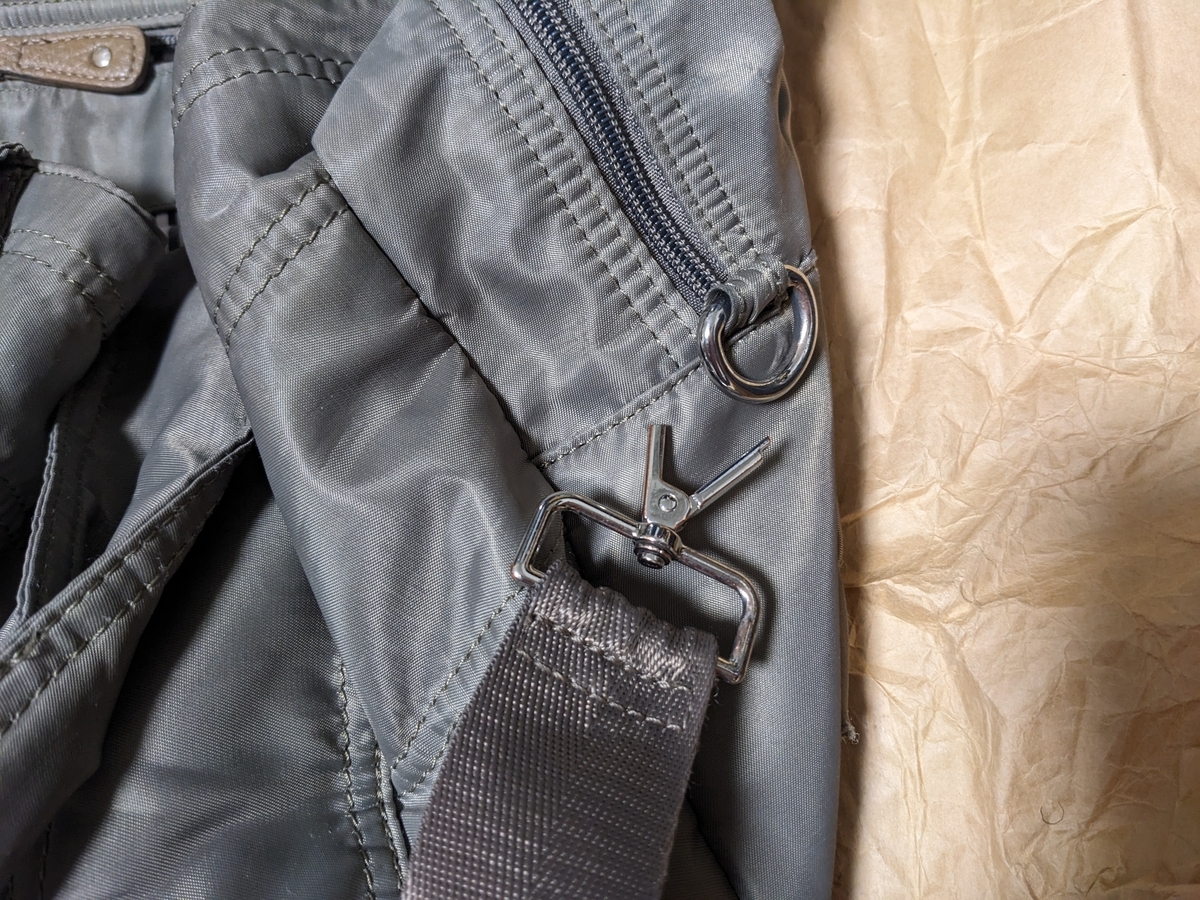
これは、とりあえず100均のカラビナを付けて使ってた。
更に買ってほぼ1年で反対側の小さなDカンをバッグ本体に縫い付けてある生地がちぎれてまた地面に転がって中身が飛び散った。品川のコンコースで大勢の人がいたので恥ずかしかった。
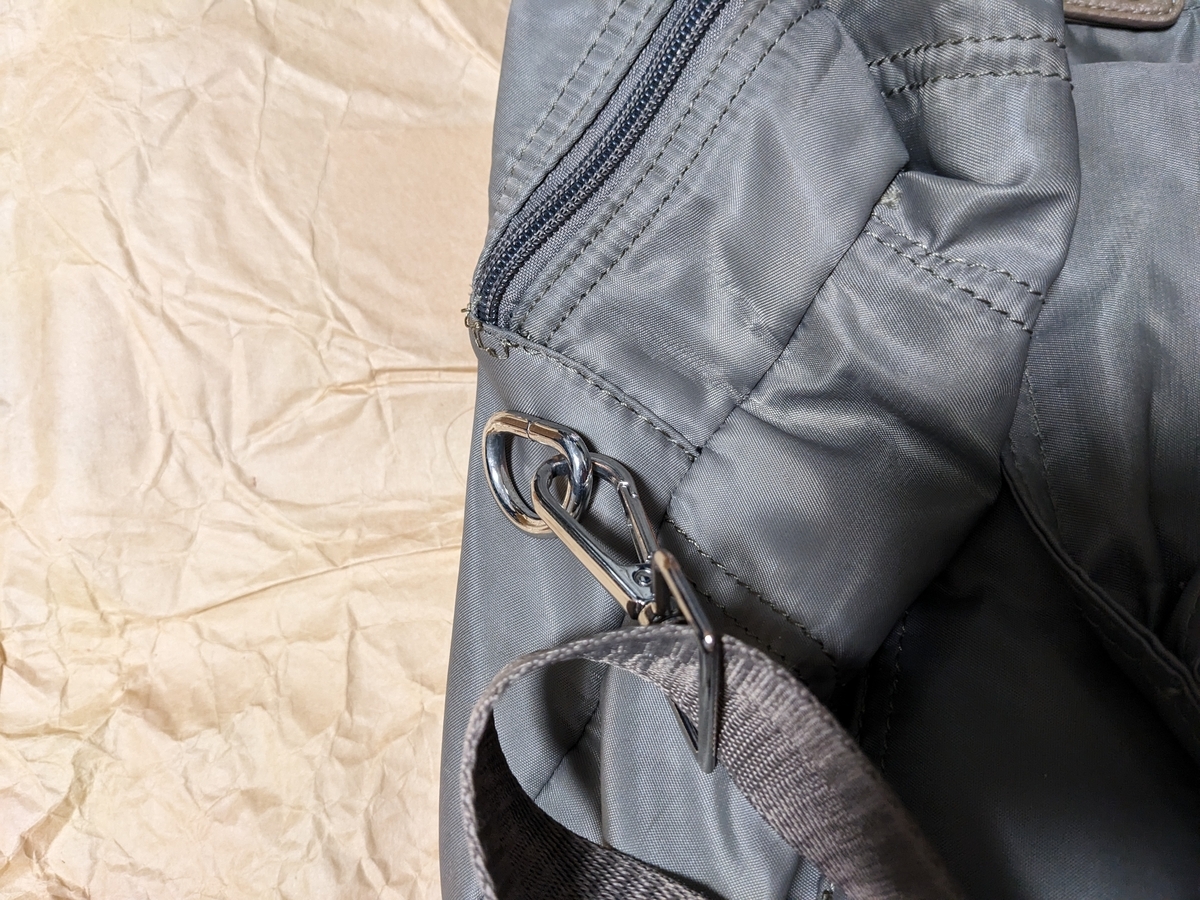
生地自体が外れてどこかに飛んで行ったので、もうカラビナでつい繋ぐようなこともできない。
ショルダーバッグの肩紐を付ける
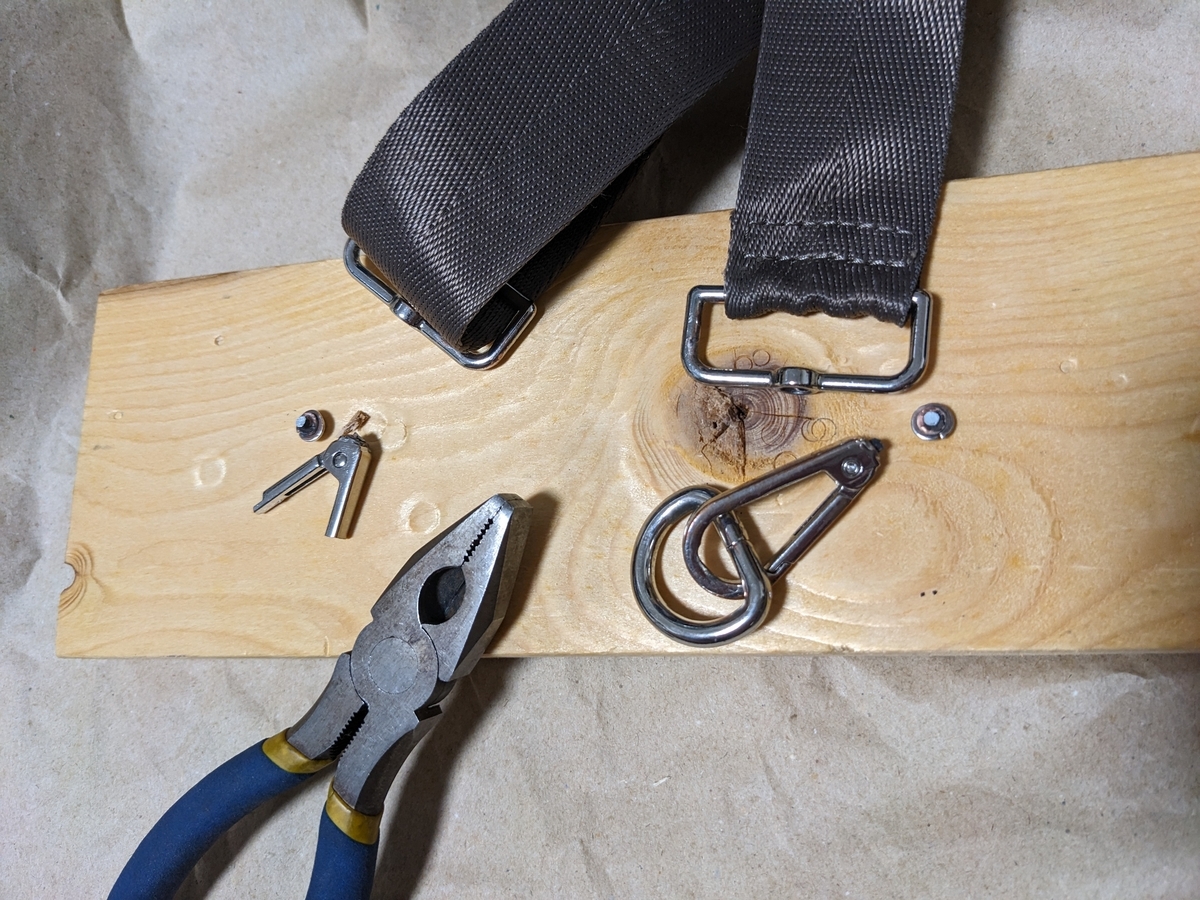
まずは、肩紐側の処理。カラビナ的なものが邪魔なのでペンチで切ってただのDカンのようにした。
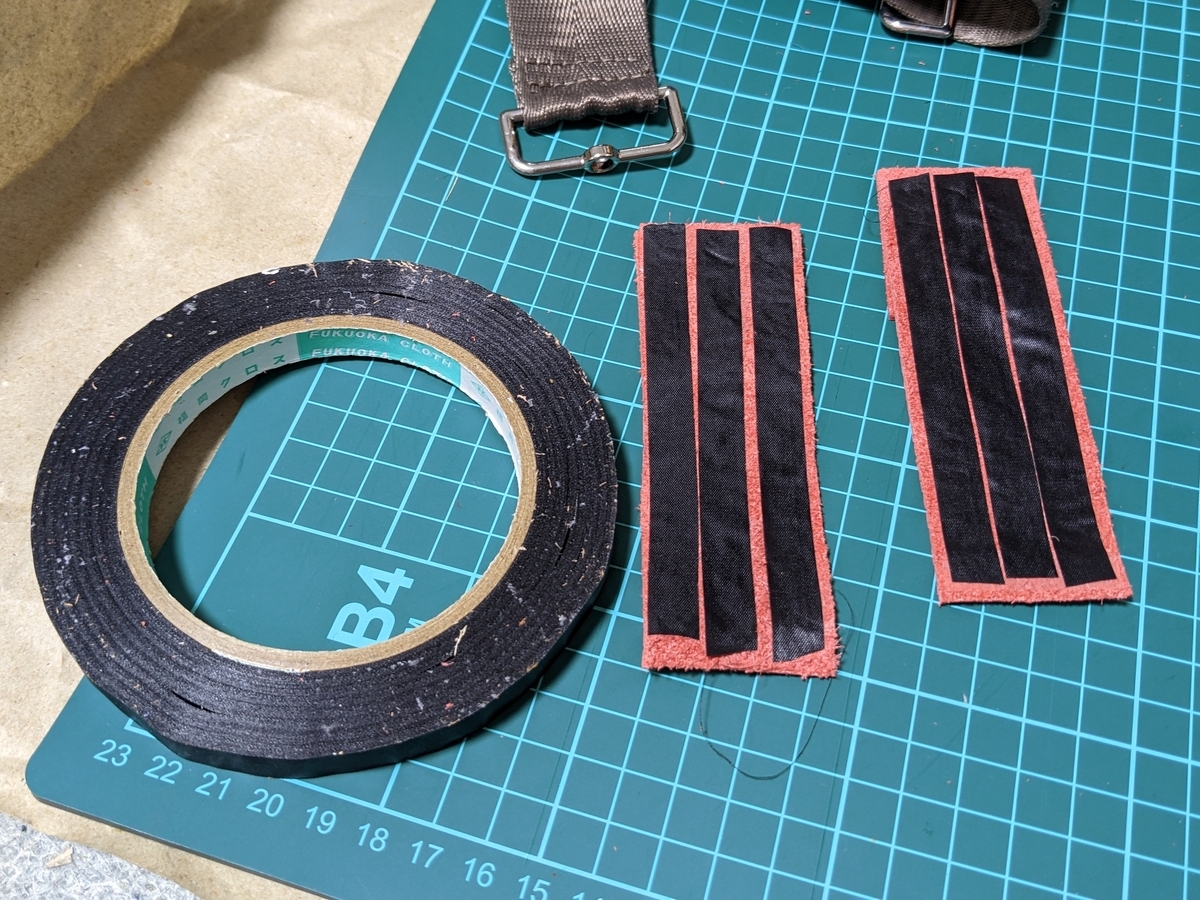
余ってたシュリンクレザーをカットして、伸び防止に伸び止めテープを裏側に貼る。
1枚のシュリンクレザーを折り返して縫い付けるんだけど、菱目打ちで折り返したレザーがずれないようにダイソーで買った布用の両面テープを貼りつける。
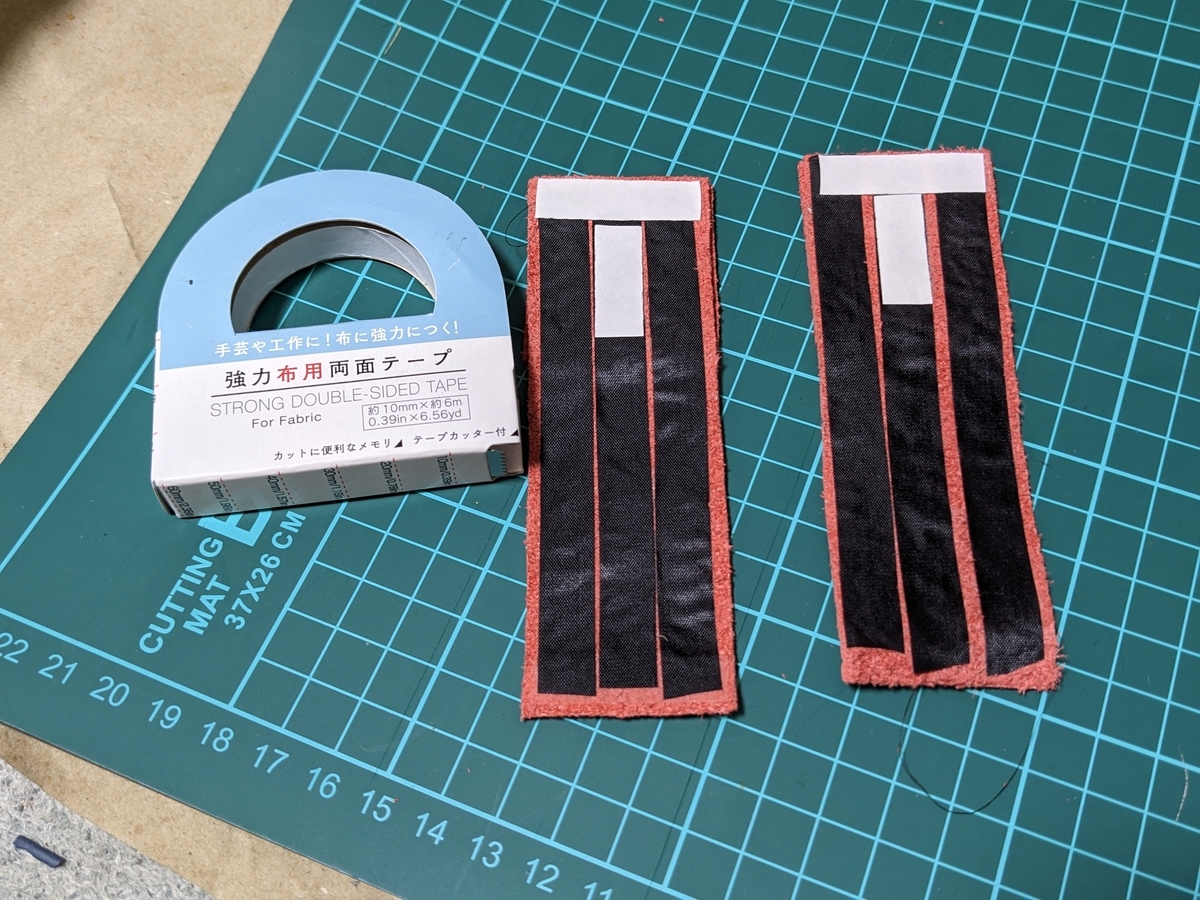
更に、バッグの内側に補強のためにあてるシュリンクレザーも切り出して両面テープで貼り付ける。

両面テープで貼ったことで重なった3枚がずれなくなってるのでこの状態で菱目打ちで穴を空ける。
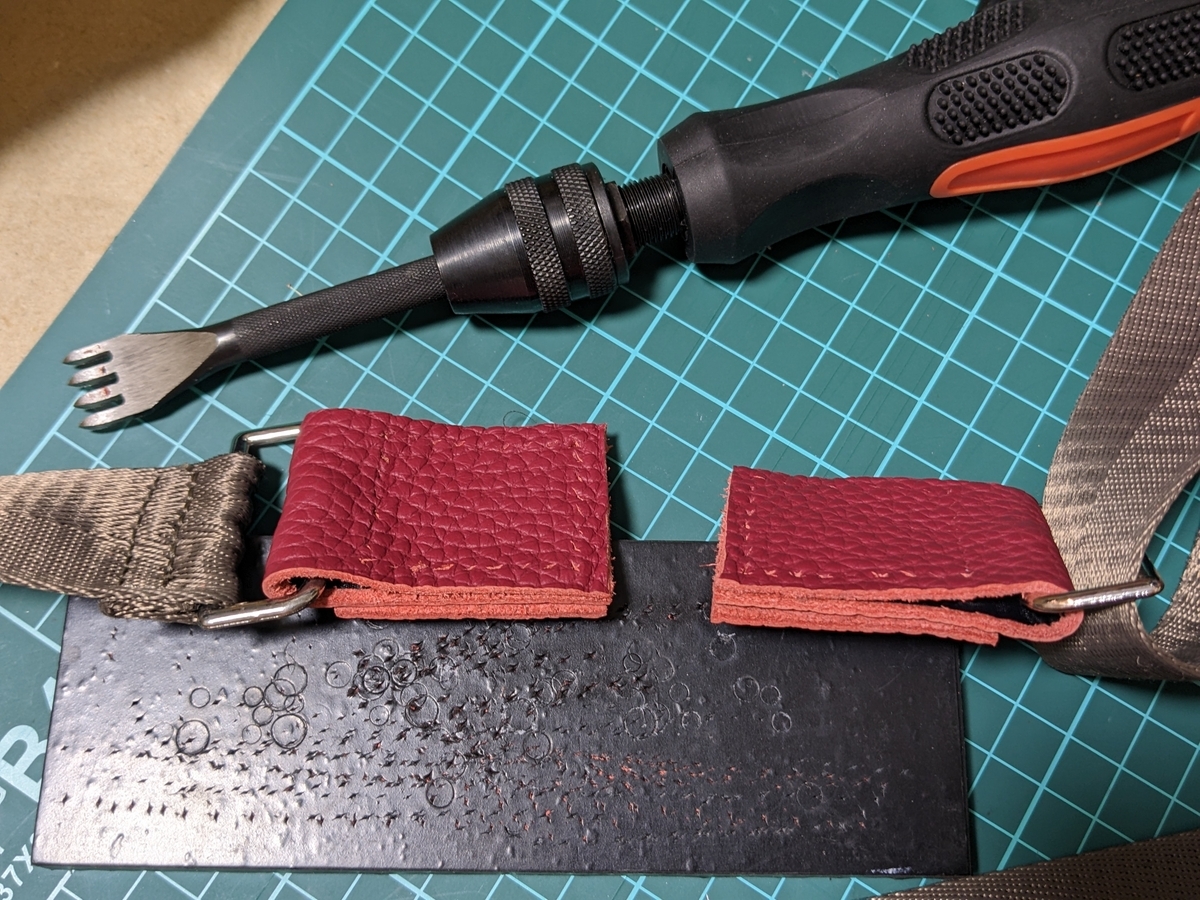
菱目打ちは、定番っぽいクラフトの4本菱目打ちを使った。
以前は木槌で叩いて打ってたんだけど、夜の作業では煩いのと、シュリンクレザーは1.4mm位と薄くて柔らかいので、菱目打ちをピンバイス用のハンドルに付けてぐいぐいと押し付ける感じで空けてる。
縫い付けを始めるんだけど、バッグの生地とレザーがずれないように両面テープでバッグに張り付けて縫う。
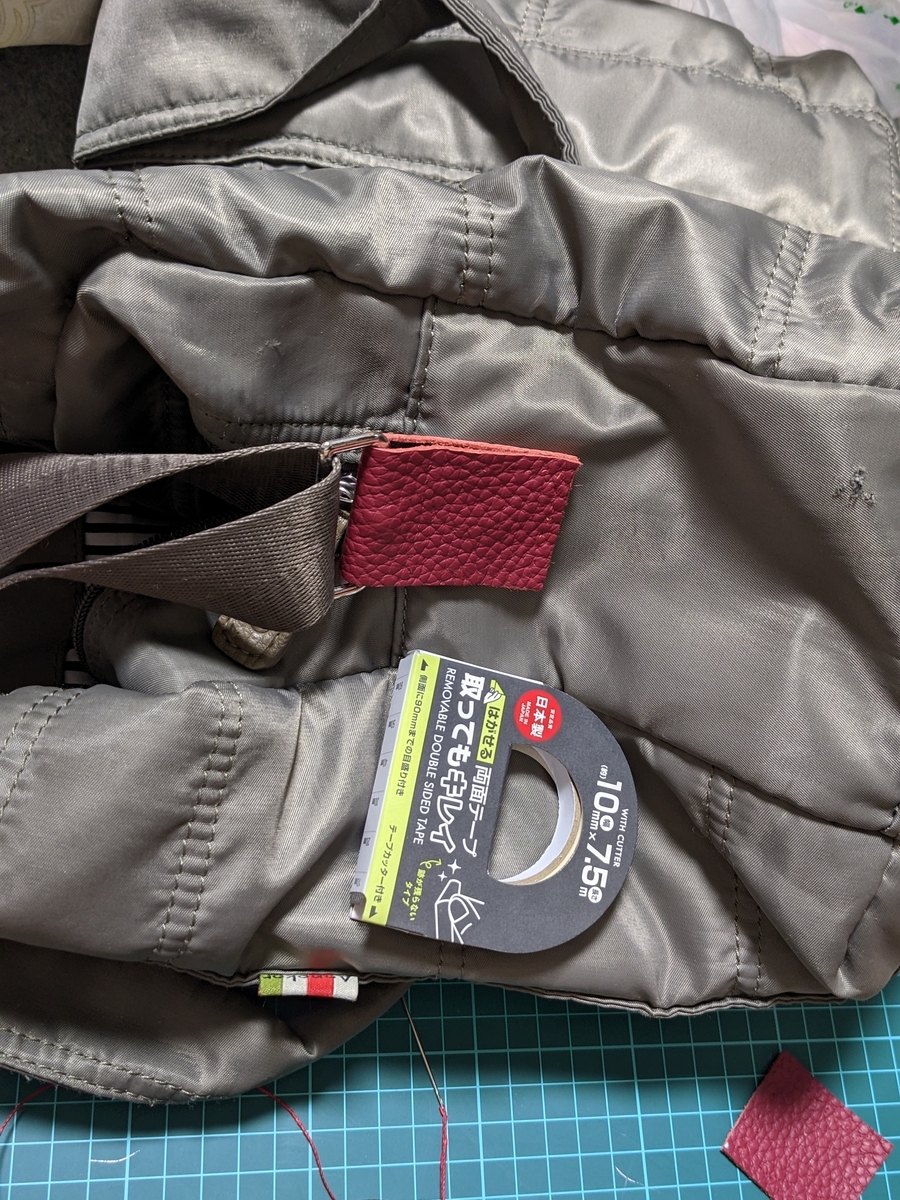
バッグ内側のあてレザーは張り付けずに縫った。
縫い方は平縫い(youtubeなので音が出ます)。
縫い終わった。

内側はこんな感じ。
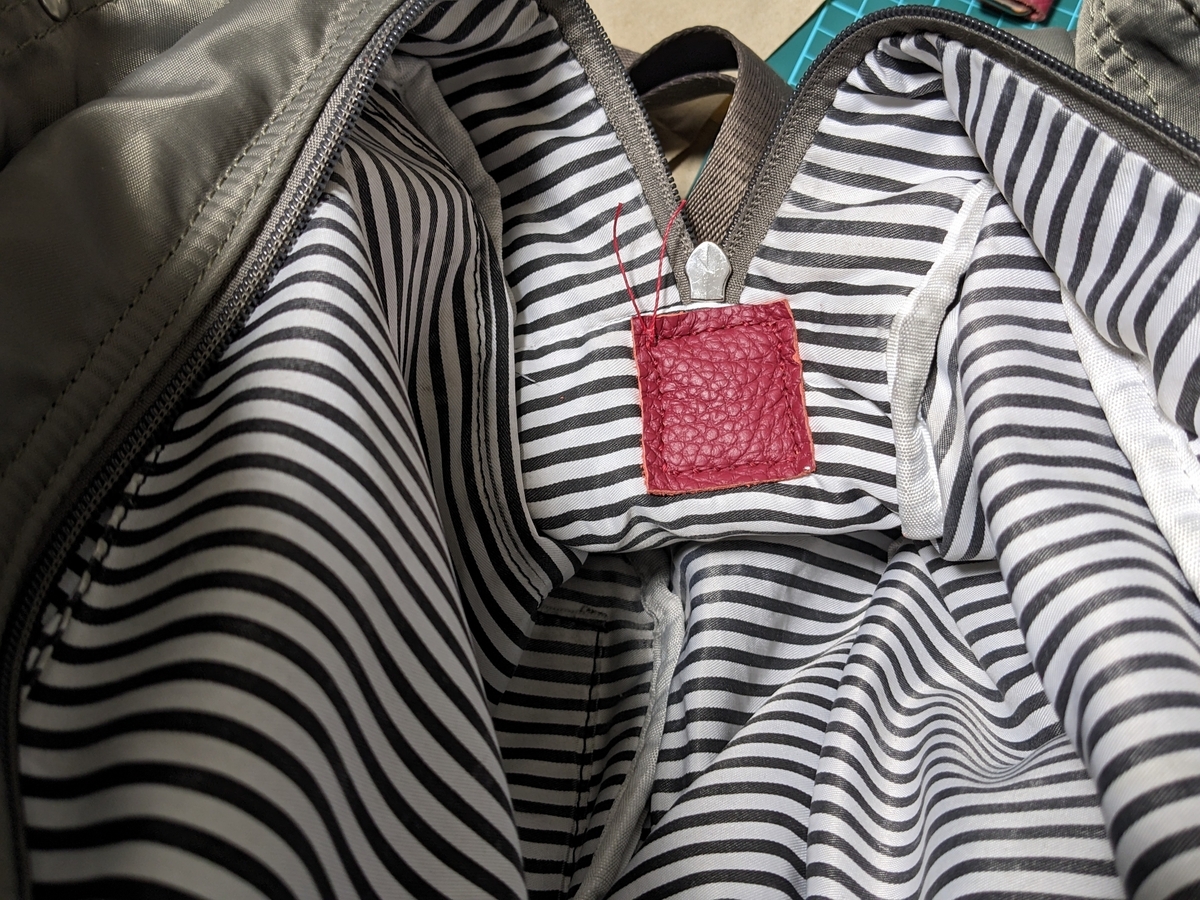
反対側も縫い付けて完成。
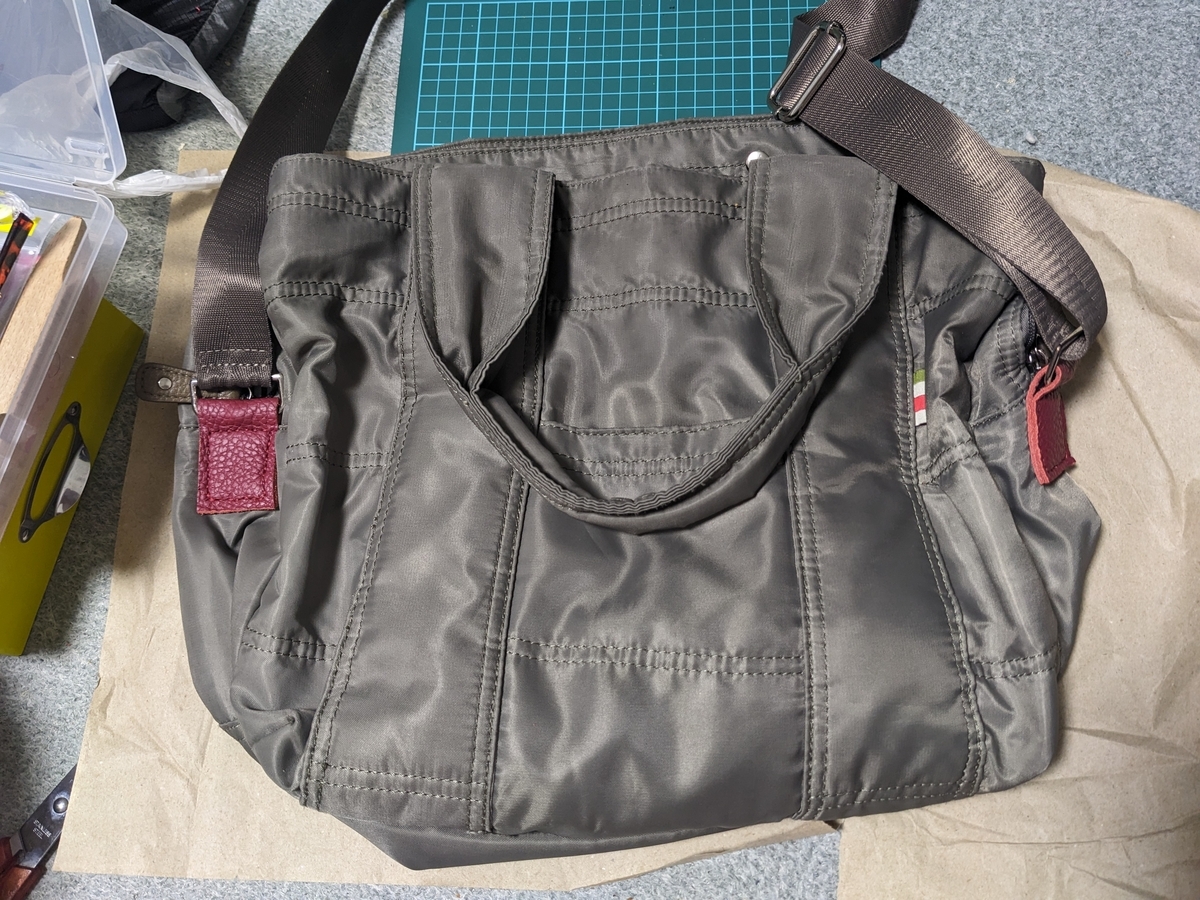
縫い付けは思ったより大変だった。バッグ本体の縫い合わせ部分は厚くなってるのでなかなか針が通らなくて片側に1時間位かかった。レザークラフト用の針は先端が丸くなってる上に、バッグの生地が4、5枚重なってる箇所があったので針先を中心に針をグリグリと回しながら押し付けないと生地を貫通しなくて針を一本曲げてしまった。
運用
2週間ほど使ってみたが問題なく使えてる。
次にどこかが壊れる前にバッグを作らなきゃ。
気が向いたら感想をお願いします。(ログイン不要、ボタンを押すだけです)
実家の整理をしたら色々出てきた
久々に九州の実家に戻り、いろいろあって兄弟みんなで家一杯にある荷物を整理したり、古い衣類を大量に捨てたりしてたら懐かしいものや記憶にないものが出てきた。実家を片付けるとこうなると言うだけの記録。
SR311/SRL311のパーツ
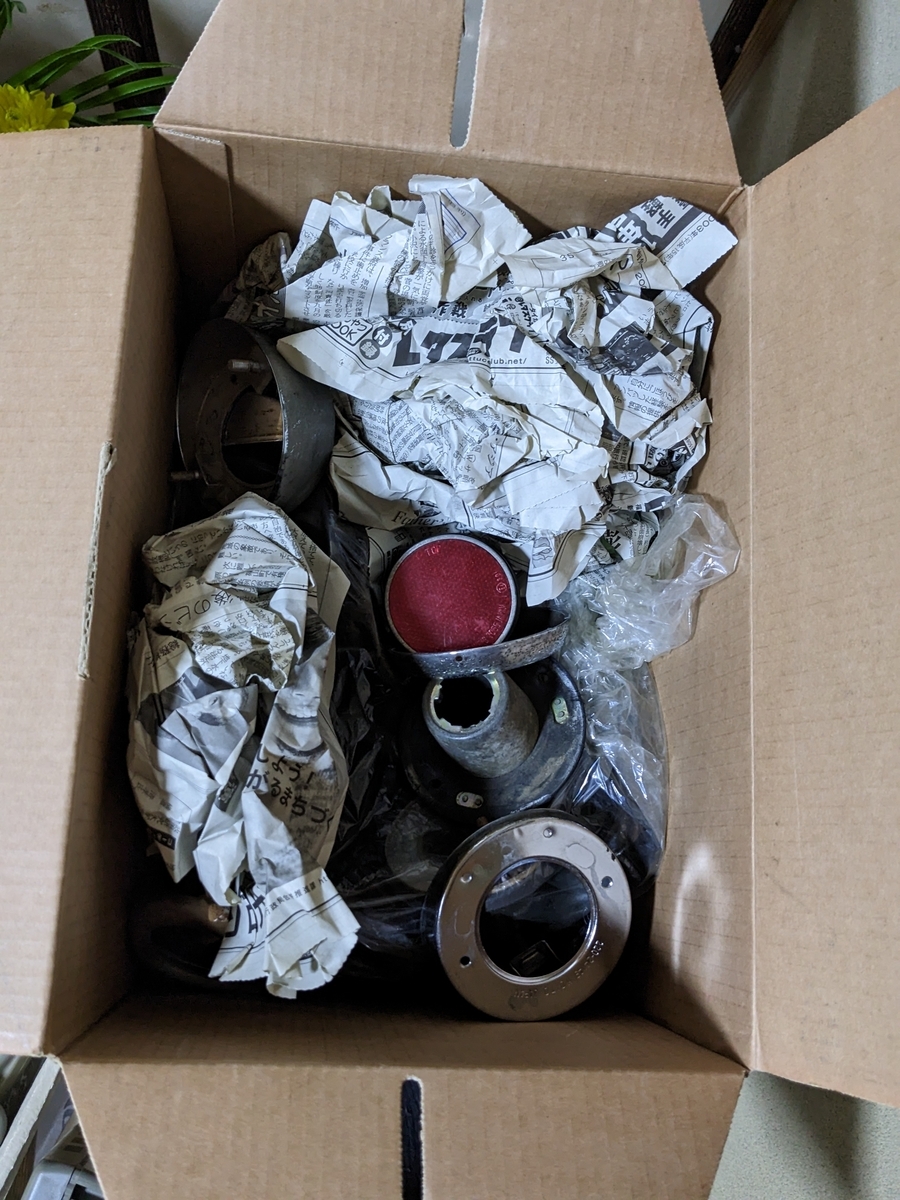
SRL311のインマニとキャブが。他にももう1セット出てきた。
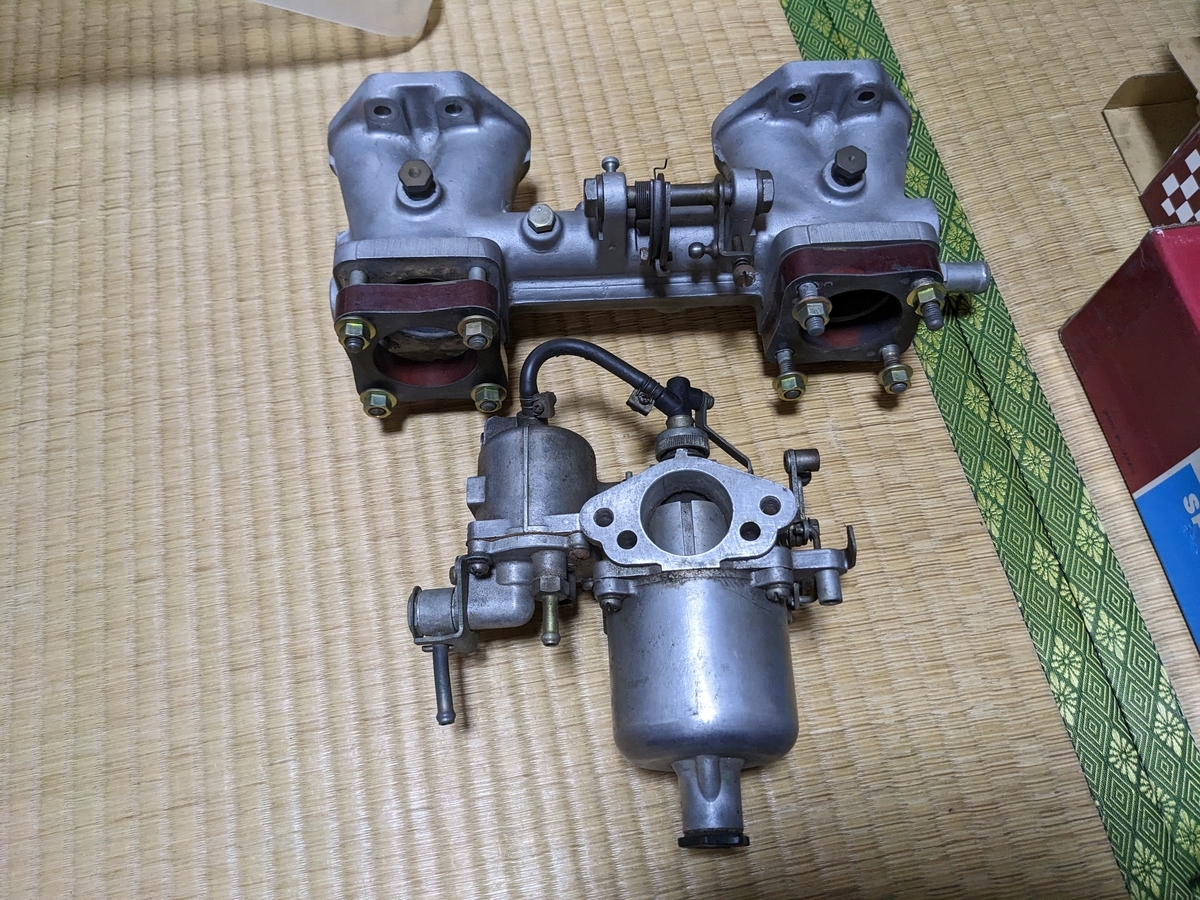
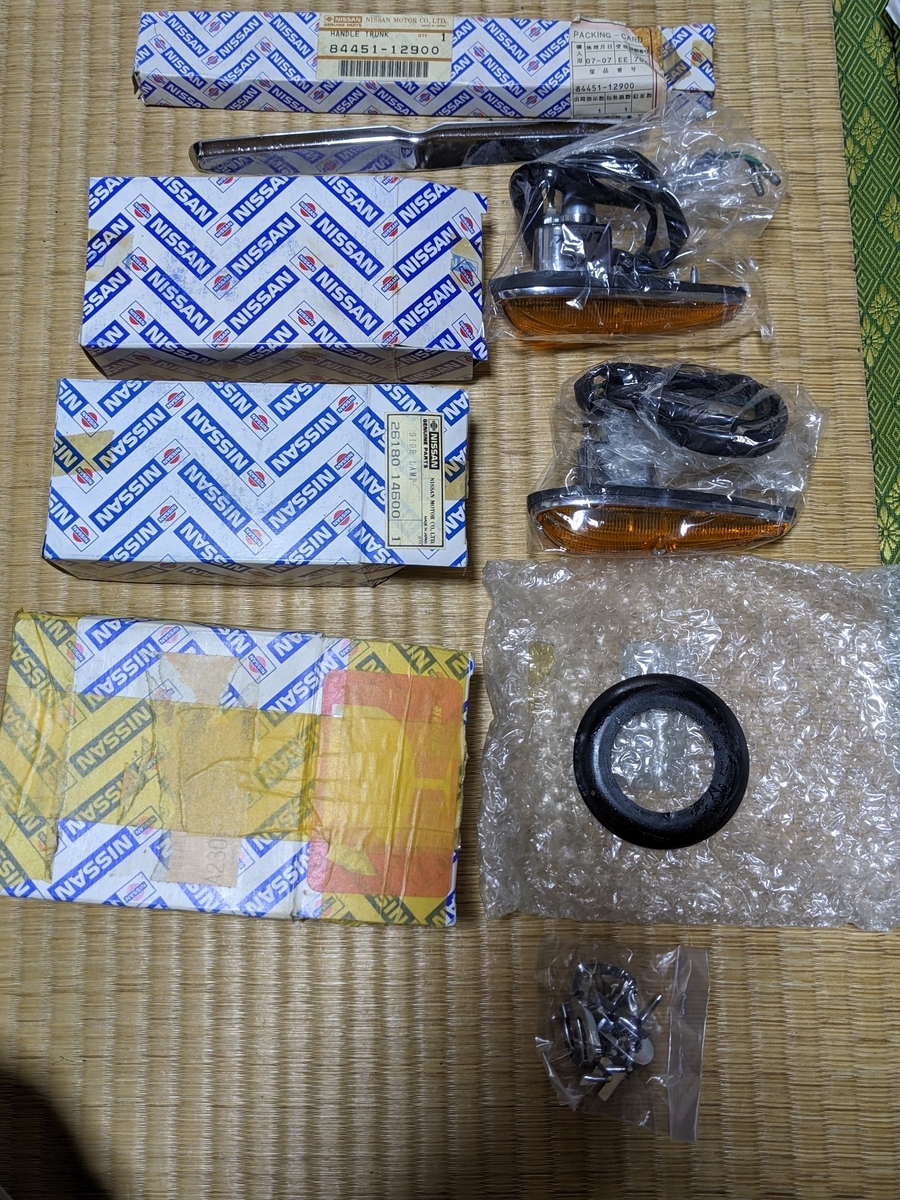
買った記憶は無くなってるんだけど、SR311、SRL311のパーツがいろいろ出てきた。
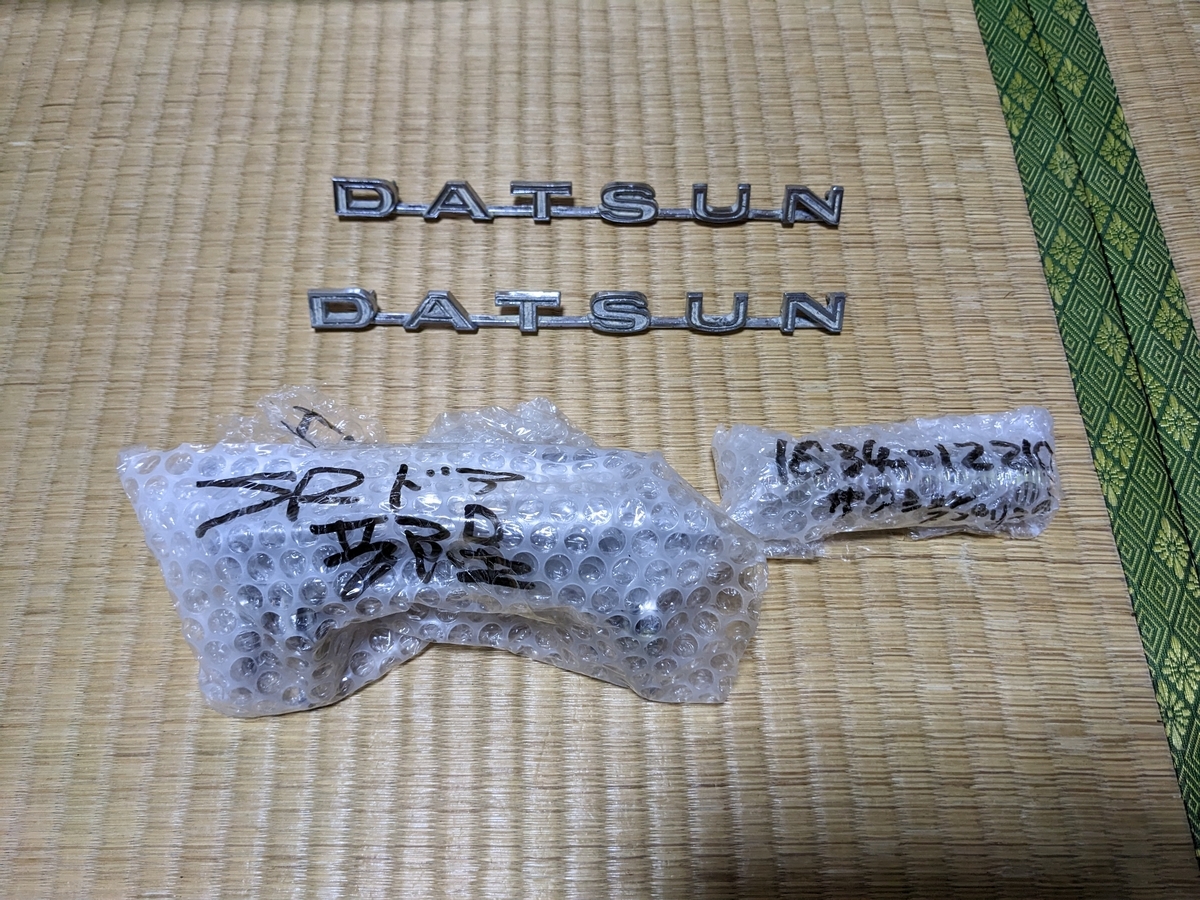
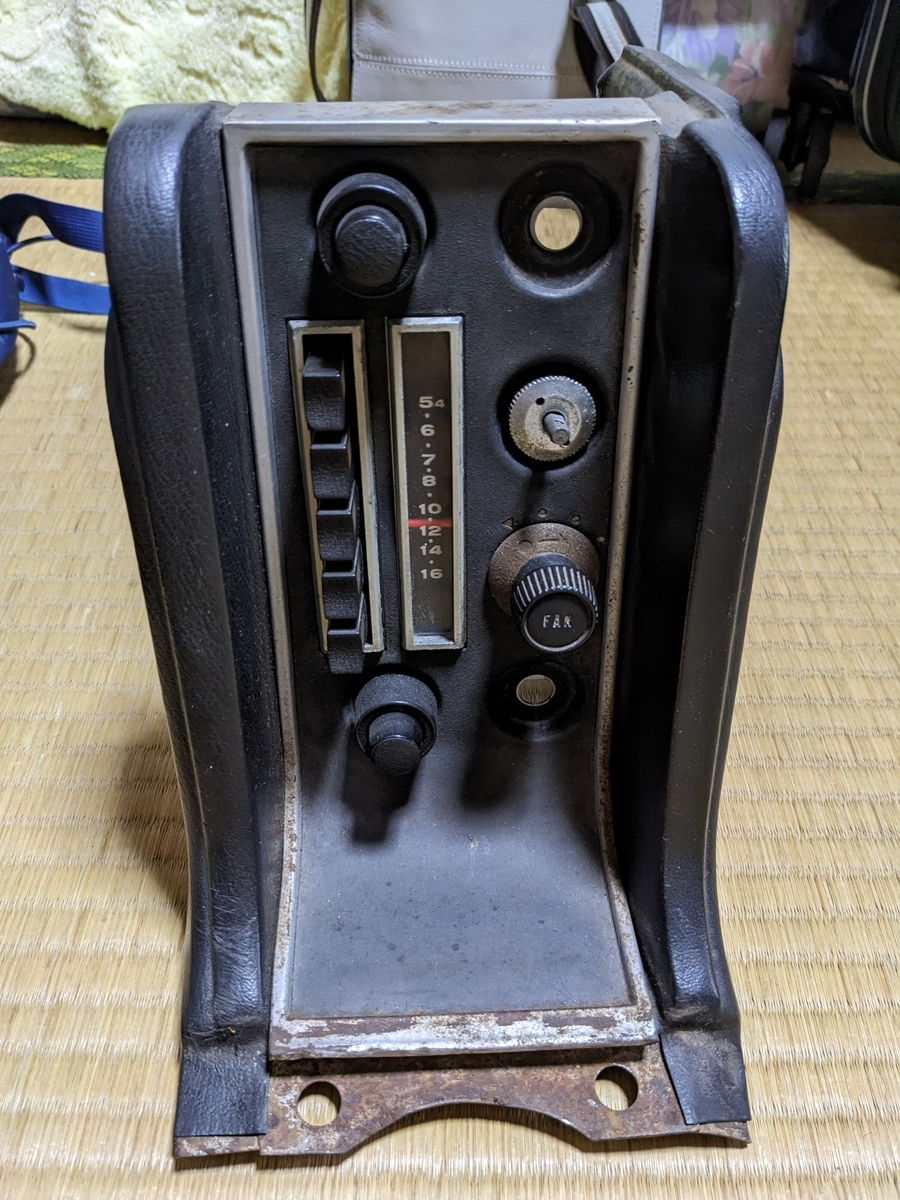
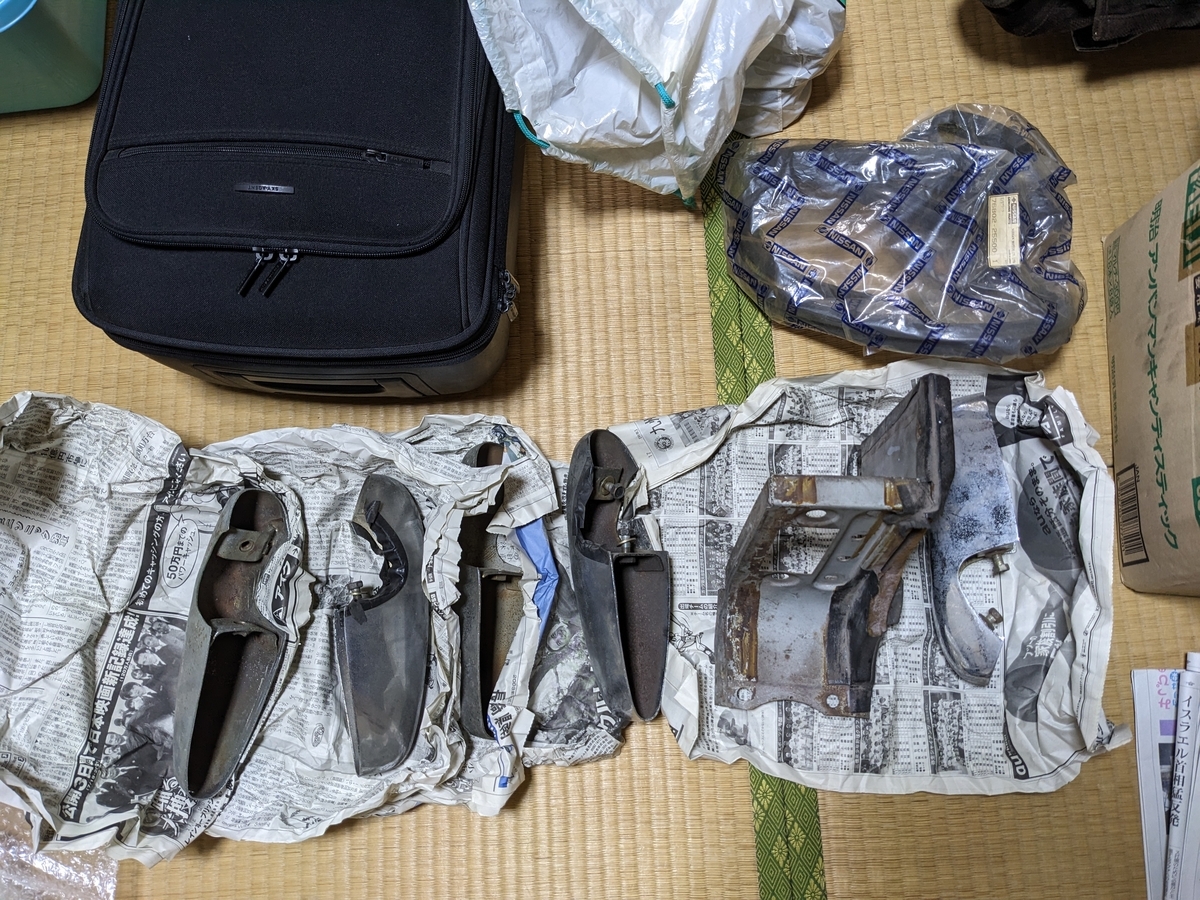
なぜかリアのウィンカーが20個位入ってる。。。
新品も。
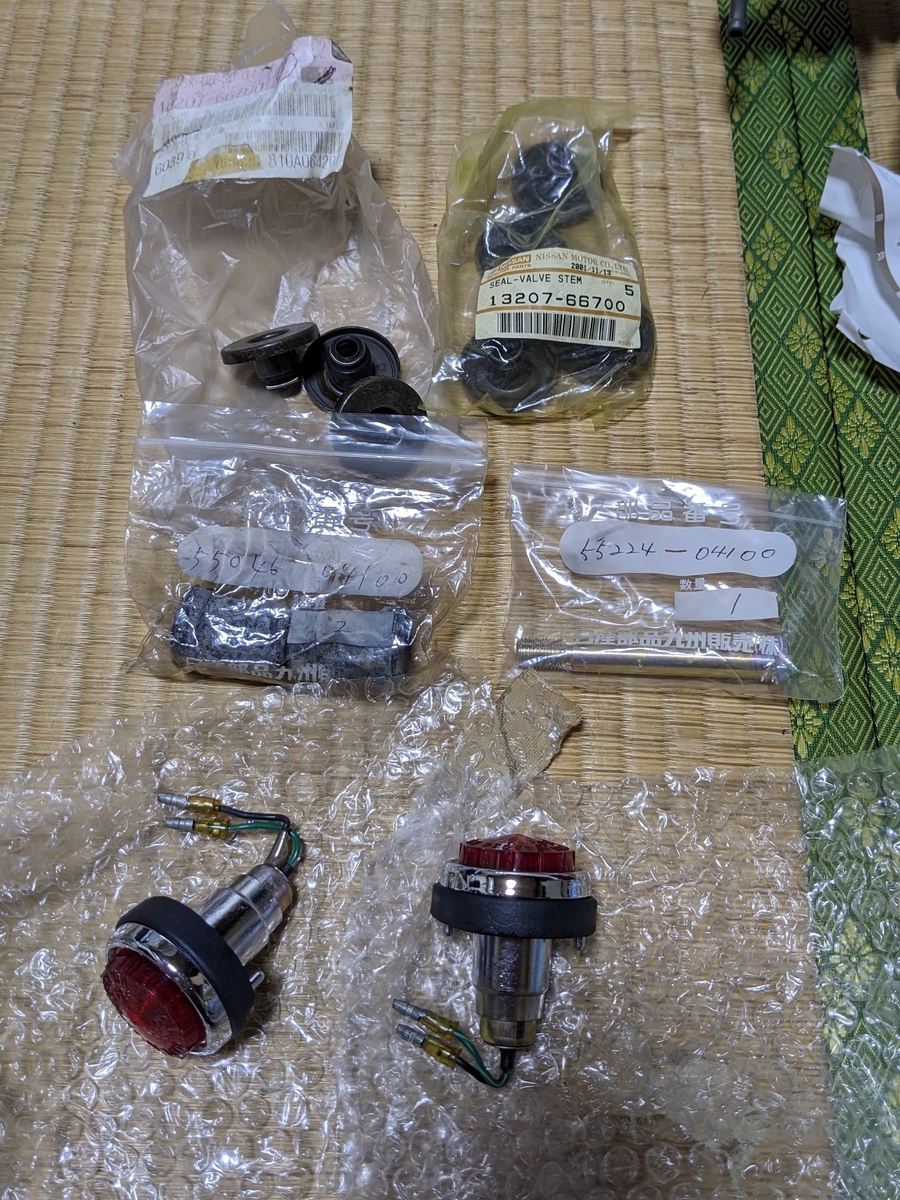
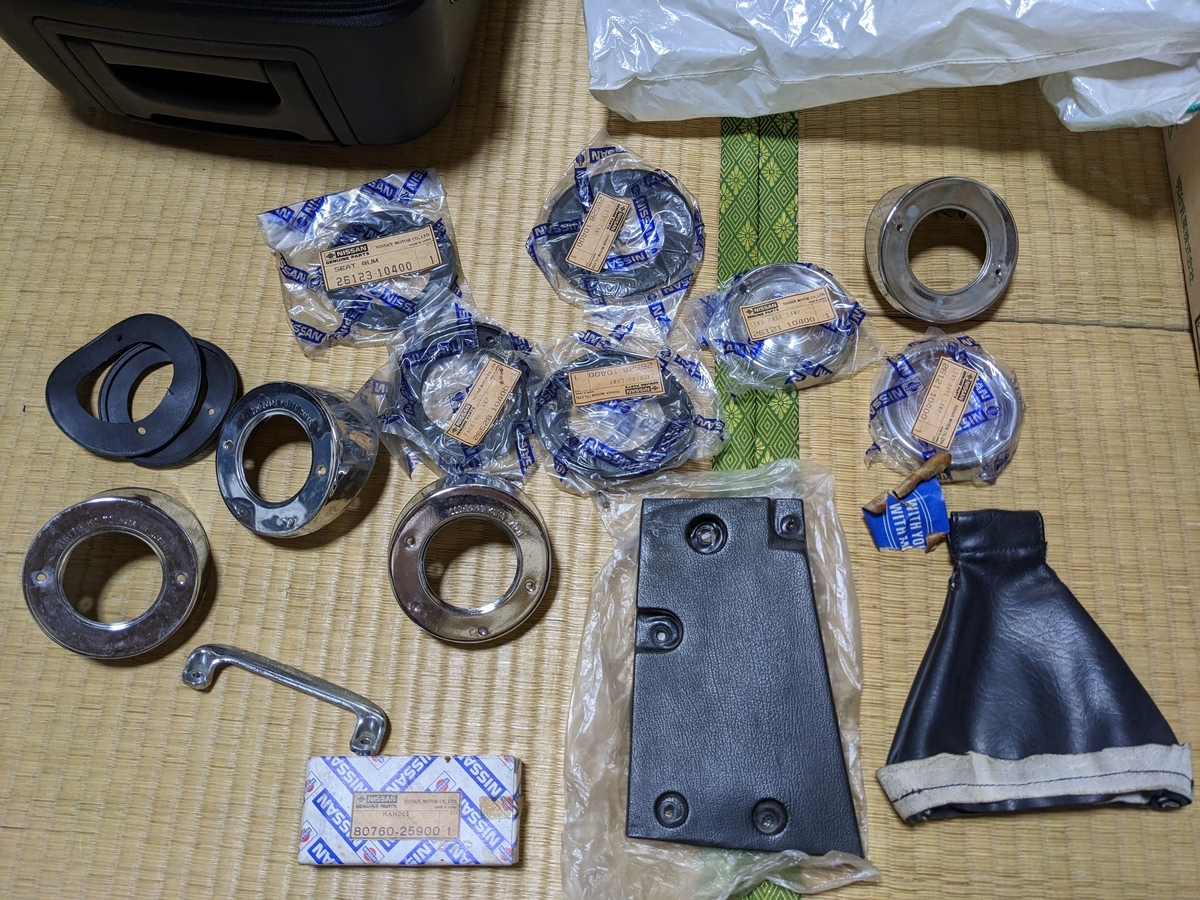
フロントウィンドウのウェザーストリップ?
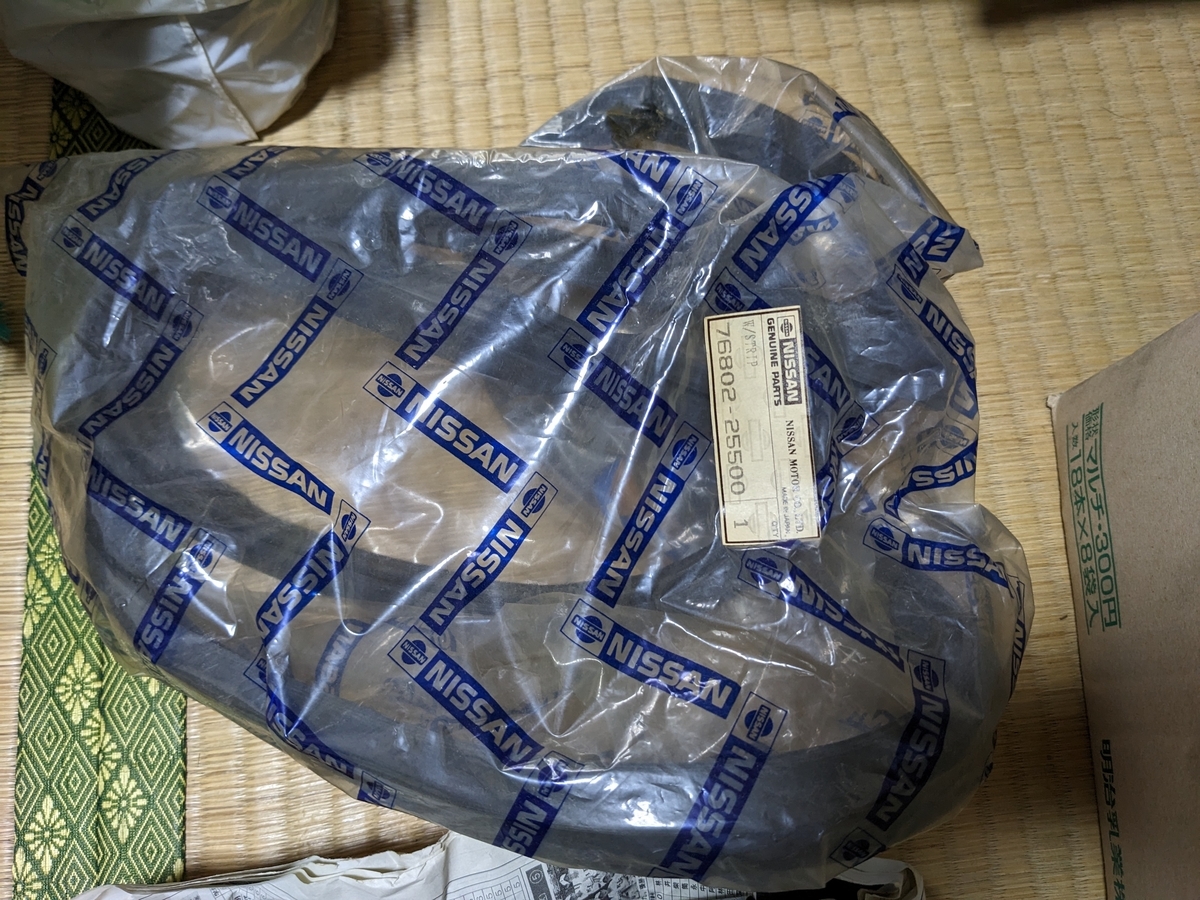
どれもレストアしようとしていた時の記憶が蘇ってきて懐かしい。
他にもチョークワイヤーだとか中古のショック、レース用の強化スタビとか新品のエンブレム、メッキモールとか出てきた。中古のメインハーネスとかの買った記憶のあるもので見つかってないものもあるのでまだどこかに埋もれてるっぽい。
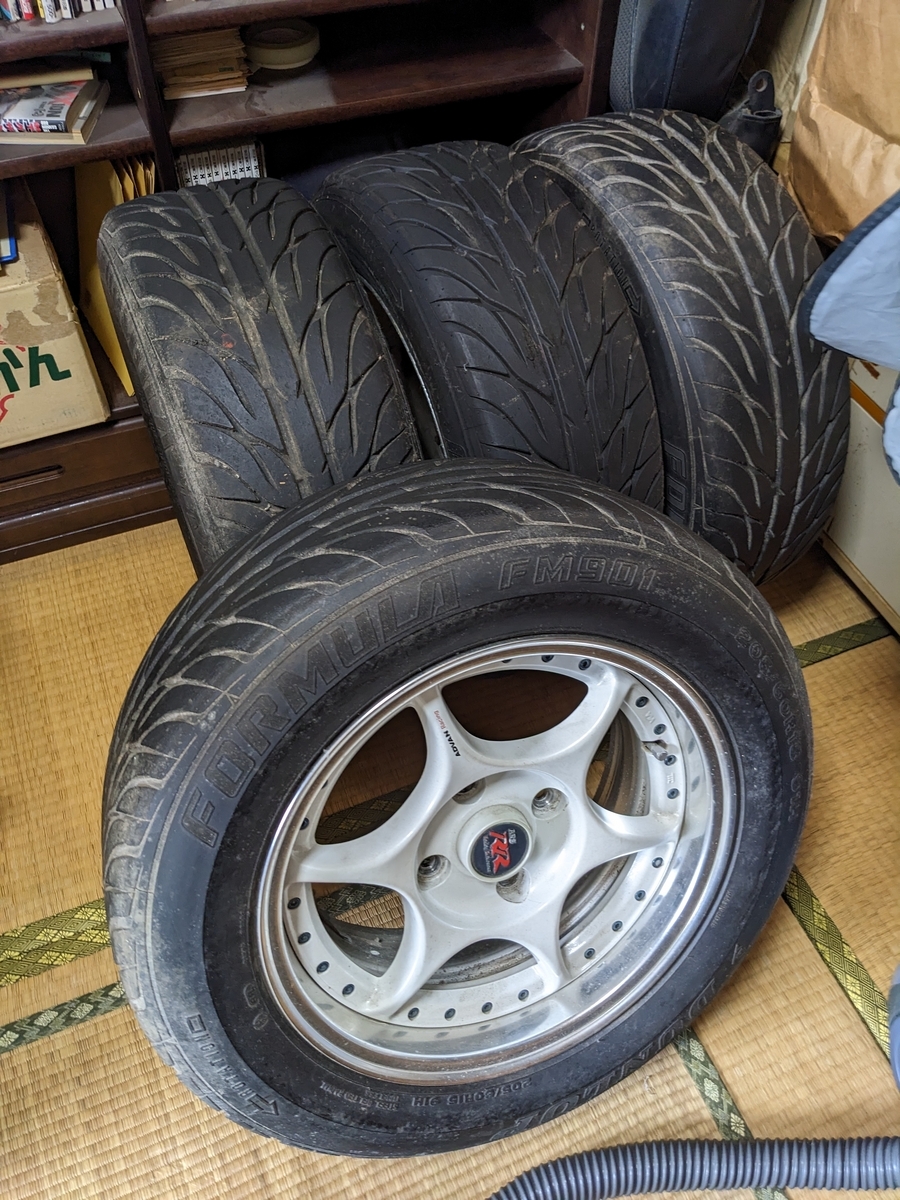
ホイールはスパーラップを買ってたはずなんだけど、ADVAN RACING ARS RRが出てきた。PCD114.7、15インチ、刻印は9Jに見えるけど7Jじゃないかなぁ。オフセットが分からない。。。
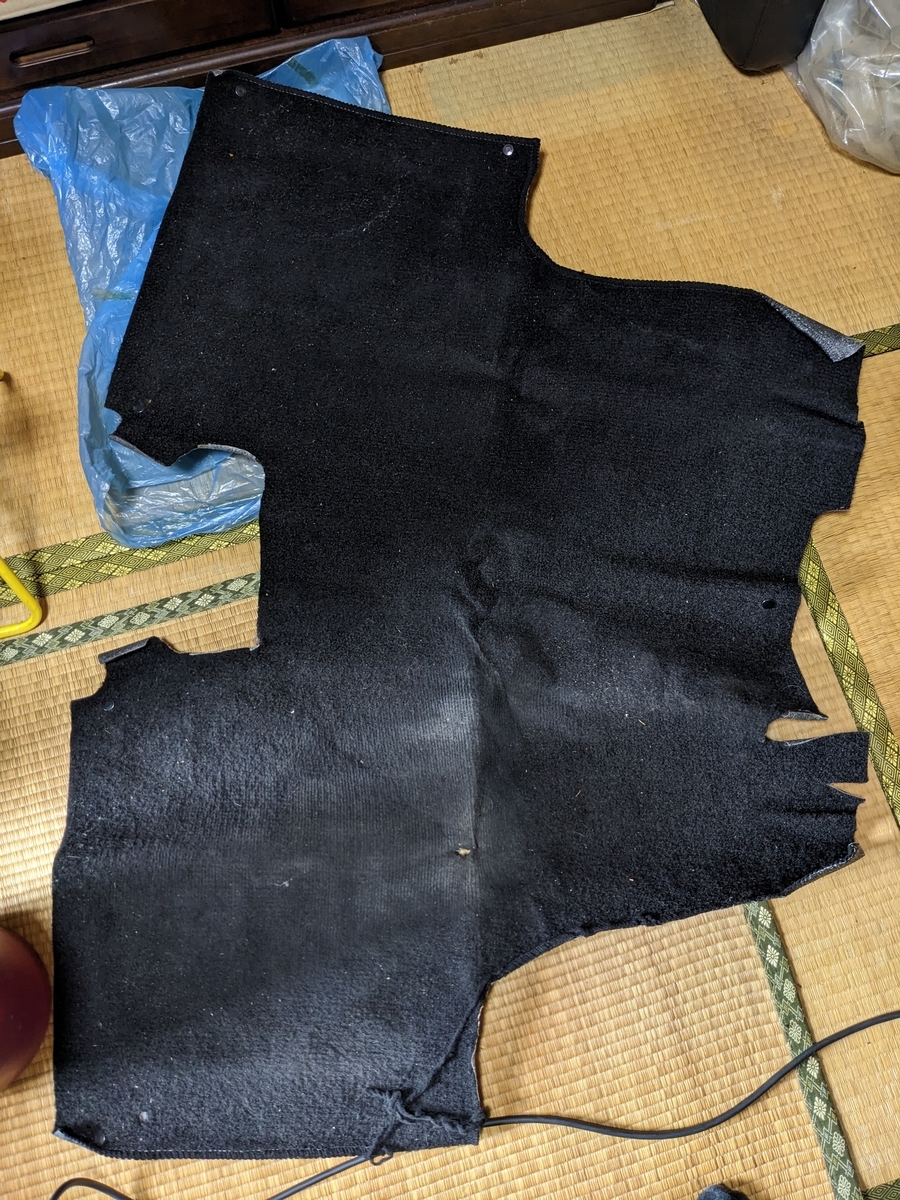
何のフロアマットだろ?
N360
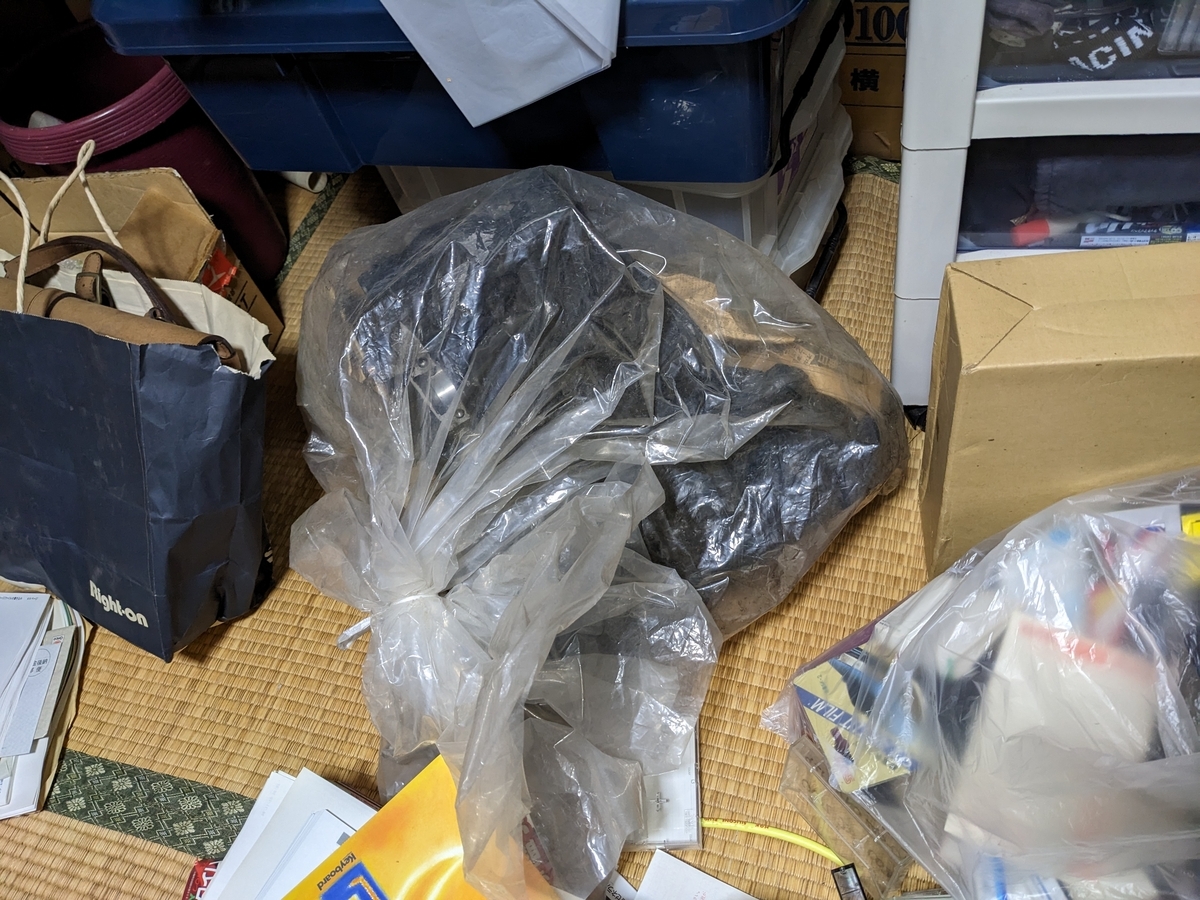
弟のGPZ400Rのエンジンだと思ってたビニール袋の中身はN360のエンジンの下半身だった。。。
エンジンは他にも何基かあるはずで、未使用のFRPのドアもどこかにあるはず。SR311よりNコロのパーツの方がはるかに沢山あるはずなんだけど、今回は殆ど見かけてないのでまだ見てない部屋か倉庫にあるんだろうなぁ。
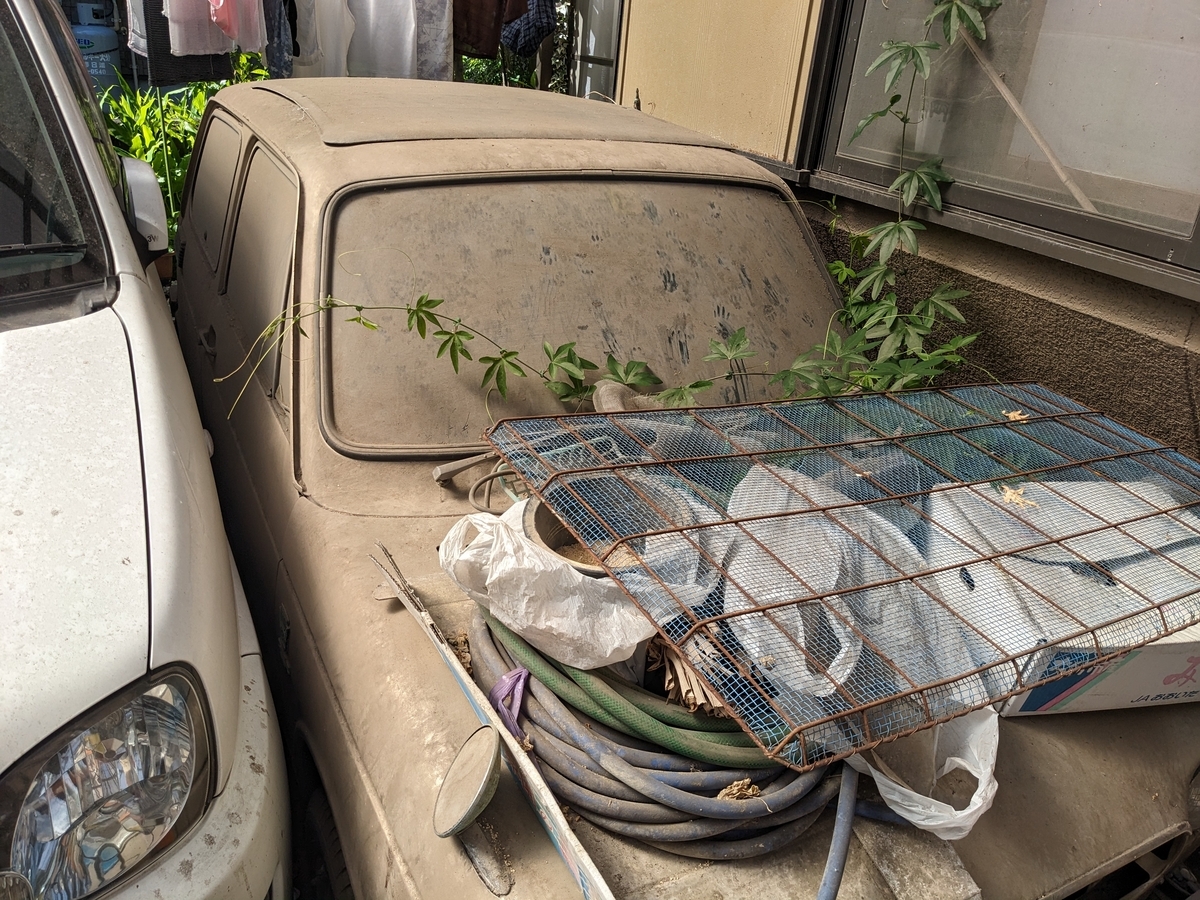
そのN360キャンバストップは今こんな感じ。
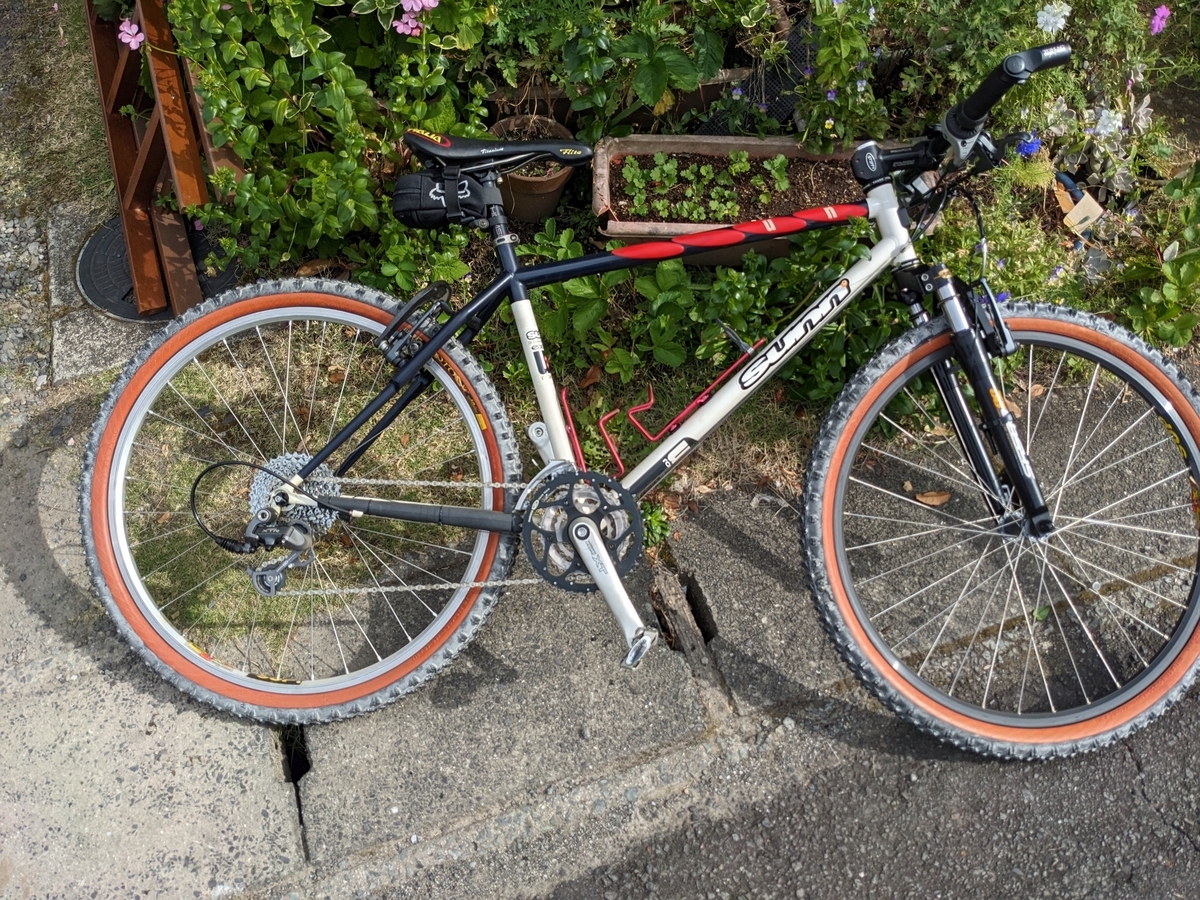
自転車
お気に入りのクロモリのSUNN exact。
cannondaleのロードは東京に来るときに持って来たんだけどMTBはおいてきてた。
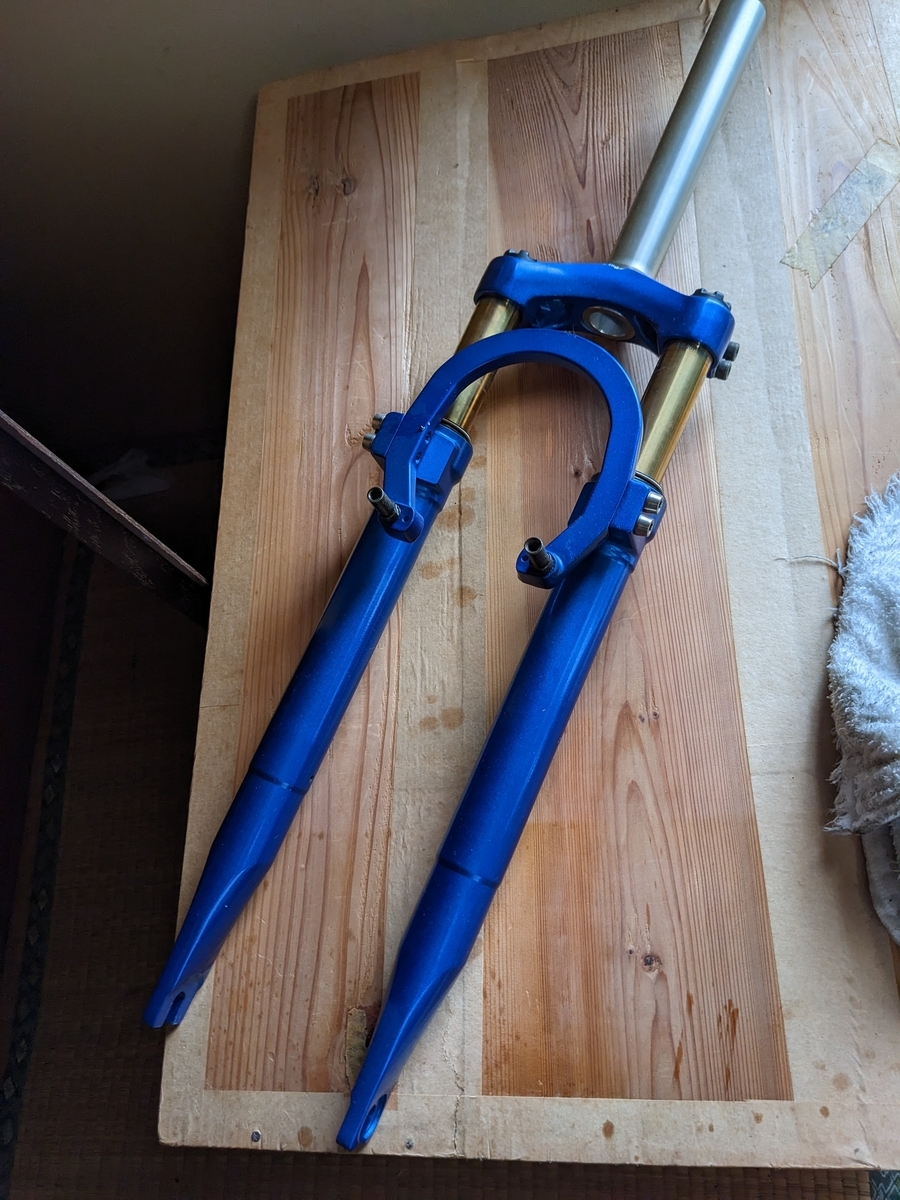
で、ショックなことに。。。obsys 55のダストシールが劣化して砕けてる。
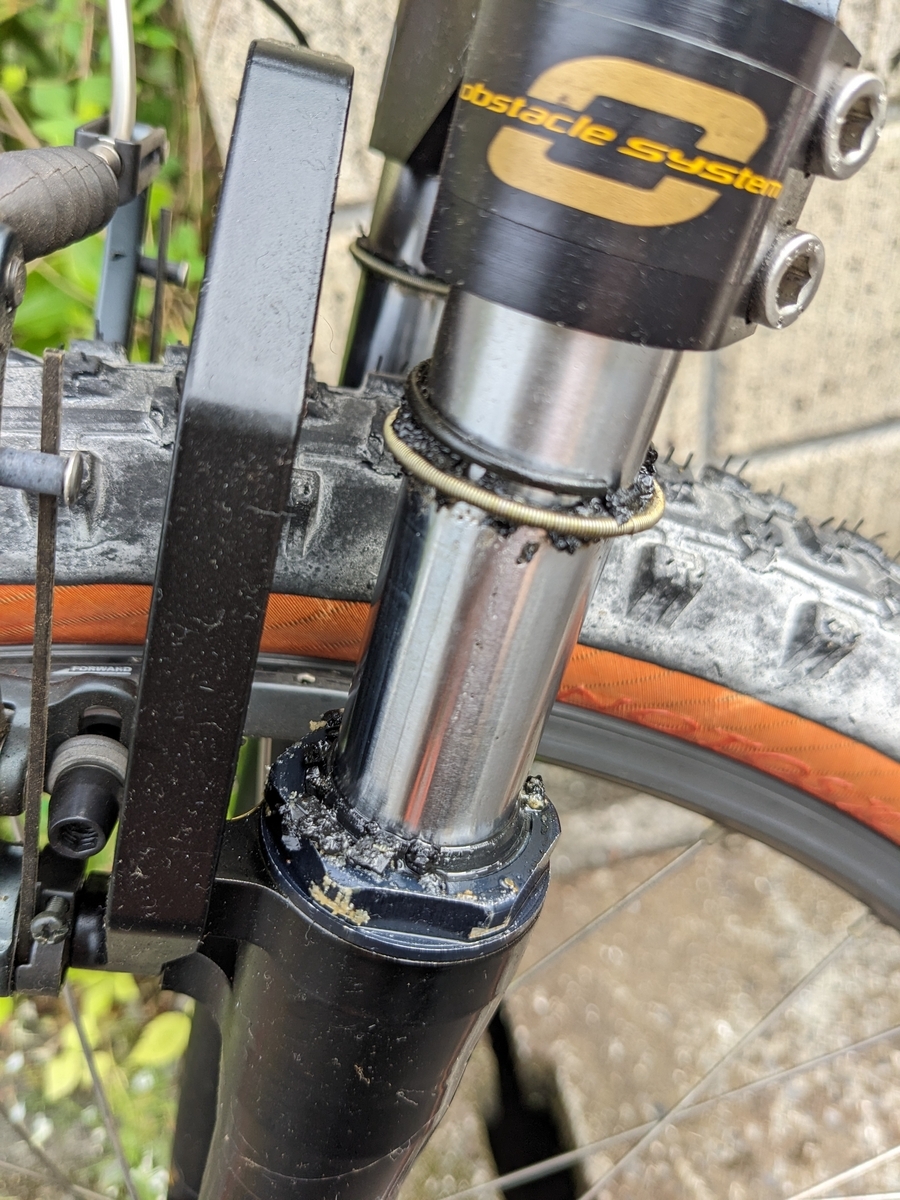
オイルシールも変形してフルードが漏れてるんでダメだ。
もう一本obsys40もあるんだけど、こっちも同じ。
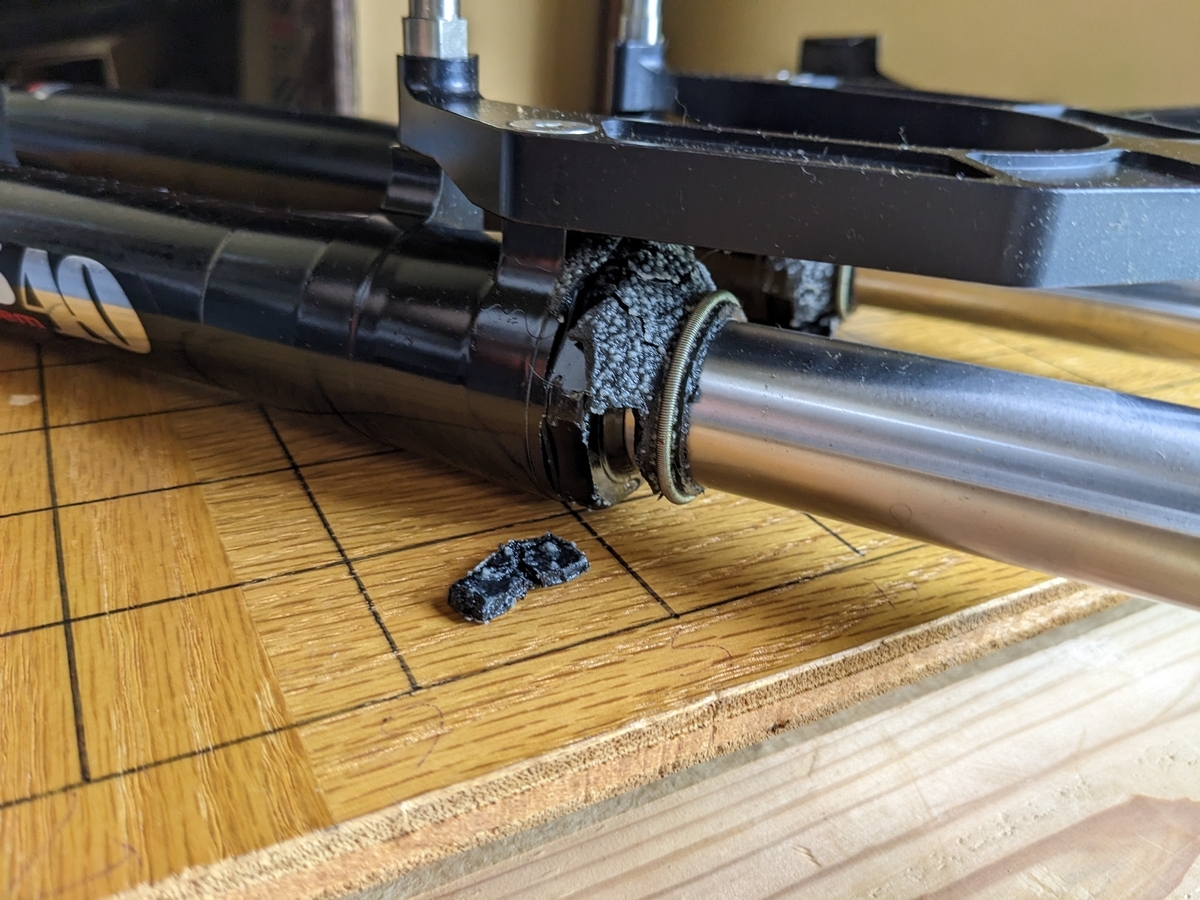
部品は出ないみたいなので、ダストシールはあきらめて代用できるオイルシールを探してみよう。難航しそうだけど。。。
SHOWAのフォークは大丈夫みたい。
自転車のパーツも段ボール何個もある上、ホイールがかさばってる。
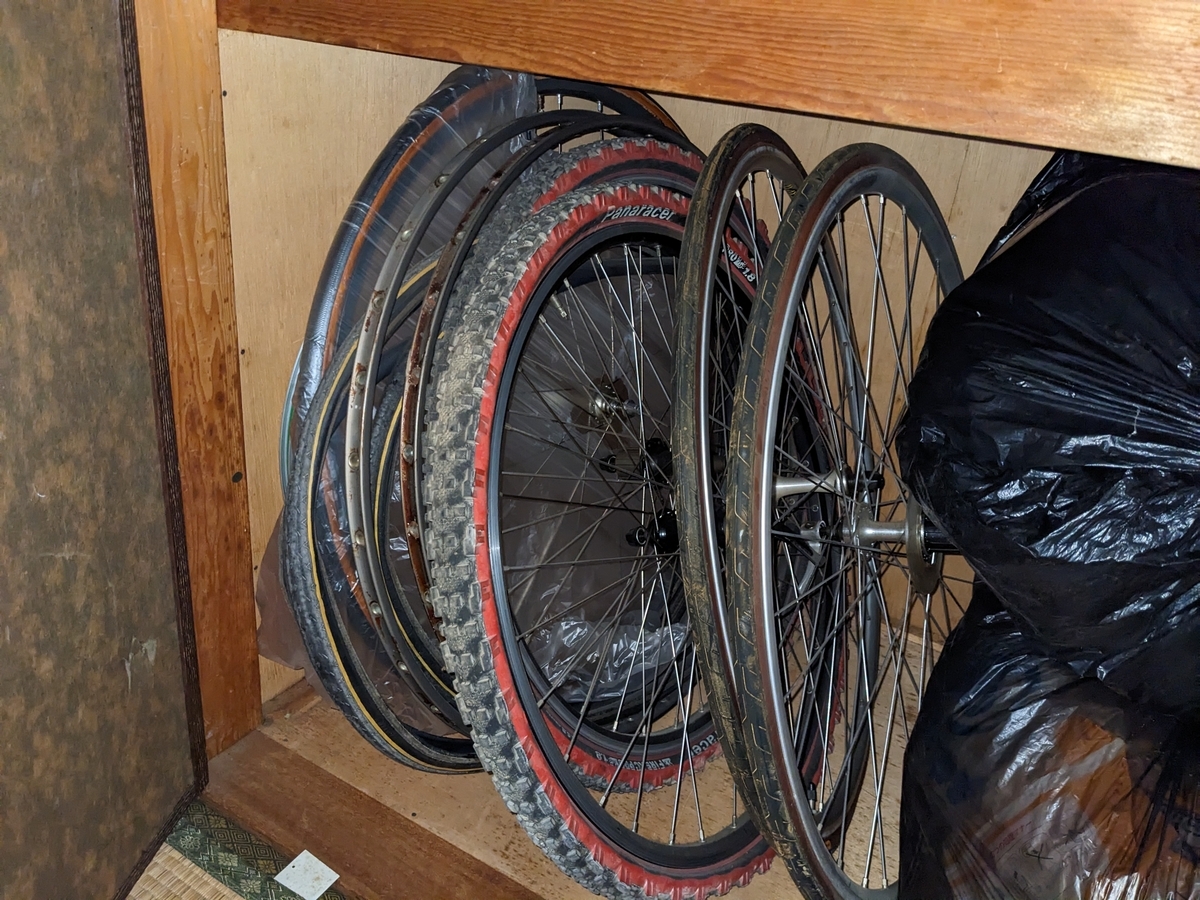
母曰く、ホイールは屋根裏部屋にもあるらしい。というか屋根裏部屋なんてなかったのにいつの間にできた?SPINERGYのカーボンのRev Xはどこ行った?
Sharp X1
X1cのプロッタプリンタ、シンクレア ZX81の基板、sharpのオフコンの基板とか。
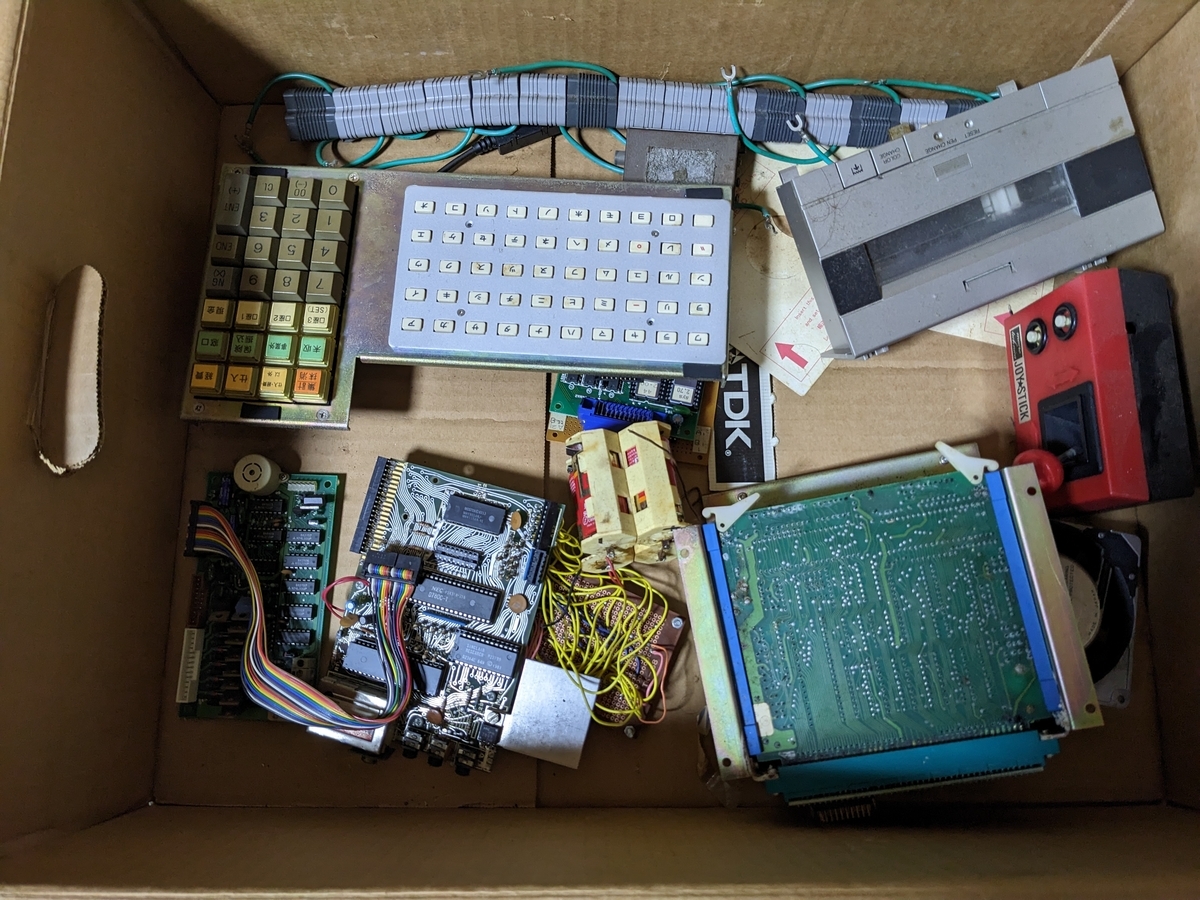
ZX81は動くようにして、当時ベーマガに投稿して掲載されたプログラムを動かしてみたいな。
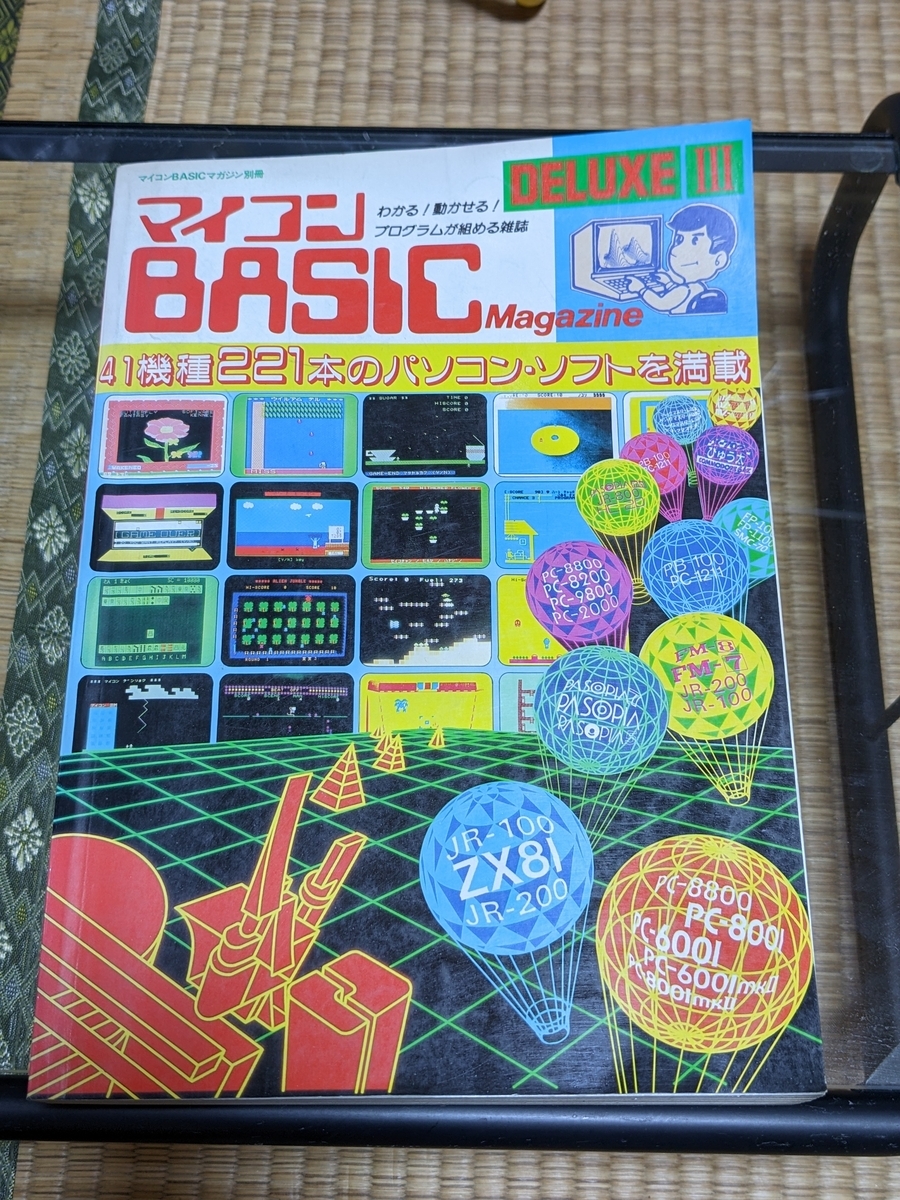
掲載されたデラックスは見つかったけど、月刊誌の方は行方不明。
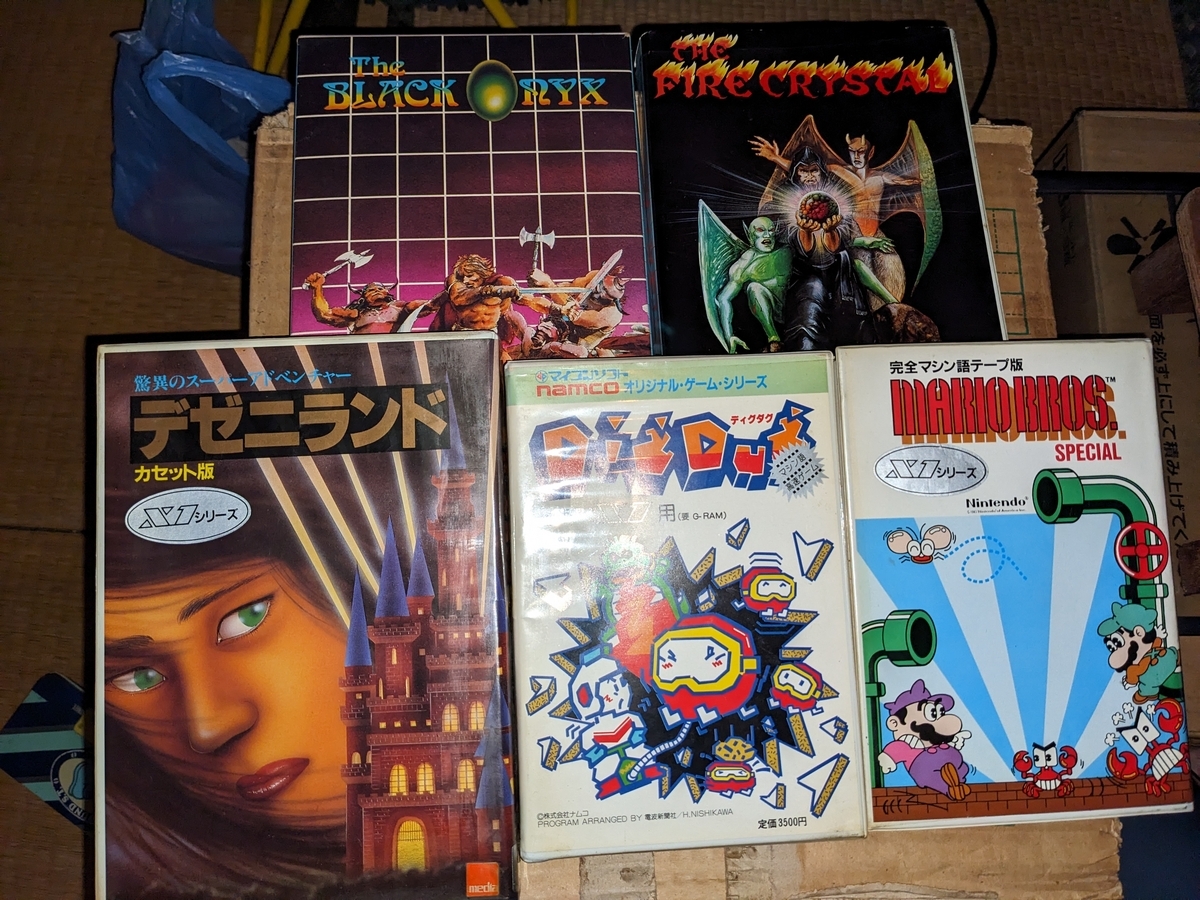
X1のソフトも出てきた。XEVIOUSとサラダの国のトマト姫、FLAPPYはどこいった?
Sharp製のX1用ガラステーブルも出てきた。
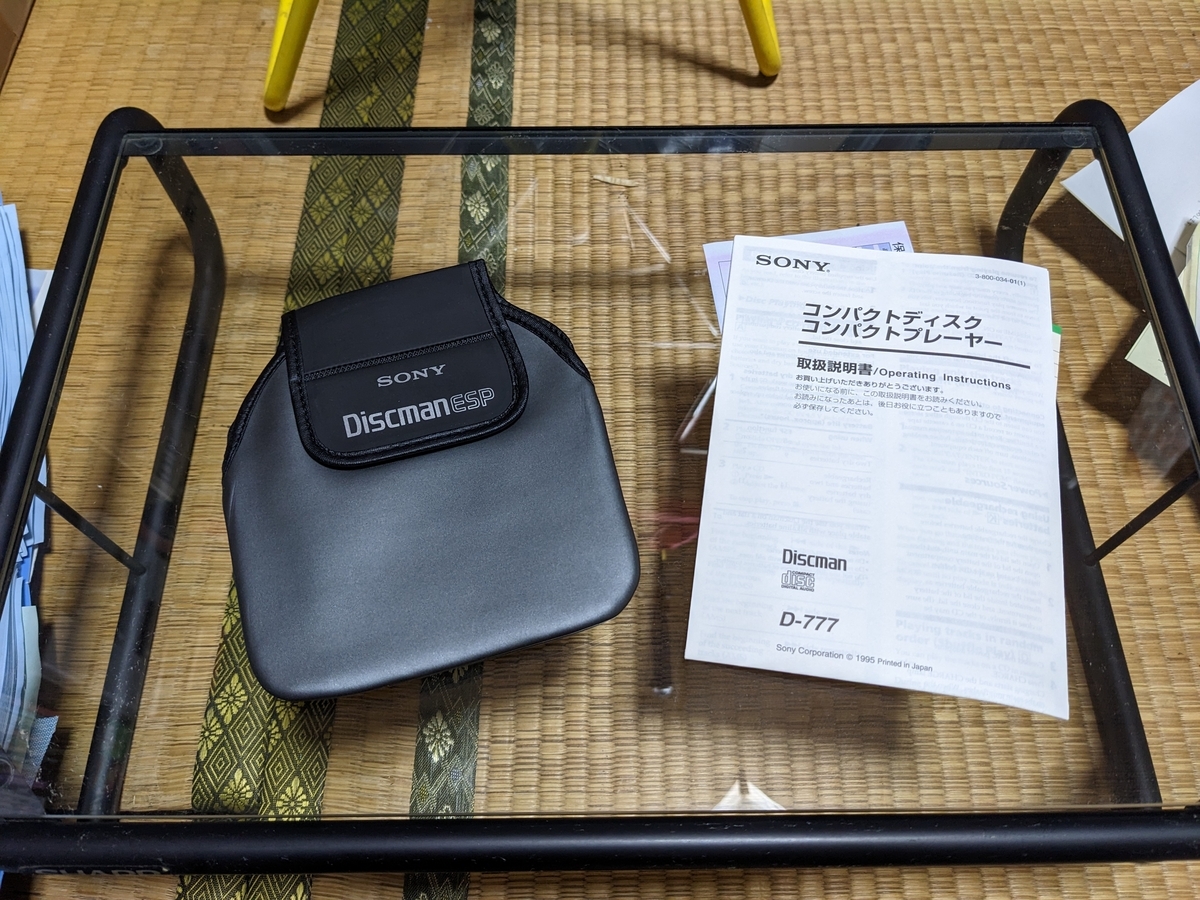
テーブルとは関係ないんだけど、walkman D-777はJKの娘が使ってて、ケースと取説はここにあった。
おもちゃとか
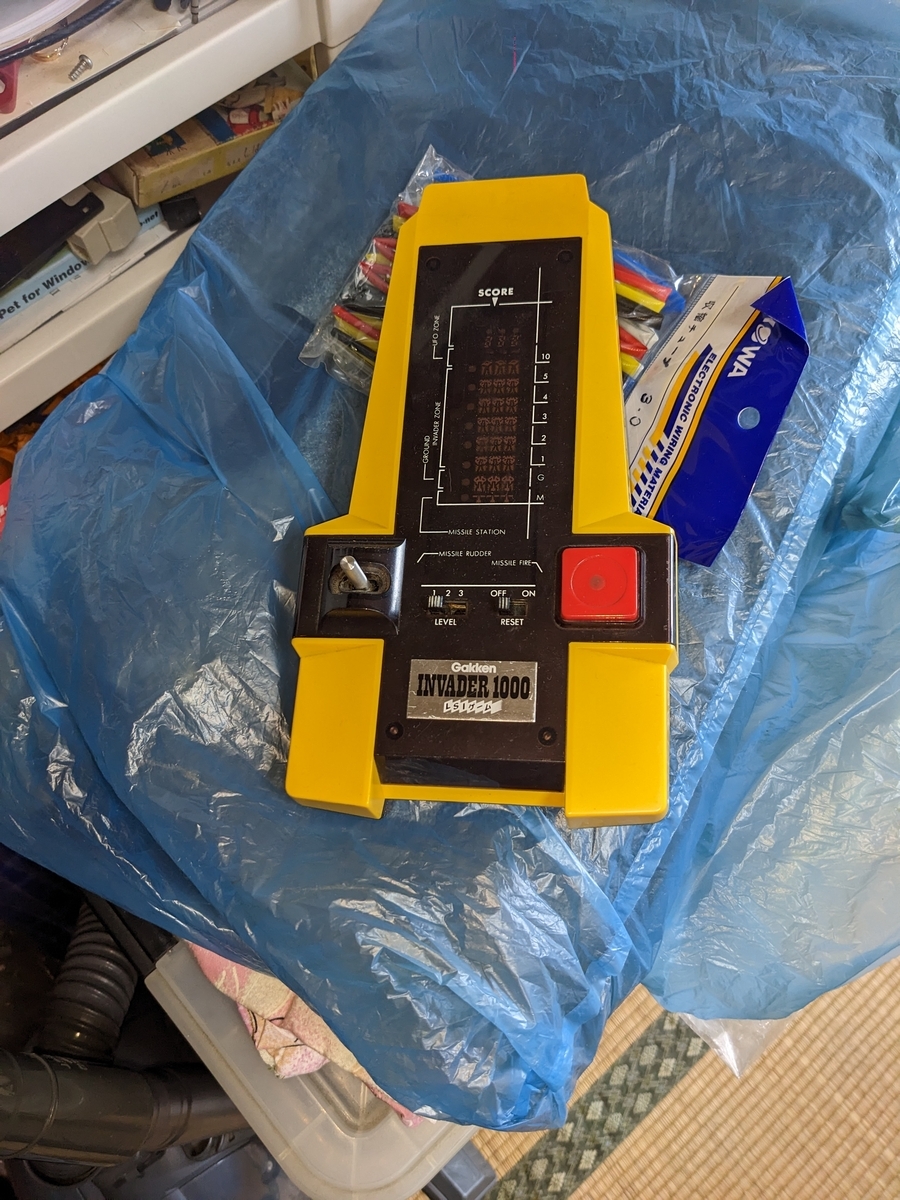
学研 インベーダー1000。よく遊んでた。
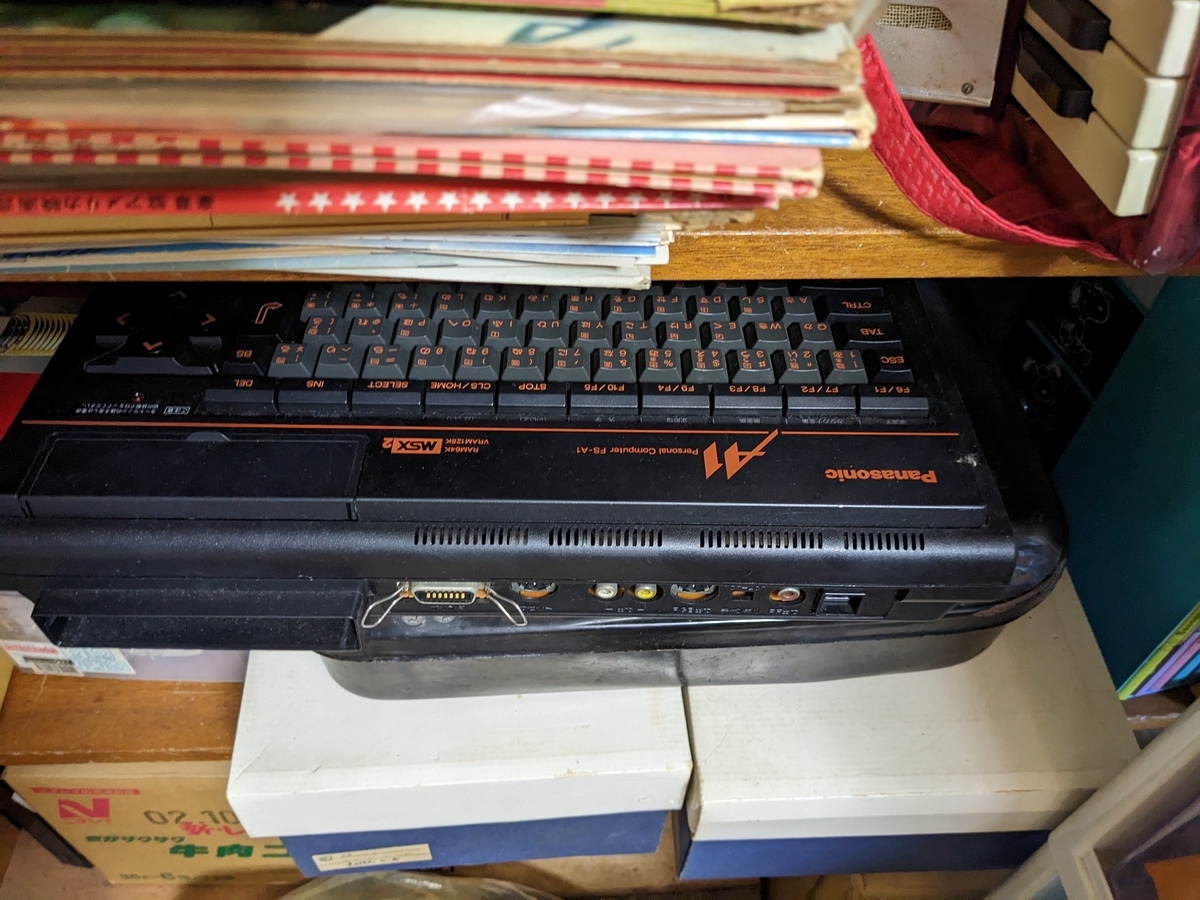
パナソニック FS-A1 MSX2。これは兄弟の誰も自分のではないと主張。なんであるのか不明。ACアダプタもあったけどカセットが無い。
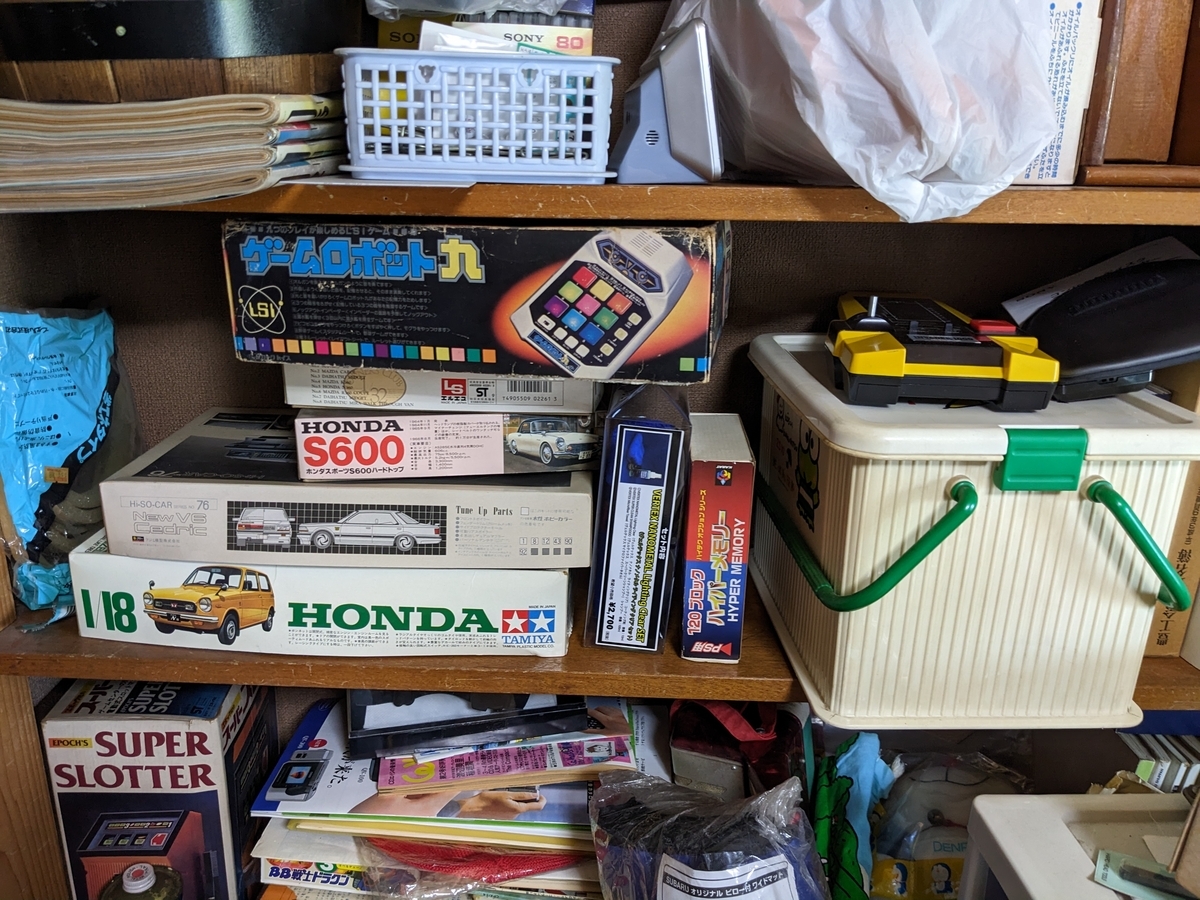
なんかいろいろ。昔のパソコン、オーディオ、楽器などのカタログもいっぱい出てきた。
赤ん坊のころに飲んでた粉ミルクの缶が大量に出てきた。
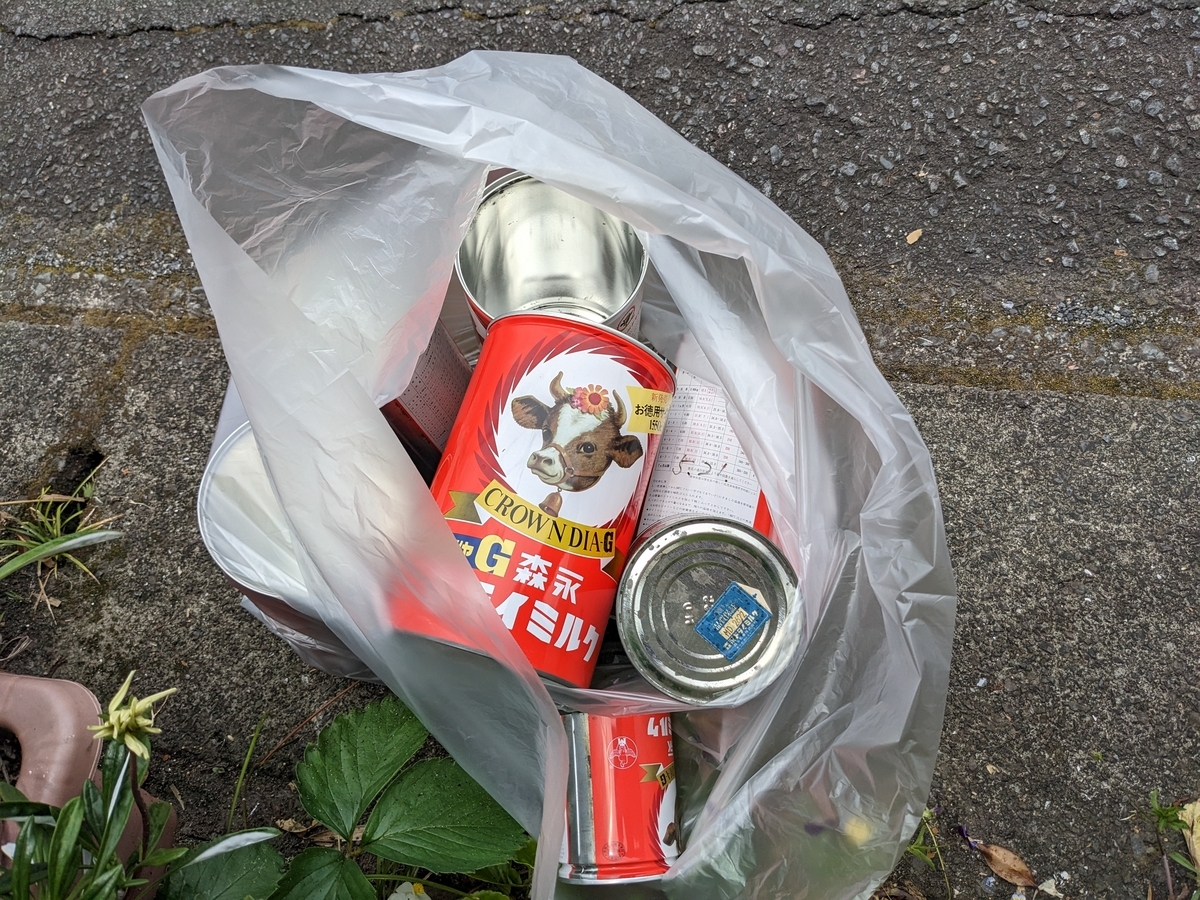
この缶、なんだか記憶がある。多分、一番下の弟が飲んでた頃の記憶なんだろう。蓋をフリスビー代わりにして遊んでた記憶もある。
子供の頃のパジャマも出てきた。
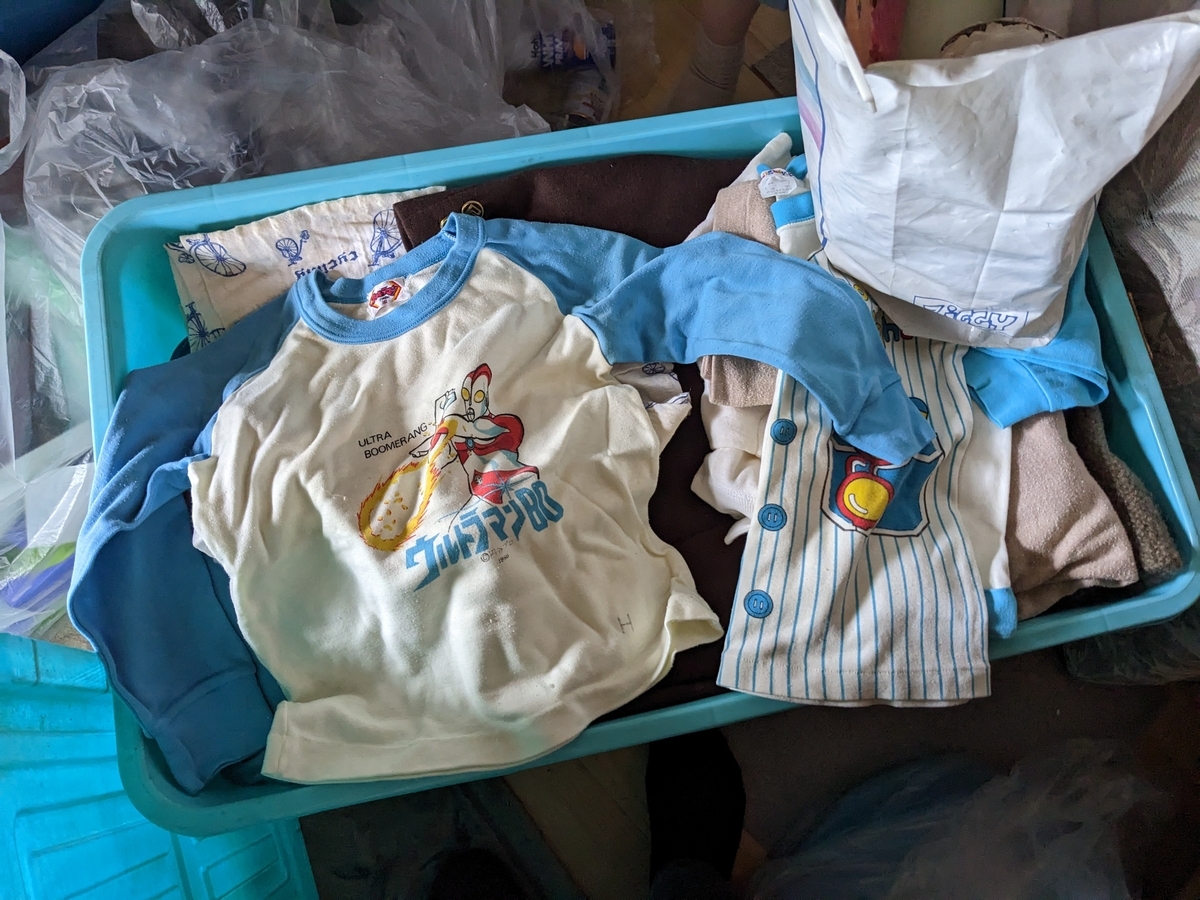
横浜に戻って、娘にこの写真を見せたらかわいいと気に入ってしまったが、捨てたと言ったら怒られた。捨ててなかったらどうすんだ?
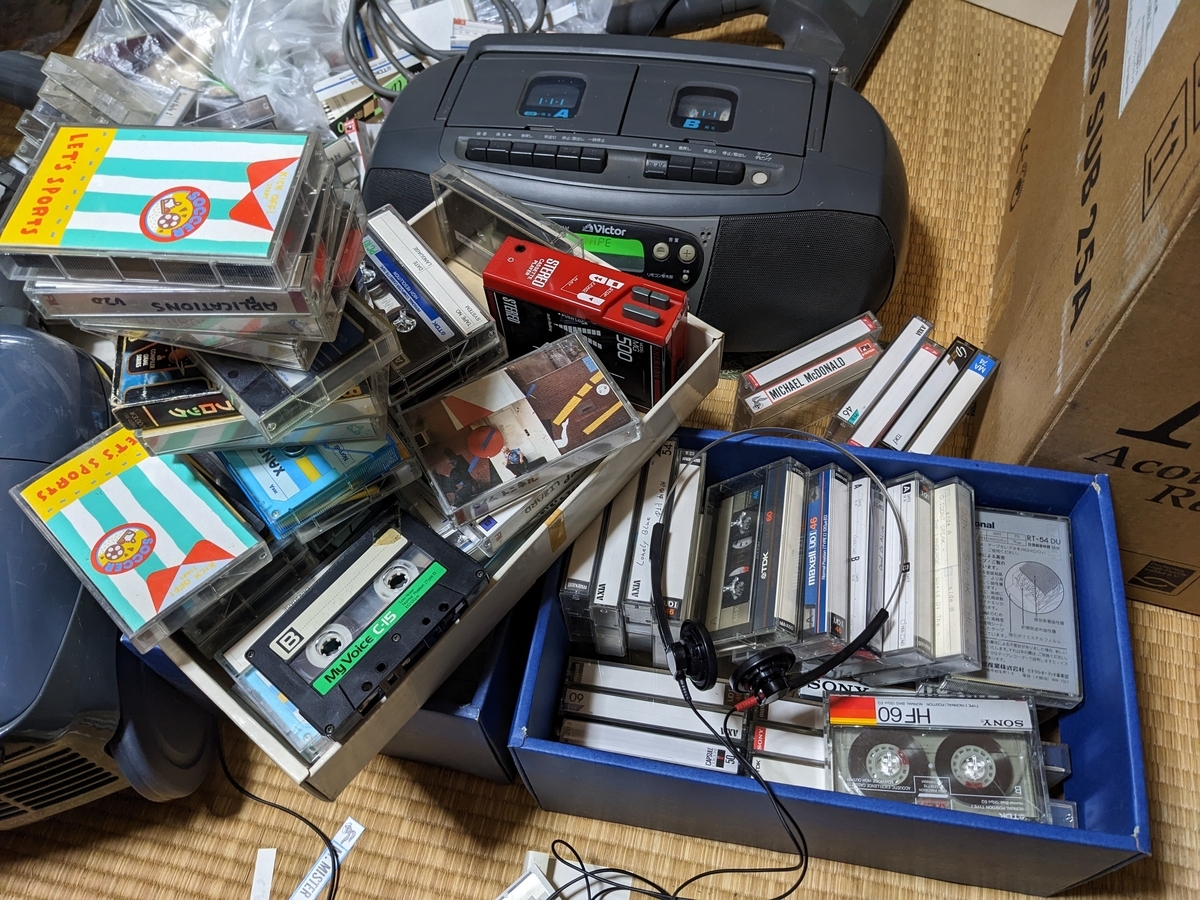
カセットテープは昔処分したはずがまだあった。おもちゃの携帯プレーヤとKORGのヘッドホンが出てきたので聞いてみたけど、ピンチローラの回転ムラがひどくてまともには聞けなかった。
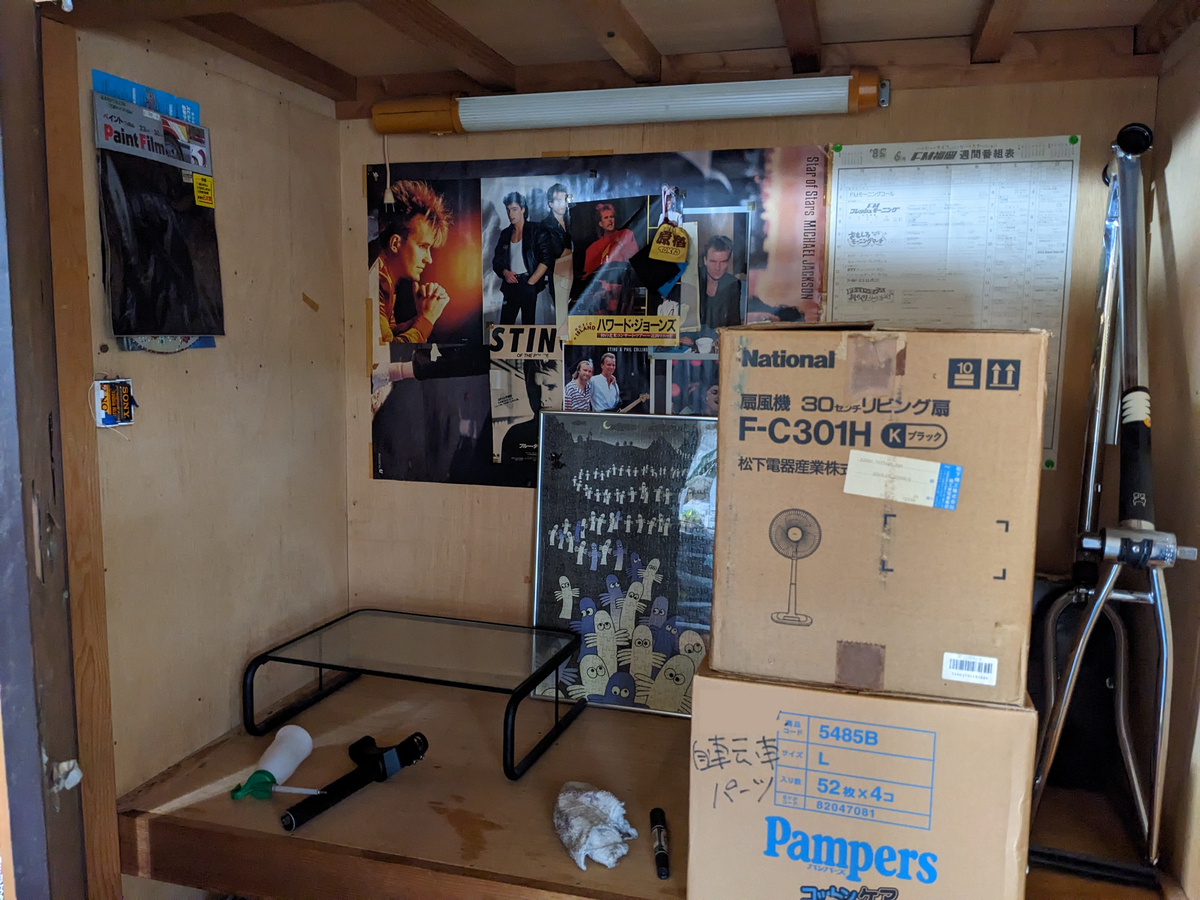
勉強机についてた照明を押し入れに取り付けて、昔はここを机代わりに使ってた。ドラえもんに感化されてた気がする。
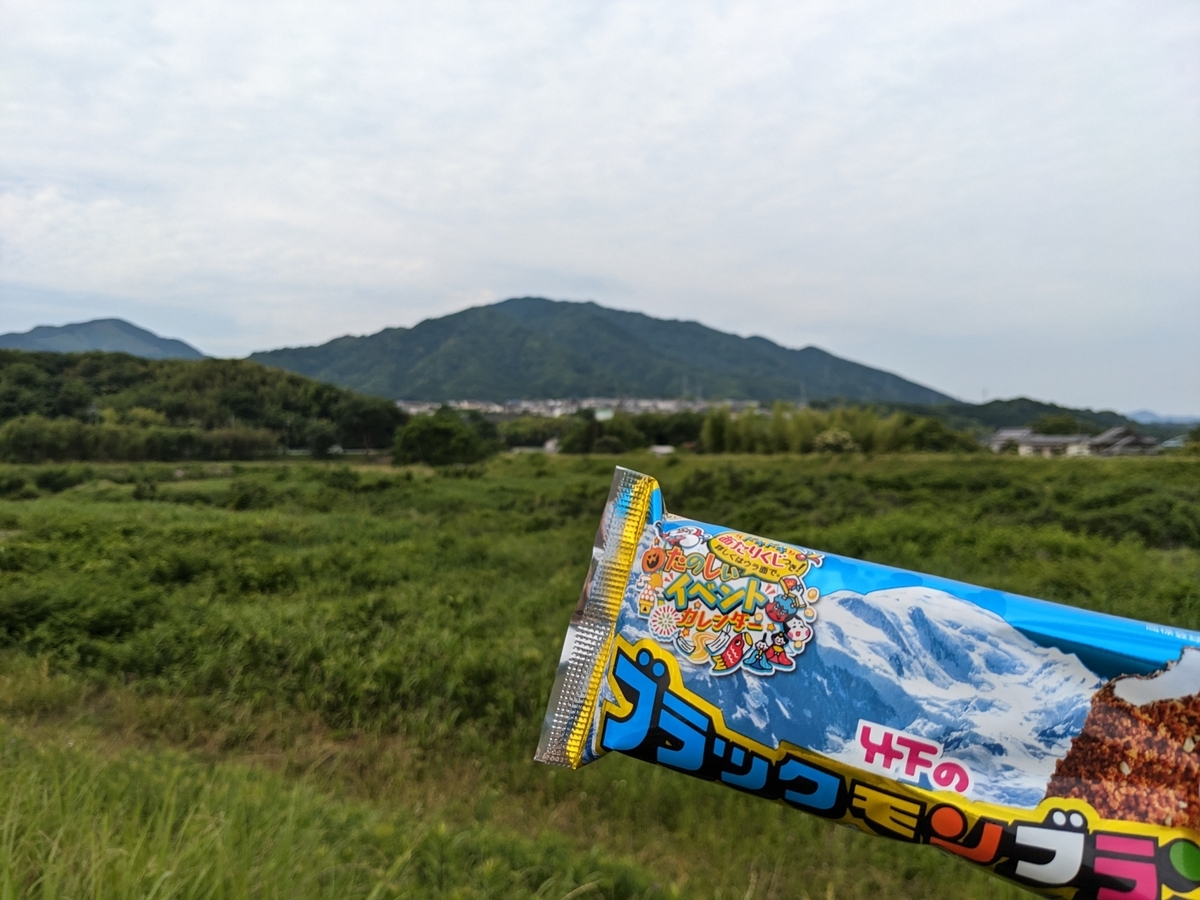
竹下のブラックモンブラン
実家に来たら近所のスーパーでブラックモンブランを買って食べながら土手を散歩するのが日課になってる。いつもは娘も一緒なんだけど、今回はテストがあるので娘は先に横浜に帰っちゃったからぼっち。
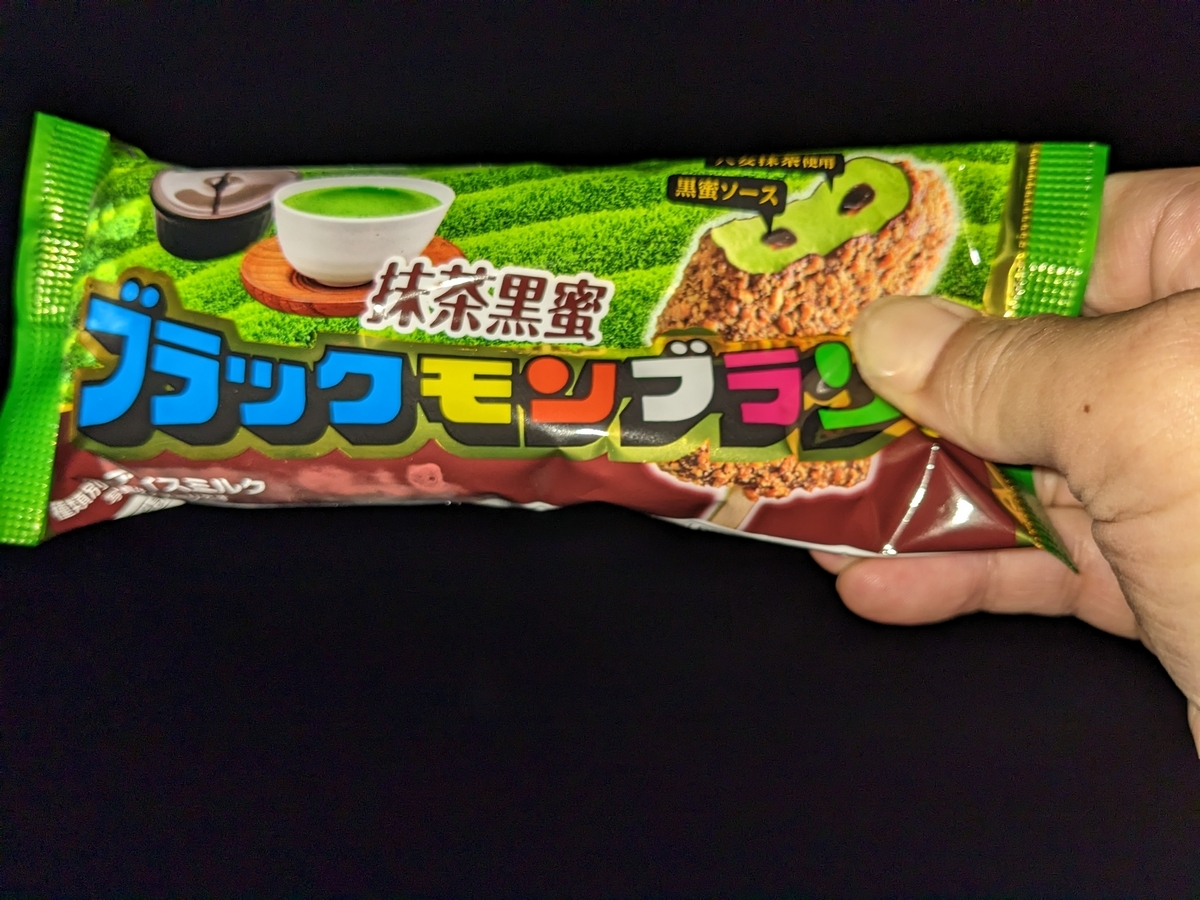
夜の散歩は抹茶黒糖味。初体験だったけど、普通のやつの方が好み。
来月あらためて処分に行くので、とりあえず発掘したものは一ヶ所にまとめといた。
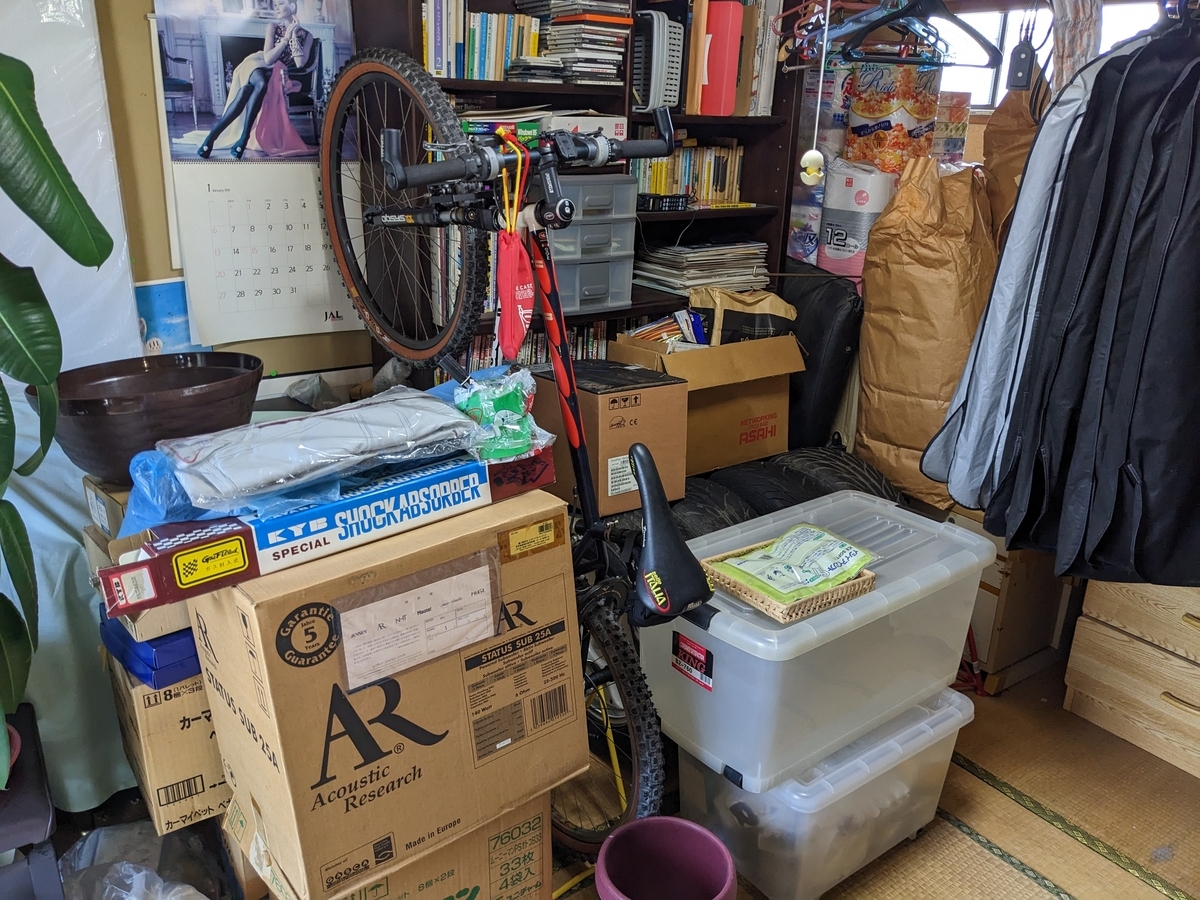
本棚の中身も処分だけど、SUNNは横浜にもっていきたいなぁ。母曰く、超合金とかソフビは倉庫の段ボールにあるらしい。
今回、7人がかりで3日間かけて家の中は半分くらいしか片付かなかった。来月家の中の残りと未着手の倉庫をやるんだけどまた大変そうな気配。。。
今回は急遽帰省することになったので家族4人の飛行機代だけで30万もかかってしまった。次は半分以下に抑えたいなぁ。
気が向いたら感想をお願いします。(ログイン不要、ボタンを押すだけです)
アプリがMI Band4を認識せず、ペアリングできない
健康診断に行ったら体重と胴回りのサイズが気になったので、その場ですぐに受けられるという特定保健指導というものを受けてみた。いろんな会話の結果、3か月で3kg減量することになった。更にいろいろ話があって、1日1万歩が必要ということで2020年の3月に買って1ヶ月位で使わなくなってたMI Band4を引っ張り出した。
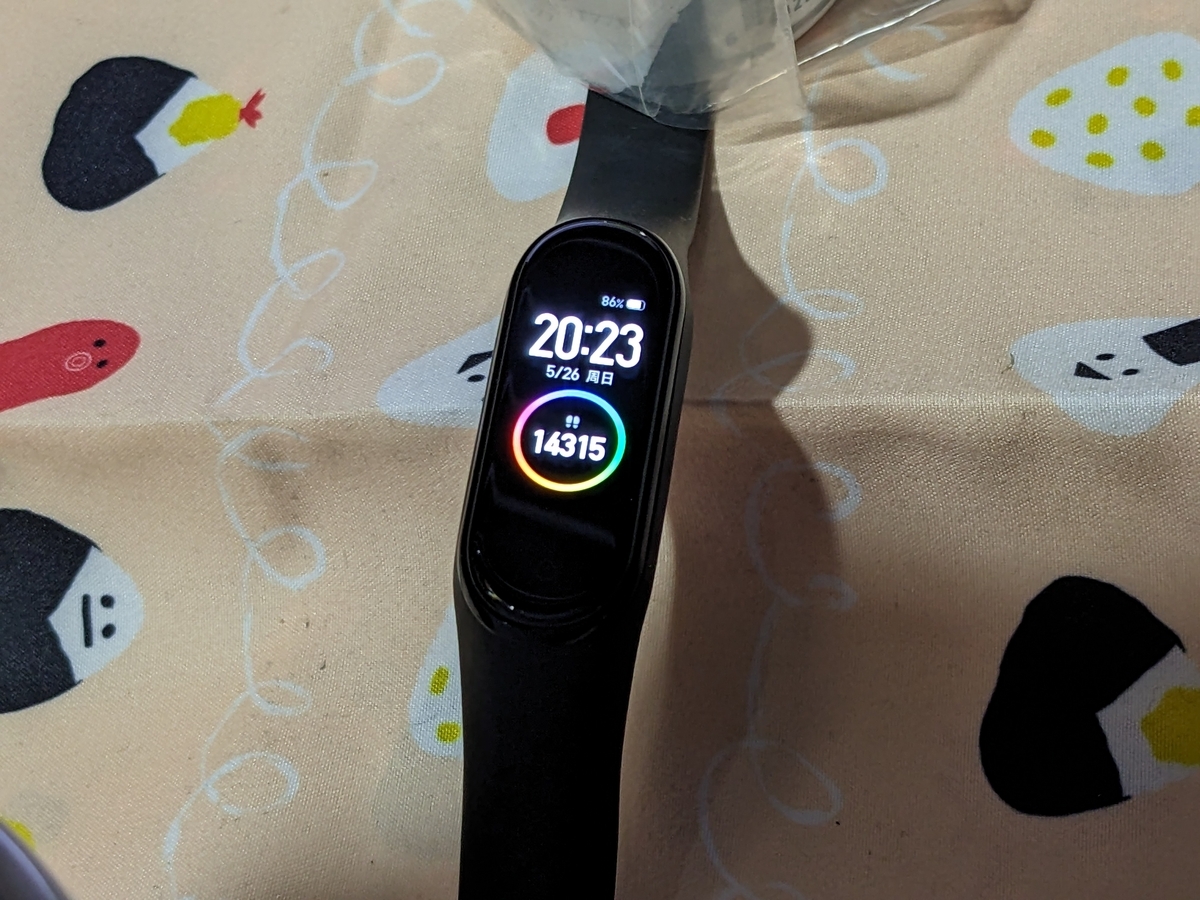
環境
- スマホ:Pixel4 XL(android 13)
- 活動量計:MI Band4
充電
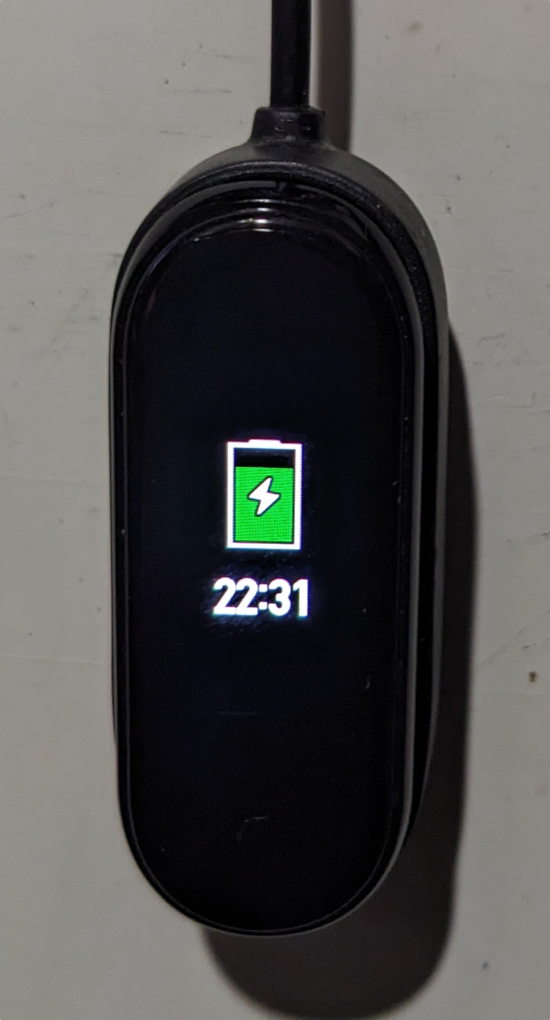
4年以上過放電状態だったので、充電すらできないかもと覚悟してた。バッテリは500円位で売ってるみたいなのでダメだったらバッテリ交換かと思ってたけど、バッテリが届くまで使えないので充電できることを願いつつ充電を試みた。
充電を開始して、パネルにタッチすると充電中の表示になるはずが、何も表示されなかったけど、10分位してタッチしてみたら充電中の表示になった。
アプリのインストール
アプリでペアリングの手順を踏んでもMI Band4を検出してくれない。。。
アプリの名前はMI Fitだったよなぁとうる覚えで、間違ってMI Fittnessをインストールしてた。入れるアプリを間違えてたからアプリがMI Band4を認識してくれなかったという落ち。
で、MI Fitは名前が変わって、Zepp Lifeになってた。
気を取り直して、Zepp Lifeをストアからインストール。
アプリを使うにはログインが必要なんだけど、昔作ったアカウントのパスワードを忘れたので、当時のメールアドレスでアカウントの復活を試みたけどうまくいかず断念。Gmailのアドレスでアカウントを作り直した。
ペアリング
アプリでペアリングする前に、Androidの設定でbluetoothのペアリングをしてあったので、この設定を削除してアプリのペアリングを始めた。(公式にもペアリングできないときはOSのペアリングを解除して行うようにと書かれてた)
この先は、普通にペアリングを進めるだけ。
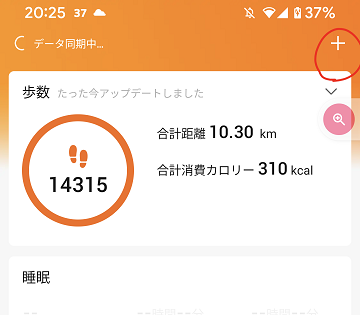
アプリの右上の「+」をタップして、(画像は既にペアリング後の表示になってる)
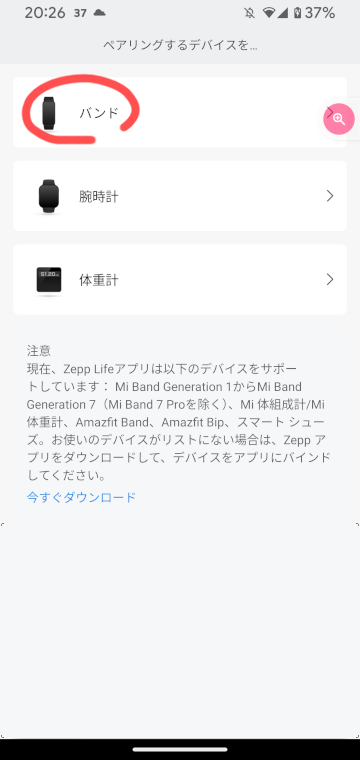
バンドをタップして、
情報収集に同意して、
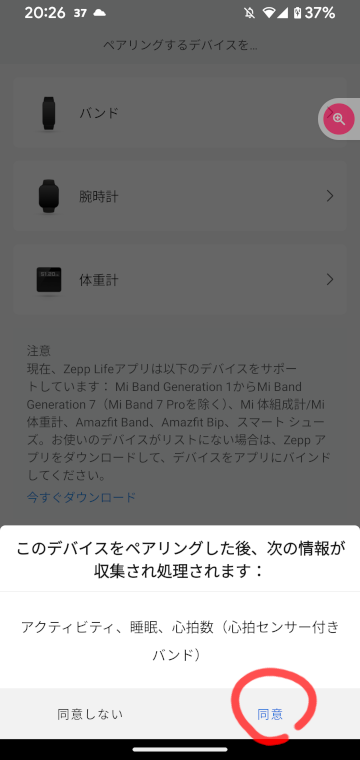
QRコードがありませんをタップすと、
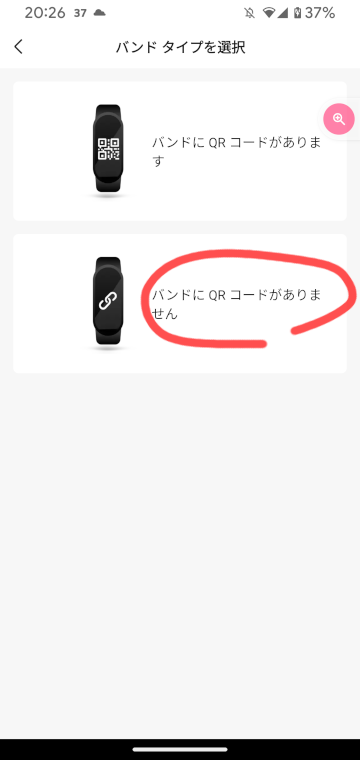
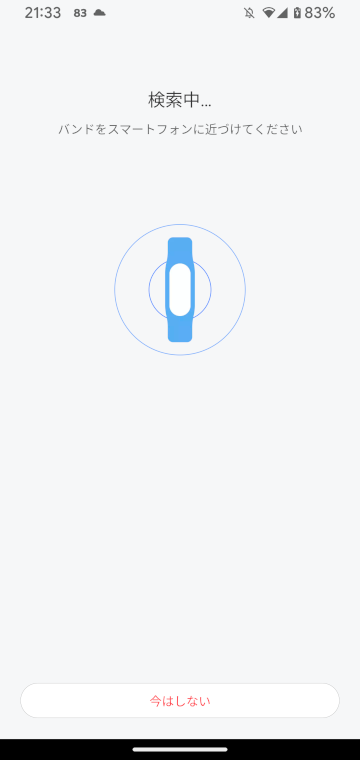
するとMI Bandを探し始める。10秒か15秒位したらMI Bandを検出した。するとMI Band本体にペアリングを許可するかというダイアログが出るので許可を押したら完了する。
設定とバッテリの持ち
記録に関わる設定ってどこよ?って何回もなったのでメモ。
右下の「プロフィール」をタップして、「マイデバイス」の中のMI Band4をタップする。
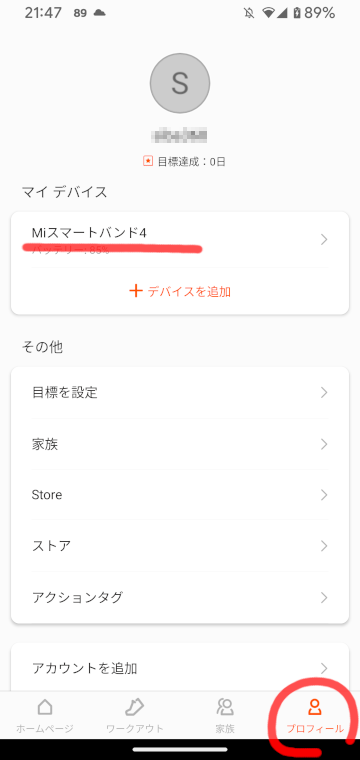
すると設定画面になる。
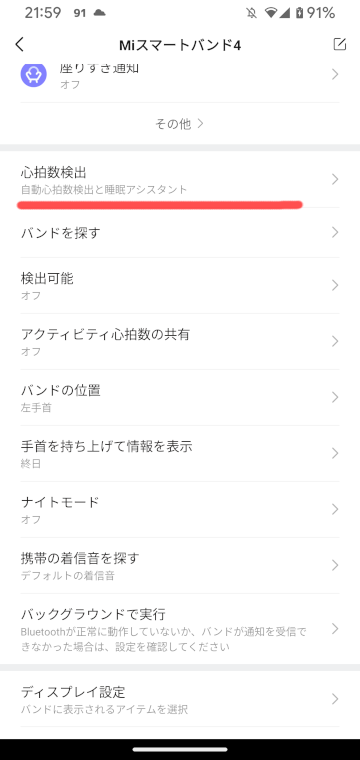
ここで、赤線の「心拍数検出」に「自動心拍数検出」や「睡眠アシスタント」を選ぶと、バッテリの持ちが悪くなるという警告が出る。
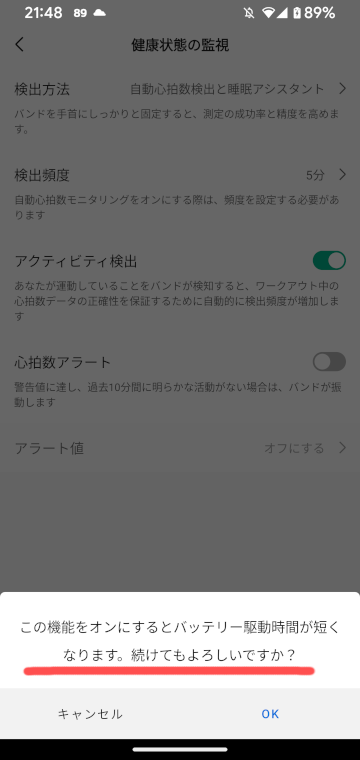
スマホのバッテリを消費するのか、MI Bandのバッテリを消費するのか分からない。。。
睡眠アシスタントが睡眠時間を取得するものなのか、もっと気の利いたものなのか分からないけど、取れるものは取ってみようということでオンにしといた。
この状態で、6時間程使ってみたら(内3時間散歩で約14000歩)バッテリの残量は84%。1日でこの4倍消費するとしたら1日で残量40%になっちゃう。設定オンにしたからなのかバッテリがダメなのか分からないけどしばらくは毎日充電して使ってみよう。スマホ側の消費量にはあまり影響してないように見えるけどはっきりはしない。
2024/05/12 追記
使い始めた翌日、バッテリ消費が激しいので自動心拍数検出をオフにして使い続けたら、使い始めから19日でMI band4のバッテリ残量が10%になった。これだけ持てば十分。スマホのバッテリ消費量はMI band4を使い始める前から大きくは変わってない様子。
気が向いたら感想をお願いします。(ログイン不要、ボタンを押すだけです)
小学一年生 ドラえもん おしゃべりウォッチの修理:その1
これチョーかわいいと娘がメルカリで見つけたドラえもん おしゃべりウォッチ。1998年の小学一年生を6か月予約した際にもらえたサービス品らしい。26年も前のものだから電池が液漏れしていて修理は難航することを覚悟の上でぽちった。
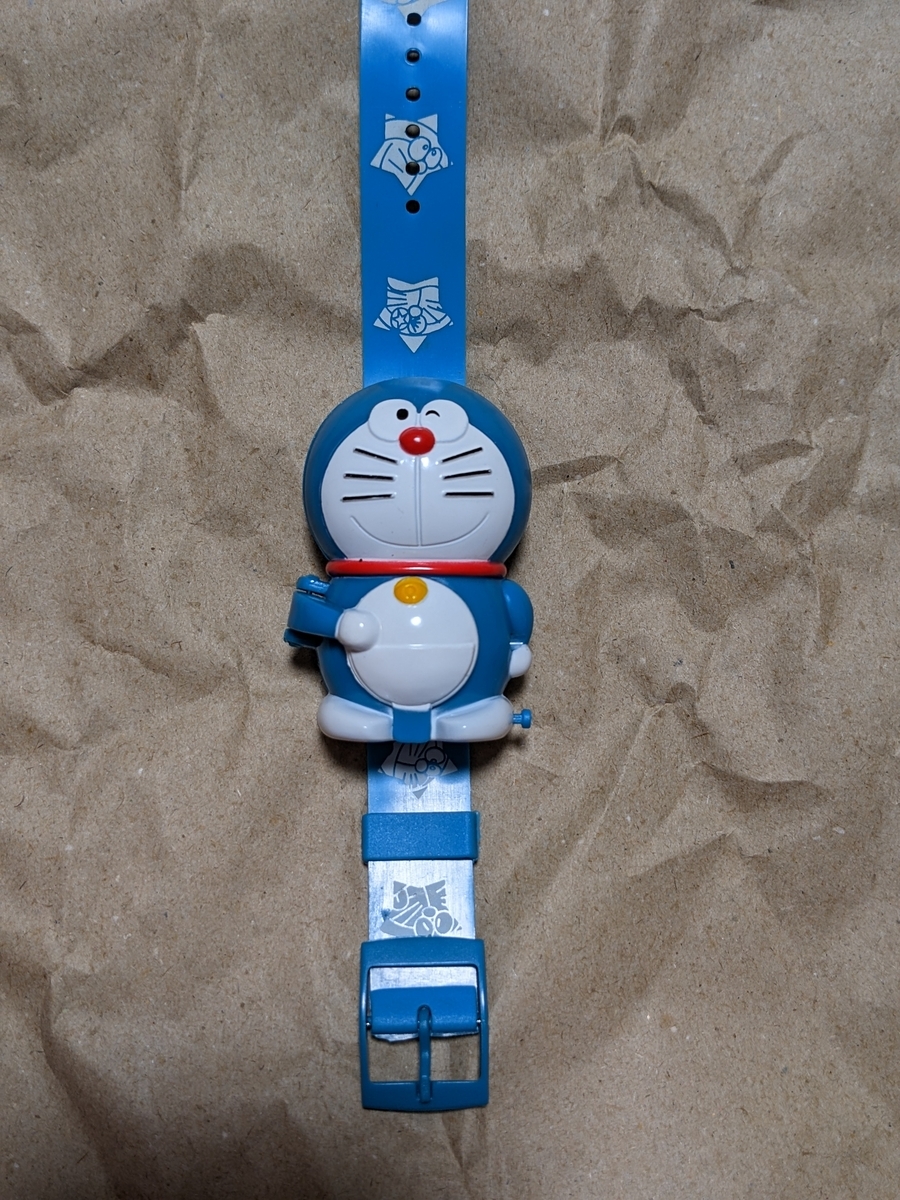
小学一年生 ドラえもん おしゃべりウォッチ
お腹が開いて「ぼくドラえもん、今何時でしょう?」としゃべる、らしい。

開いたお腹の中にはLCDがあり、時間が表示されるらしい。

取説はこんな感じで簡単なデジタルウォッチ。

で、やってきたおしゃべりウォッチは電池を入れ替えてもおしゃべりもしなければ、時計も表示しない。まあ、液漏れで見るも無残か状態だったから。
外装の分解
基板は2枚で、しゃべる基板と時計の2つが完全に独立してる。電池も別々になってて、それぞれ単独で動作する構成になってる。

スピーカと時計ははまる部分のケース側の縁を溶かして固定してあった。半田ごてでジュルッとして固定している模様。軽く引っ張ってパキッと外せた。
分解に難しいところは無いけど、お腹が開く軸の部分にお腹がパカッと開くバネが入っててとても小さいので無くなさないように注意。

おしゃべり部の修理:一旦断念
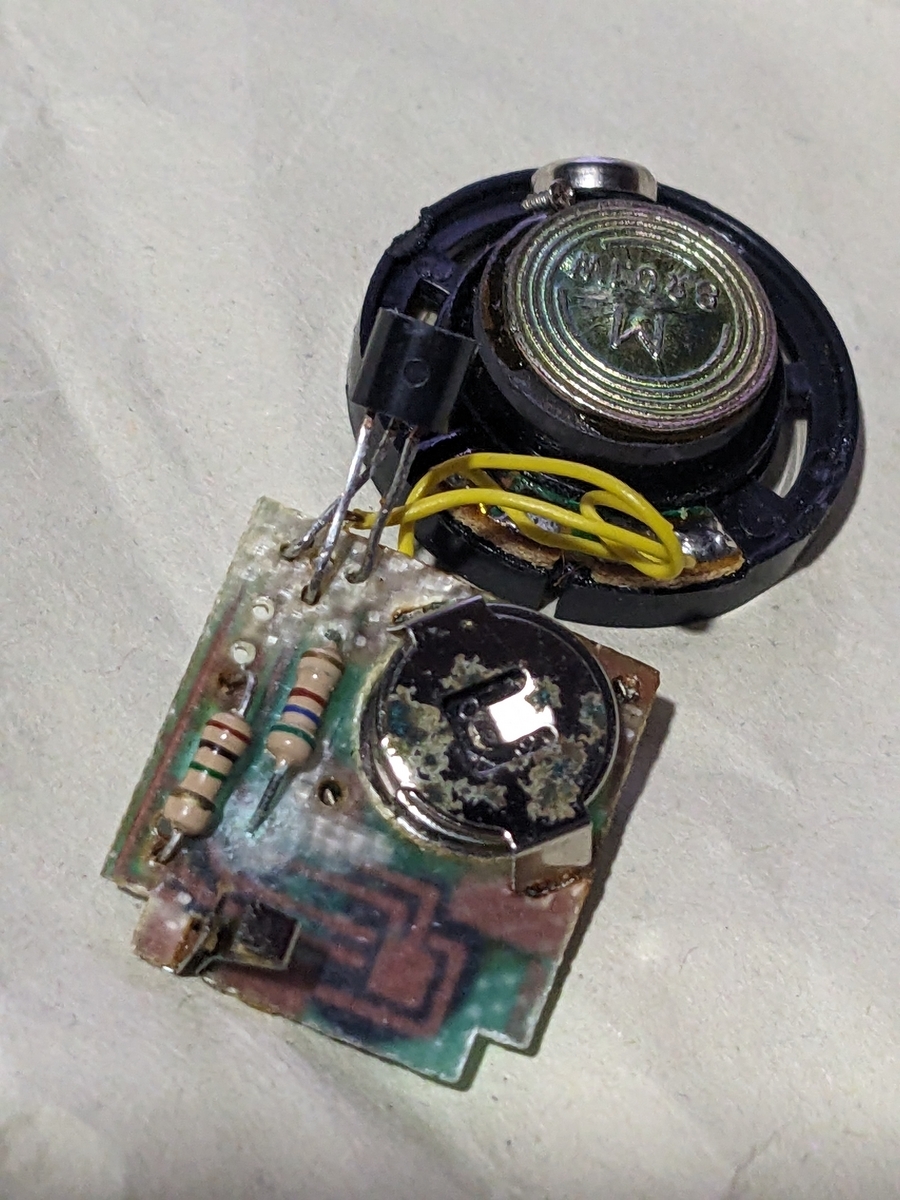
パッと見で、電池は液漏れ、電池周辺の半田は触ると崩れる状態、トランジスタの足も腐ってる。

80年代のオーディオを何台か修理した経験上、トランジスタの足が緑になってるとトランジスタはお亡くなりになってる。生きてても特性を維持できてない。
トランジスタの型番を調べてみる。

S8050と書いてある。
これはFairchild、またはそのセカンドソース、または不正コピー版があるみたい。
回路的には1石エミッタ接地のアンプだろうと推測して、手持ちの2SC2120に変えて見た。

パターンの劣化が激しくて、フラックスを使ってもはんだが乗らない。あまり熱をかけ続けるとパターンが剥がれそうなので芋半のような状態でも導通してれば良しとした。
で、電池を交換してみるも動かず。下手に触ると修理不可になりそうなのでおしゃべり部は一旦ここで中断。そのうちじっくり見てみることにする。
ちなみにS8050と2SC1815が足の並びが違う。S8050は左からEBC。

2SC2120はお馴染みのECB(エクボ)。

なので足を入れ替えてあげる必要がある。
時計部の修理:一旦断念
娘が動かなくてもいいから学校に着けてくっていうので組み上げて渡してしまった。始めたからには完動品を作りたいと思って、もう一個ぽちった。
で、こいつもおしゃべり部、時計ぼ共に同じような状態だったのでこっちの時計部の修理を試みる。
LCDが液漏れを越してるけど、これは後回し。
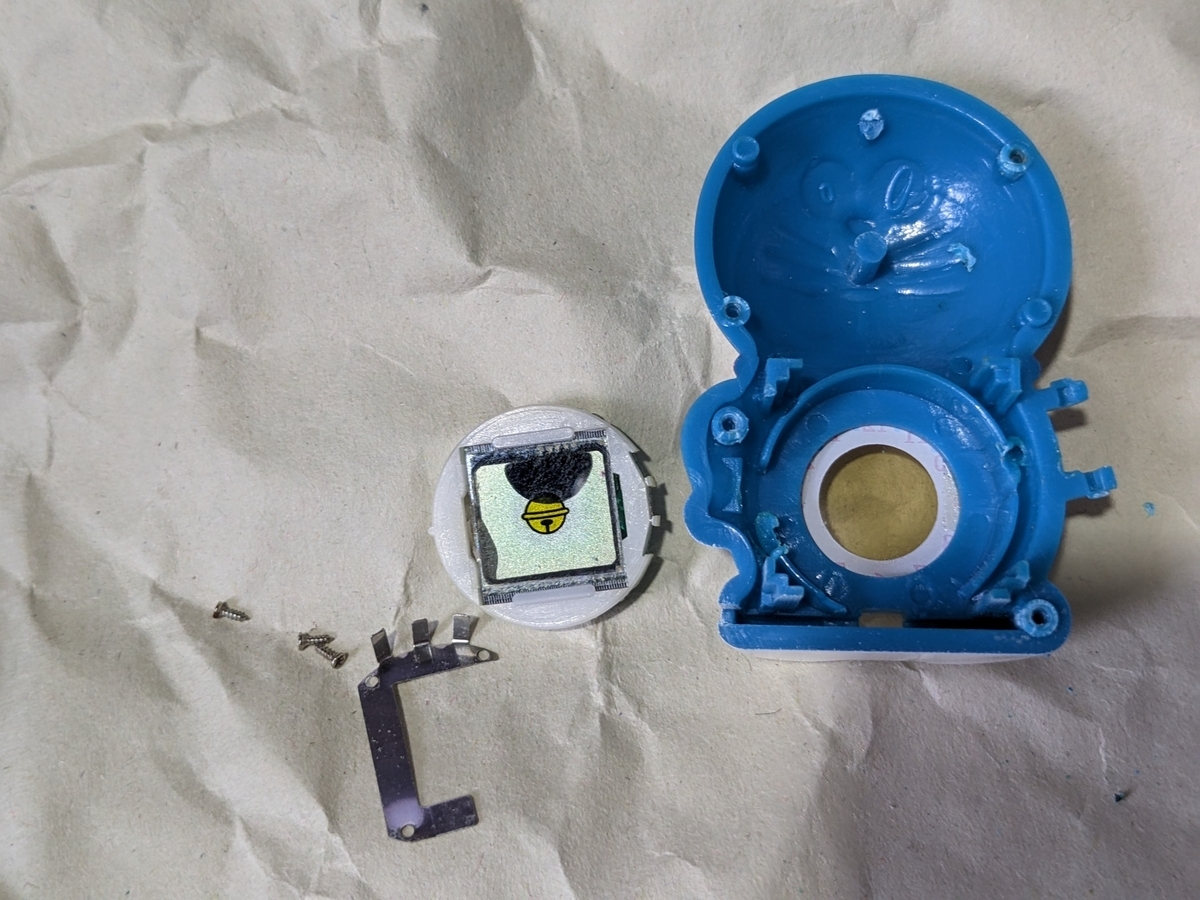
時計のユニットを分解。液漏れの被害が広範囲に渡ってる。
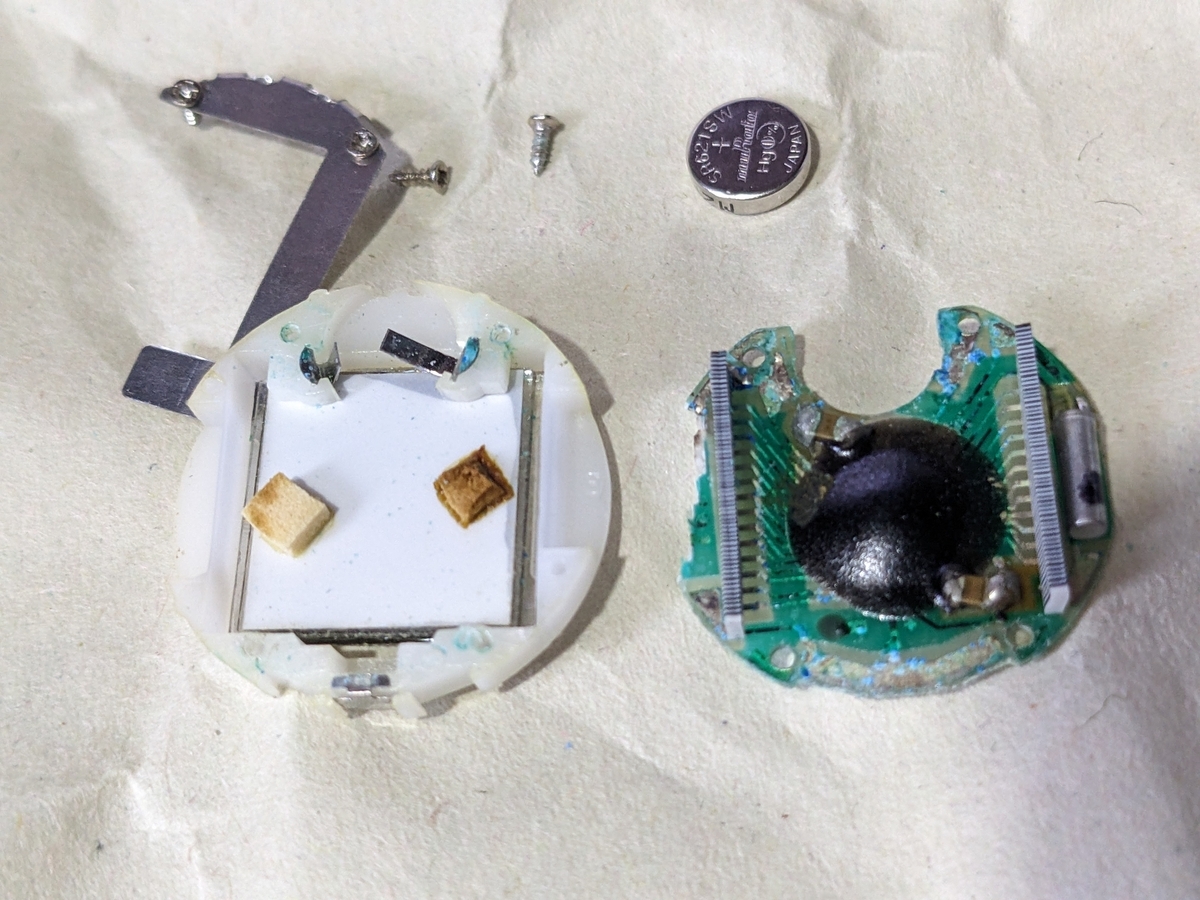
緑に腐食している部分を優しく磨いて組み上げてみるも動かず。
そこで、オシロで発振子の端子を観測すると発振していない。
当然、LCDの信号線も沈黙。
電池の端子と基板間の接触も怪しいが、組み上げると電源ラインにプローブをあてることができない。なのでこんな感じのバラックにした。

電源を単三電池にして、基板のパターンの負担を減らすために0.3mmのホルマル線でブレッドボードを経由してある。基板に刺さってる赤いのはLEDじゃやなくて、基板をコルクボードに固定するためのピン(画鋲みたいなやつ)。
これでも水晶発振子、LCDの信号ともに沈黙。
じっくり基板を見てる発信子の半田が割れてた。写真では分かりにくいけど肉眼で見ると浮き上がってるのが分かる。

で、半田を盛りなおした。古いはんだに含まれてた不純物とか基板表面の汚れのせいか、熱を加えた個所は真っ黒になる。

古い半田を取って、基板も洗ってやり直したいけど、いじるとどんどんパターンが痛んでいくのでこのまま進める。
おおっ!発振した。

LCDの信号線もそれっぽい動きをし始めた。これでけるのでは?

で、組み上げてみるとダメだった。。。
部品が少ないので後は、コンデンサ、LCD、導電ゴムくらいしか打てる手が無い。
コンデンサは容量が分からないので、適当に1uF、0.1uF、0.01uFに変えて見るくらいか。LCDはもう一個の個体と入れ替えてみるか。導電ゴムは100均で用意してあるんだけど今日はめんどくさい。
ということで、今日はここまで。
次回に続く予定。
気が向いたら感想をお願いします。(ログイン不要、ボタンを押すだけです)
プランターの水やり
今、スペアミントとレモンバームを育ててるんだけど水やりのタイミングのメモ。
根腐れや病気にさせないため、土の表面が乾いたらたっぷり水をあげるのが基本だけど、プランターで何度も失敗しながら表面が乾くってどれくらい?と思ってた。やっと分かってきた気がするのでそのメモです。
5/3、少し乾き始めてるけど、まだ水分を含んだ土が黒っぽく見えてる。
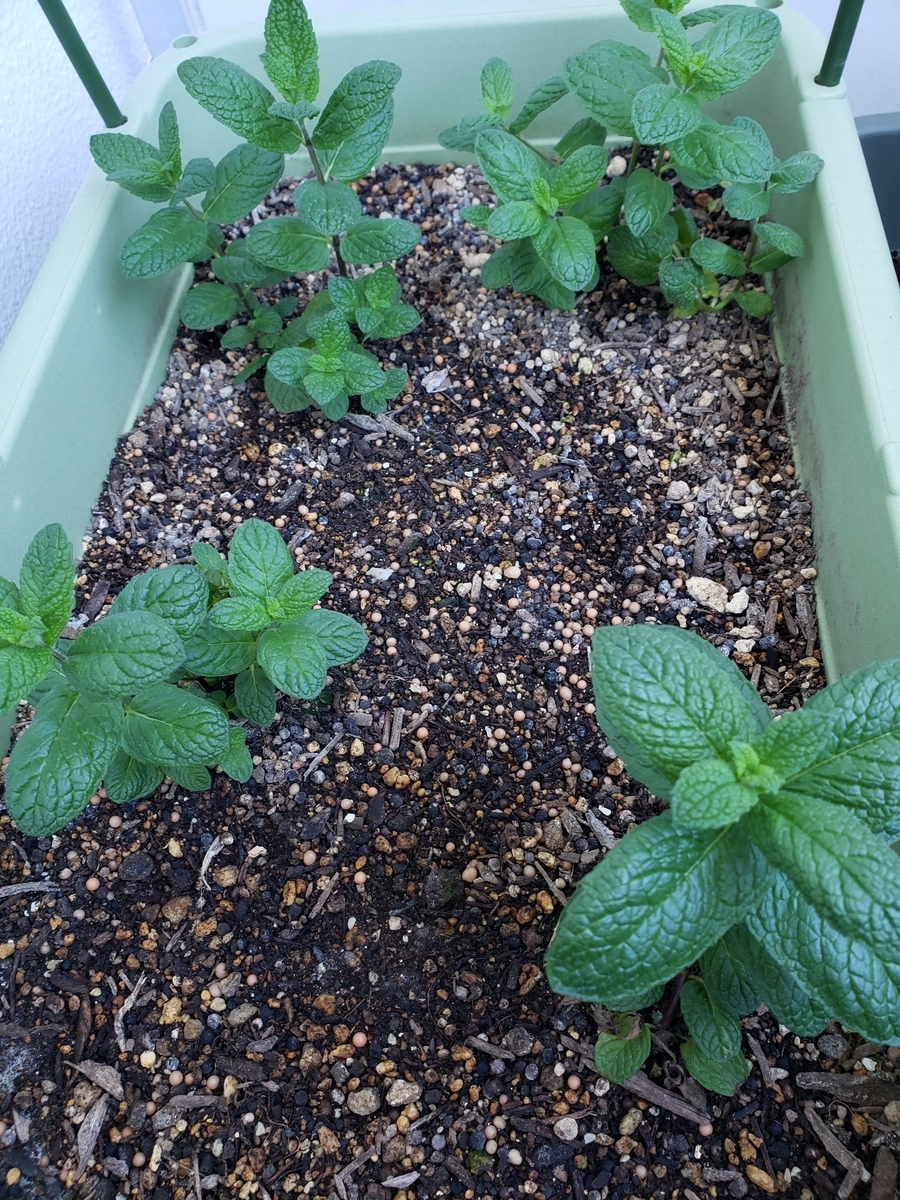
2日後の5/5、まだ水分を含んだ土が見えてる。
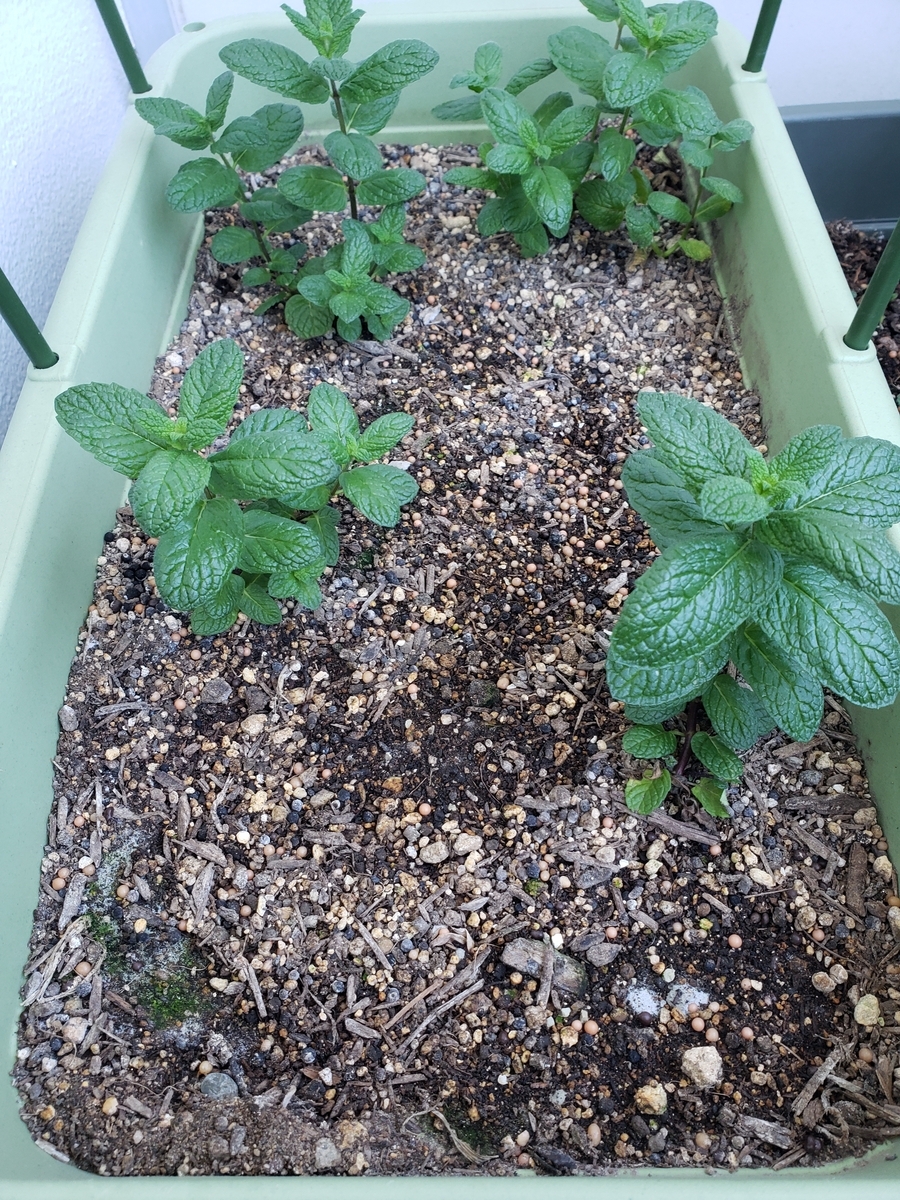
更に3日後の5/8、概ね乾いたので水を与える。
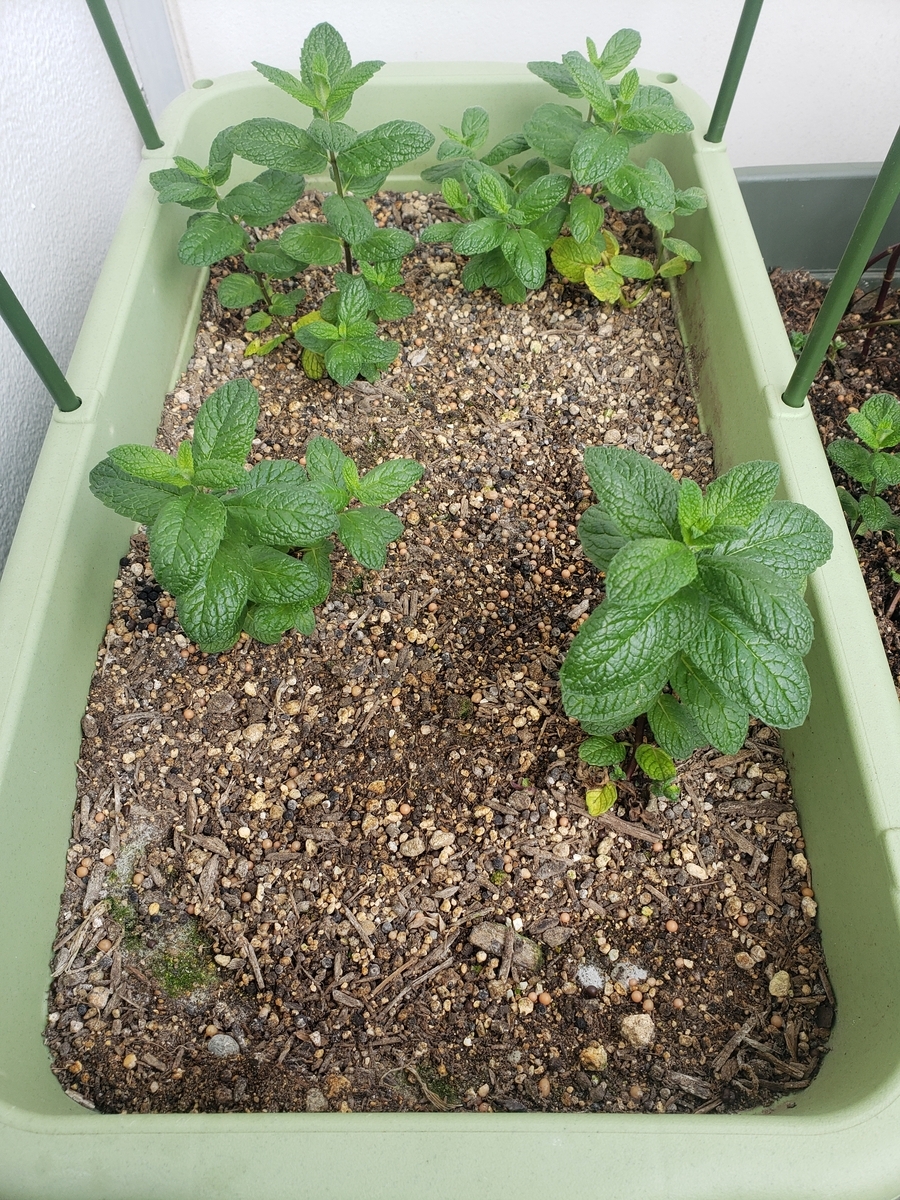
使う土の種類によって乾いた時の見え方は違うけど、表面の土を手に取って指先で揉んでもサラサラしてる状態になったのを水やりの合図にしてる。
以前にこのやり方でキウイは立派に育った。けど、3年目春に水やりを忘れて枯れてしまった。。。
使ってる土は5年位前に買った野菜用の土。
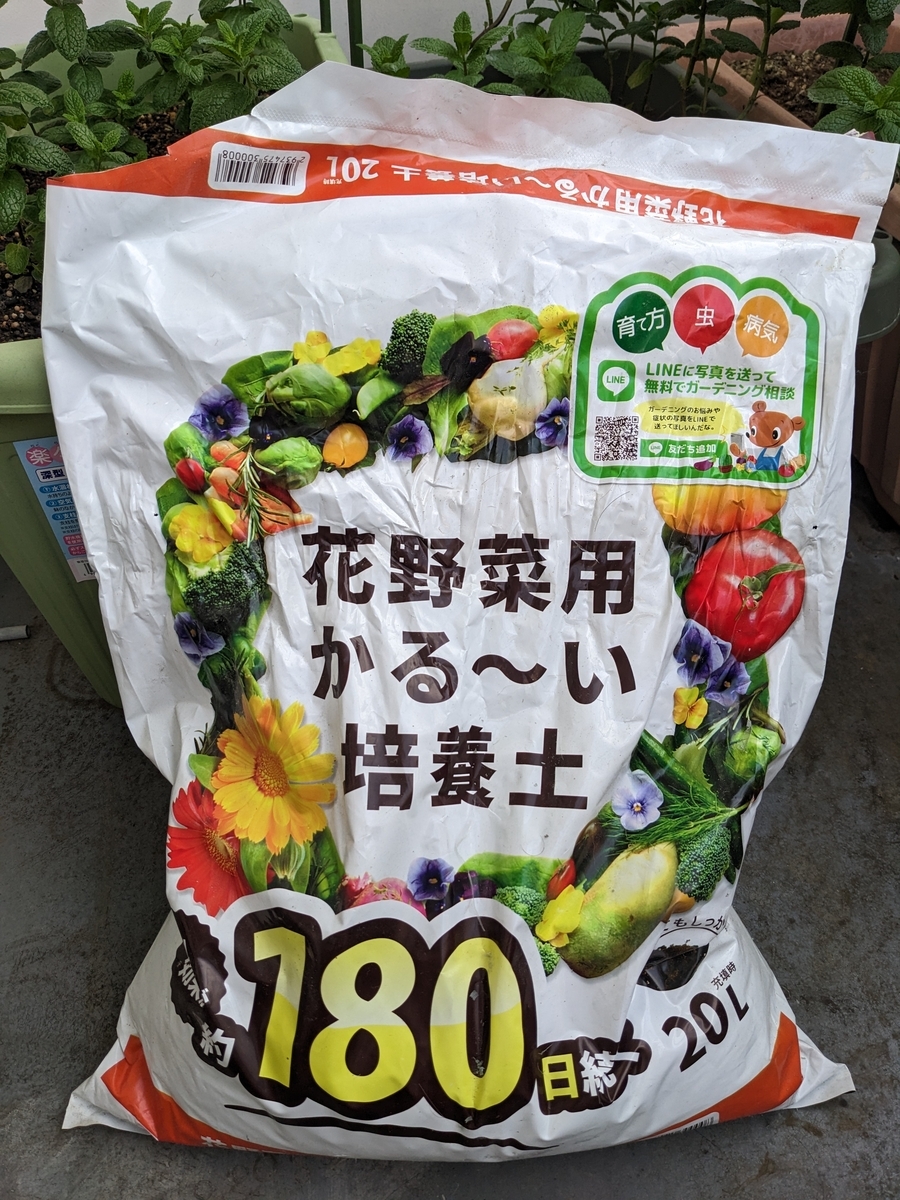
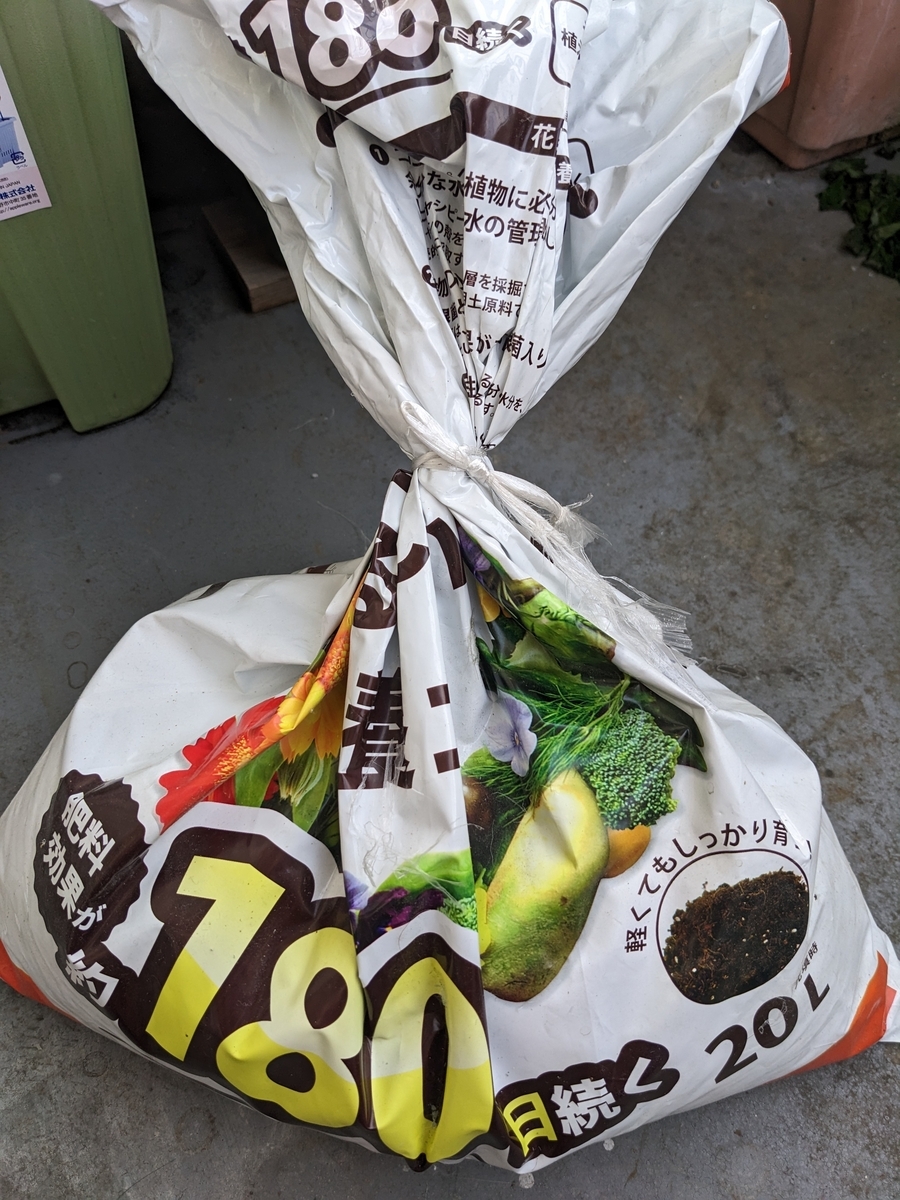
開封後、紐で口を縛って保管してる。
今、プランターに入ってる土は3年前くらいからいろいろ育ててきた土をそのまま使ってる。
今は5月で気温も高くはないので、1週間に一回程度で済んでるけど、夏になったらもっと頻度は上がるので毎日土の状態を見なきゃなぁ。
気が向いたら感想をお願いします。(ログイン不要、ボタンを押すだけです)
